OMS Dashboard (Reports v2)
Audience: Pharmacy owners, ops managers, and CS leads who need one screen for e-commerce order health.
Purpose: Front door to the OMS Dashboard — six tabs that share one date range and warehouse filter. Each Overview number is defined in full on the tab it drills into.
Release: Ailaaj One 1.5.4 — OMS Dashboard. Companion: Operations Intelligence (load and staff credit, not this dashboard).
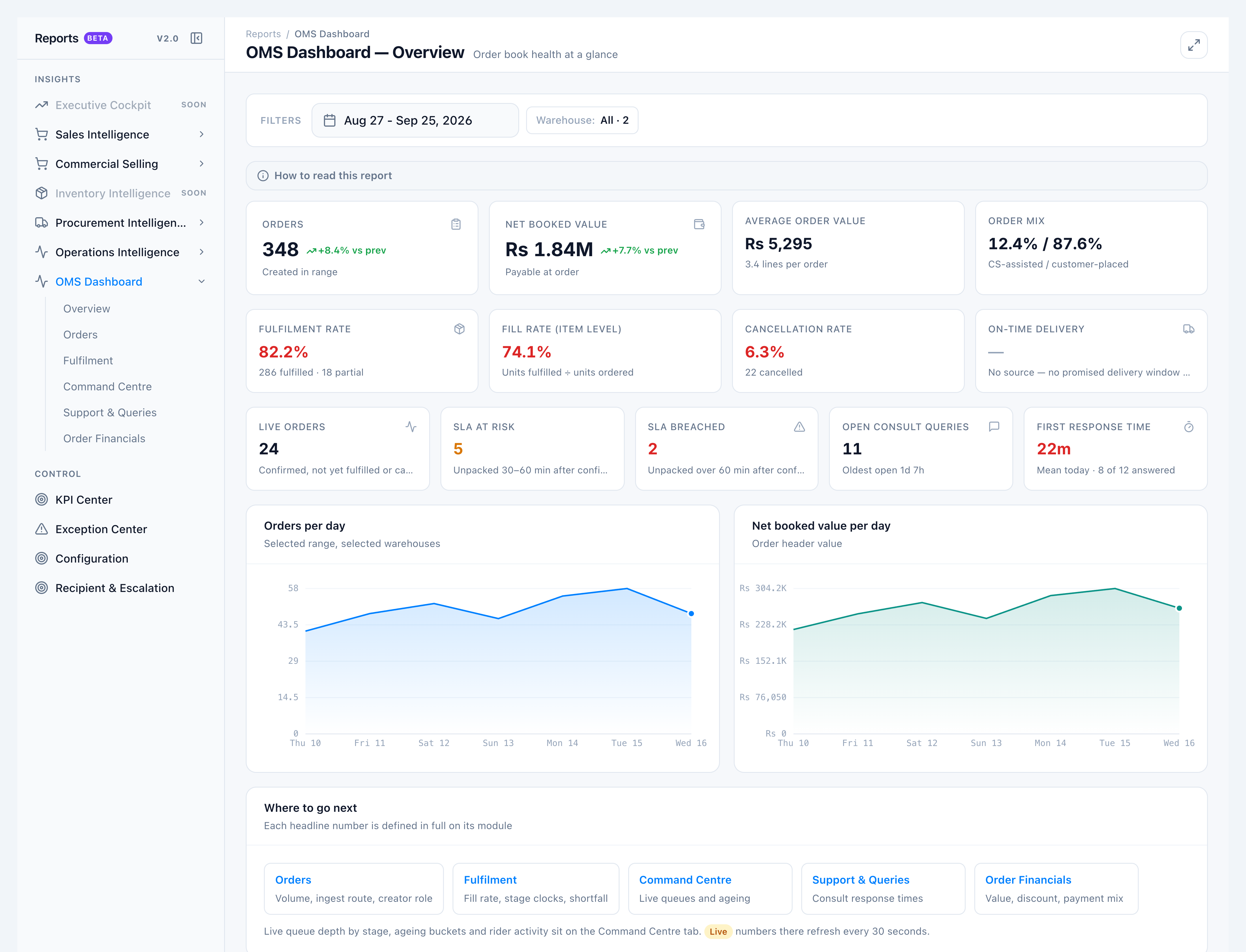
On our own e-commerce floor we used to open Orders, Fulfilment Queue, and the consult inbox just to answer “how is today going?” OMS Dashboard puts those answers on one Reports v2 screen: booked orders, fill rate, live SLA risk, first response today, and booked vs delivered value.
Pick the kind of help you need
The Academy organises every guide as learn, do, look up, understand.
The screen
How to get there
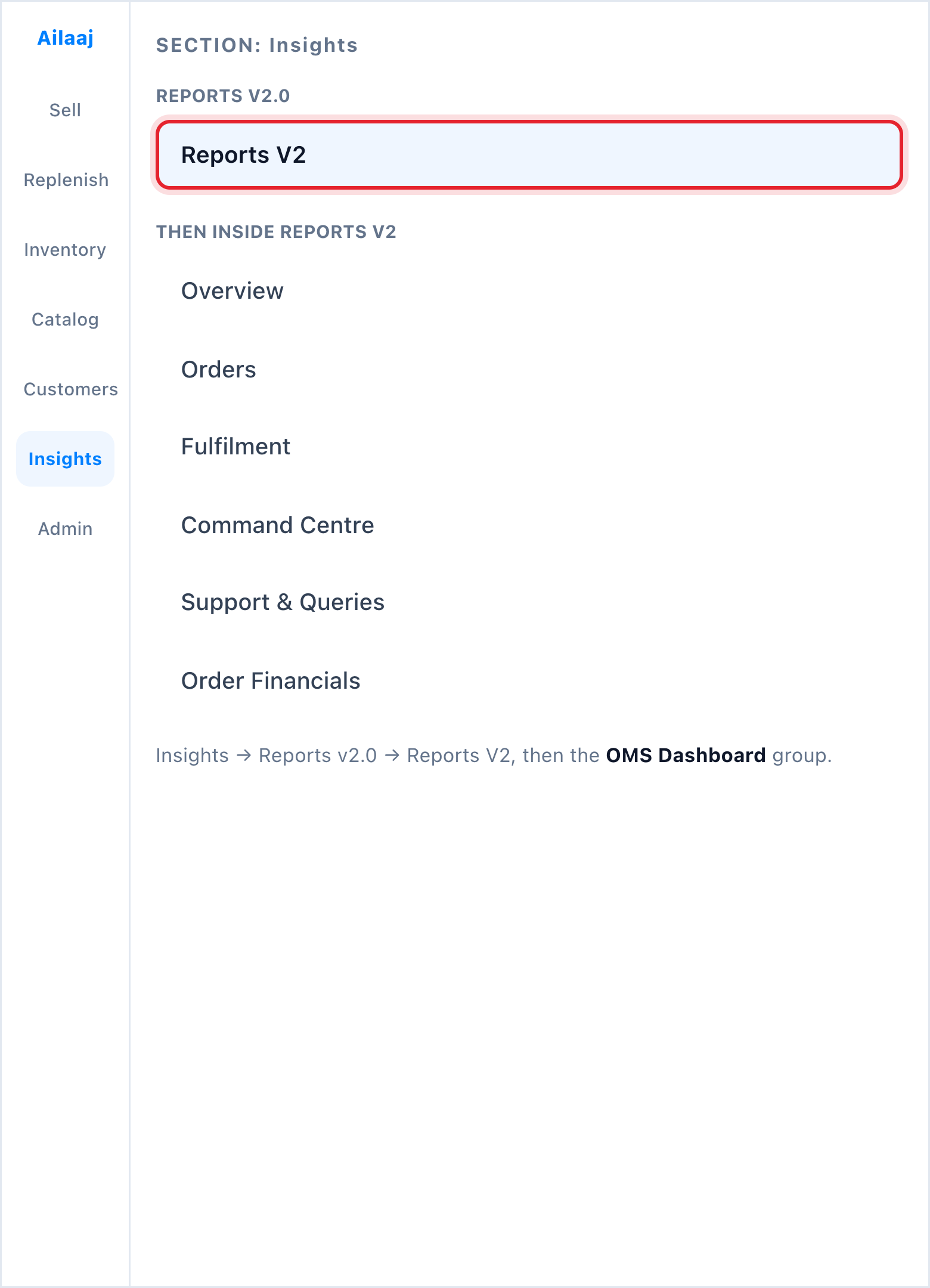
- In the app sidebar: Insights → Reports v2.0 → Reports V2.
- In the Reports v2 left rail: Insights → OMS Dashboard.
- Open a tab: Overview, Orders, Fulfilment, Command Centre, Support & Queries, or Order Financials.
You need View OMS Dashboard (order.reports.oms_dashboard). Order Financials also needs View OMS Dashboard - Order Financials (order.reports.oms_dashboard_financials).