Inventory Batch Update
Audience: Warehouse managers and pharmacists who keep stock records accurate — plus anyone evaluating or supporting the inventory tools.
Purpose: This is the front door to the Batch Update guide. It explains what the screen does at a glance, then points you to the right page — a single task, a rule, or why the screen behaves the way it does.
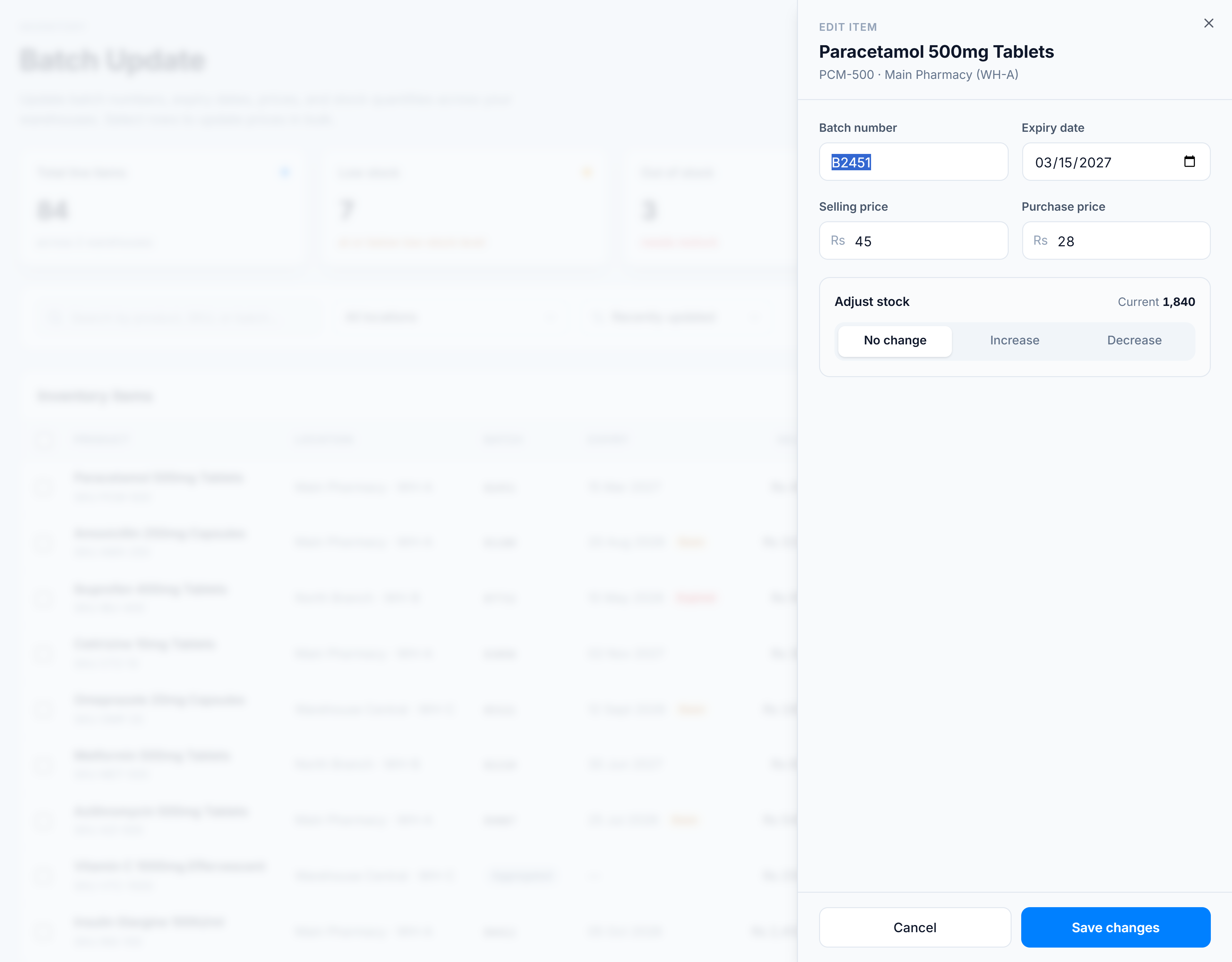
Batch Update is the single screen for correcting and maintaining inventory records. For read-only stock visibility across locations, use Inventory Management (/wms/inventory). From here you can fix a batch number or expiry date, change a selling or purchase price, increase or decrease stock on hand, add adjustment stock that has no purchase order behind it, and update prices on many items at once. Every line is scoped to a store and warehouse, and every field respects your role’s permissions.
Pick the kind of help you need
The Academy organises every guide as learn, do, look up, understand.
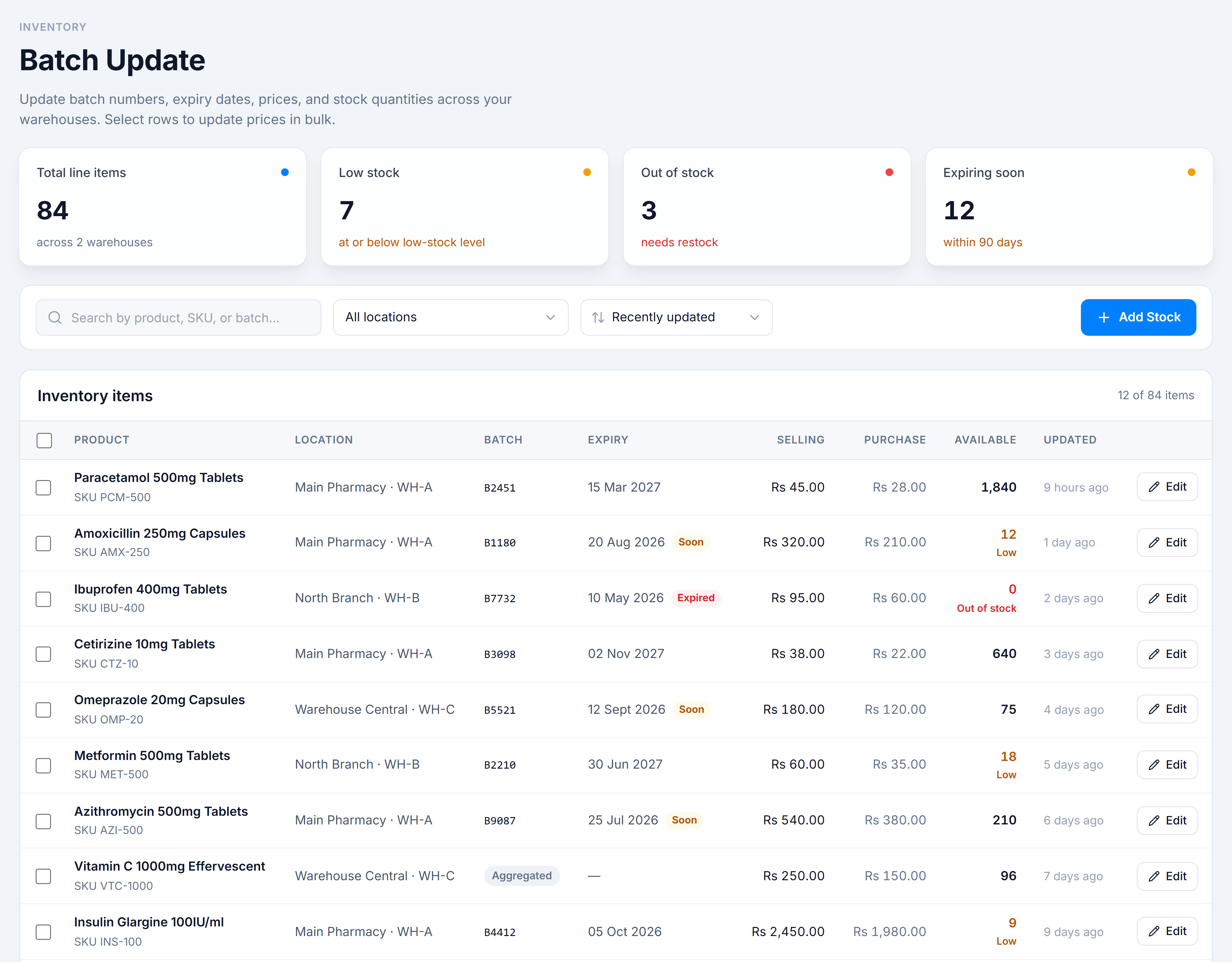
The page opens with a KPI strip (total line items, low stock, out of stock, expiring soon), a filter toolbar (search, location, sort, and Add Stock), and the inventory table. Selecting rows reveals a bulk action bar; the pencil on any row opens an edit drawer on the right.
How to get there
In the app sidebar: Inventory → Controls → Inventory - Batch Update.
The route is /inventory-update.