Rack Campaigns
Audience: Pharmacy owners and admins who run promotions — plus anyone evaluating, selling, or supporting the feature.
Purpose: The front door to Rack Campaigns. It explains the moving parts, then points you to the right page — a task, a rule, or why a feature works the way it does.
Companion guides: the rack itself is part of the Smart Counsellor on the Smart Counter. What shipped: Smart Counter release notes.
A campaign promotes a set of products on the Smart Counsellor Campaigns tab for a date window, optionally paying staff a commission for selling them. You build it in the admin console; cashiers see it live at the counter; you track it in the Commercial reports.
Pick the kind of help you need
The Academy organises every guide as learn, do, look up, understand.
The moving parts
| Concept | What it means |
|---|---|
| Campaign | A named promotion with a start/end date that surfaces chosen SKUs on the rack. |
| Incentive | What staff earn per promoted unit — a fixed amount, a percentage, or a threshold reward. |
| Visibility | How much of the incentive staff see on the rack (amounts, “bonus” only, or hidden). |
| Audience | Which staff roles / stores / departments the campaign applies to. |
| Rack items | The SKUs promoted by the campaign, in priority order. |
Who can manage campaigns: users whose role can manage campaigns — an admin-level permission your owner grants in Role Management. Everyone in your pharmacy sees live campaigns at the counter; only these roles can create or edit them.
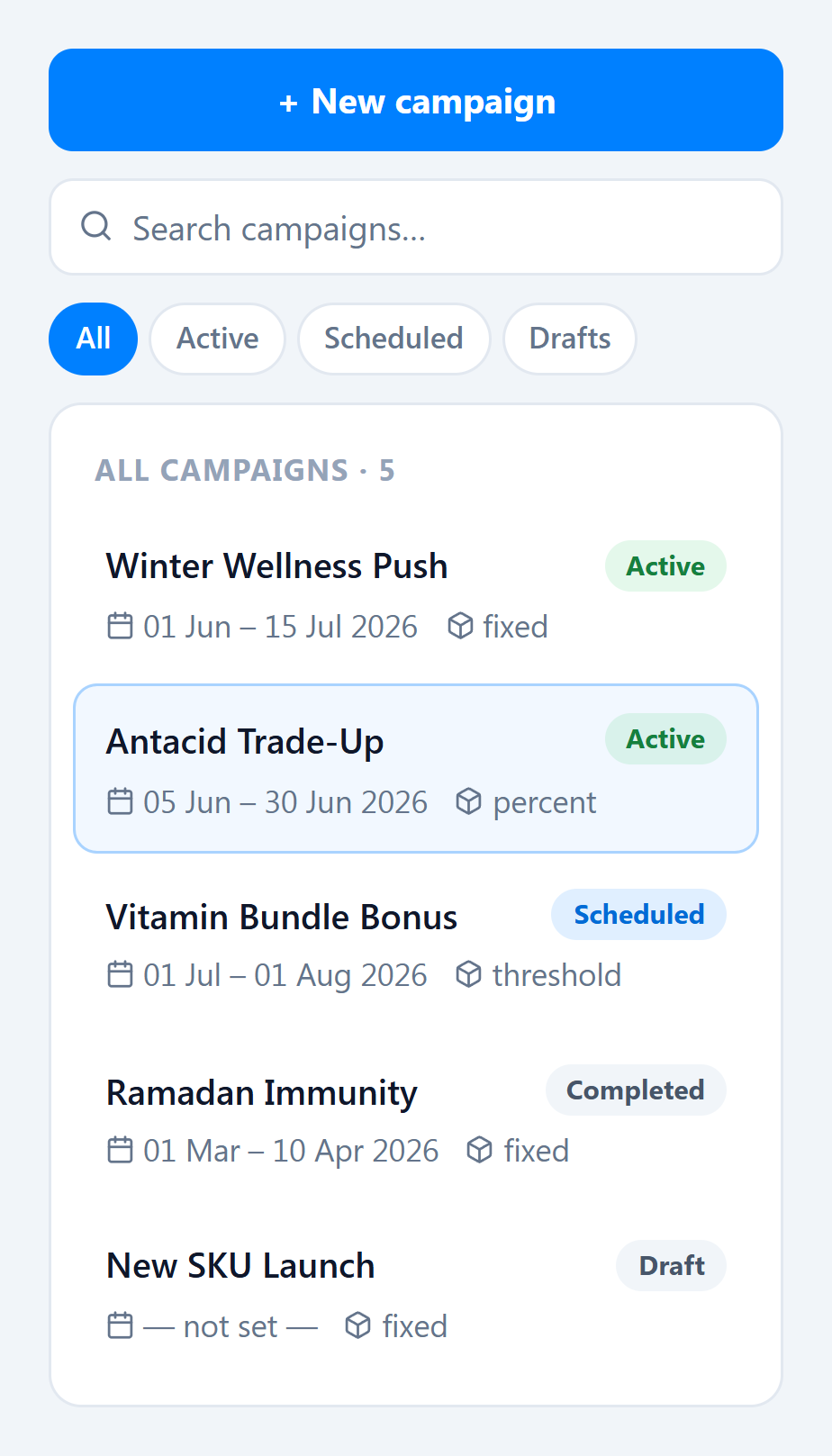
How to get there
In the app sidebar: Admin → Operations → Rack Campaigns (needs a role that can manage campaigns). Cashiers don’t go here — they see live campaigns automatically on the Smart Counter rack.