Goods Received Notes
Audience: Warehouse and procurement staff who receive deliveries and verify them against the invoice — plus anyone evaluating, selling, or supporting the feature.
Purpose: This is the front door to the Goods Received Notes (GRN) guide. It explains the screen at a glance, then points you to the right page — a single task, a rule, or why a feature works the way it does.
A Goods Received Note is the record of stock physically arriving at a warehouse. The GRN list opens with a KPI strip (GRNs this month · Pending · Received value MTD · Open objections), status tabs (All · Draft · Pending · Completed · Cancelled), a filter bar (search, supplier, warehouse, payment, date range), and a table whose rows carry a status pill. From here you create a GRN, open one to process it, print it, or attach its invoice.
Pick the kind of help you need
The Academy organises every guide as learn, do, look up, understand.
The screen
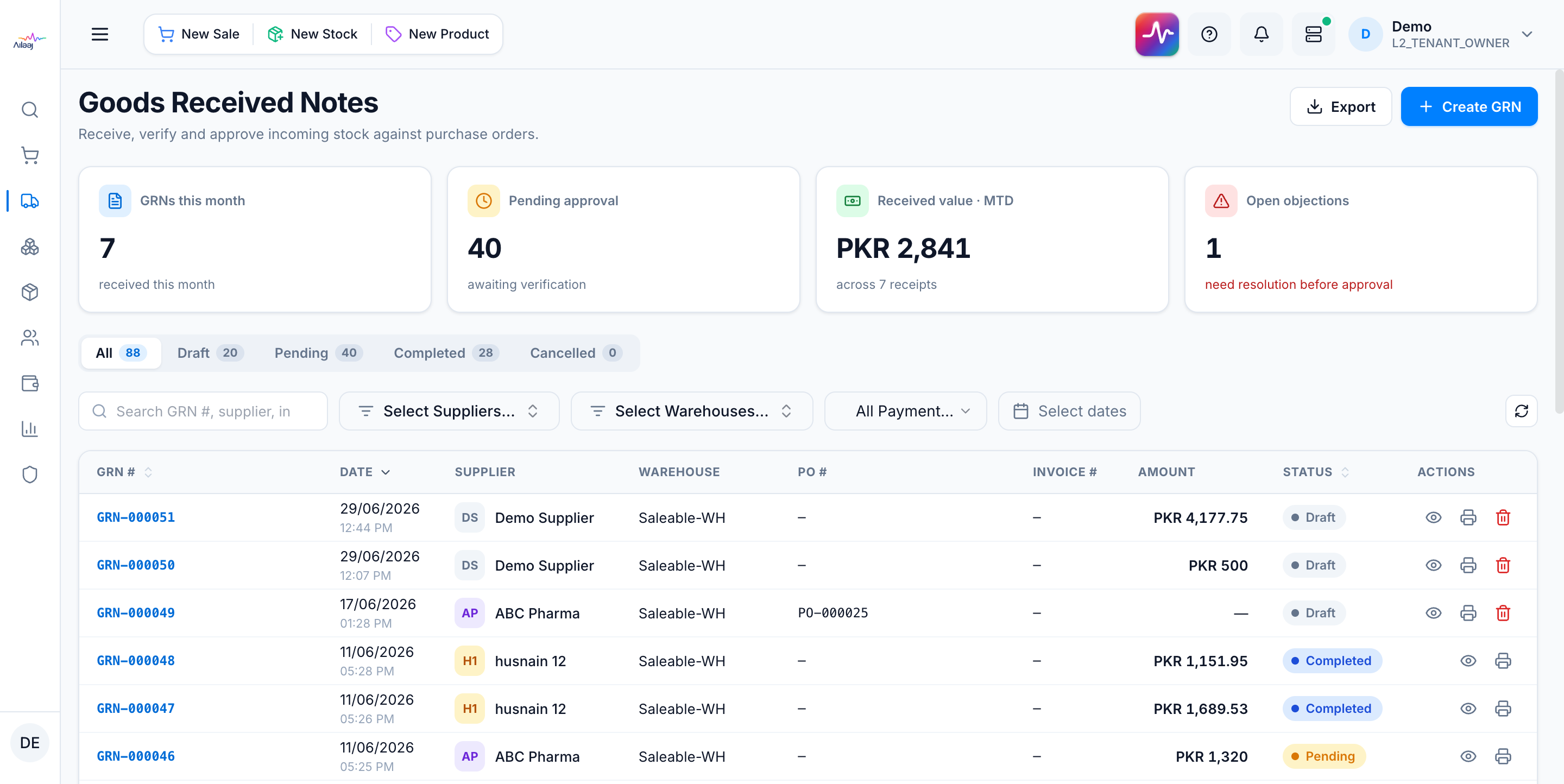
A GRN can be raised two ways:
- Against a purchase order — pick the supplier and an Approved PO, and the lines pre-fill from what was ordered. Store and warehouse lock to the PO.
- No-PO receipt — choose a store + warehouse and add lines by hand, for stock that arrived without a PO (e.g. an immediate buy that was GRN’d directly).
How to get there
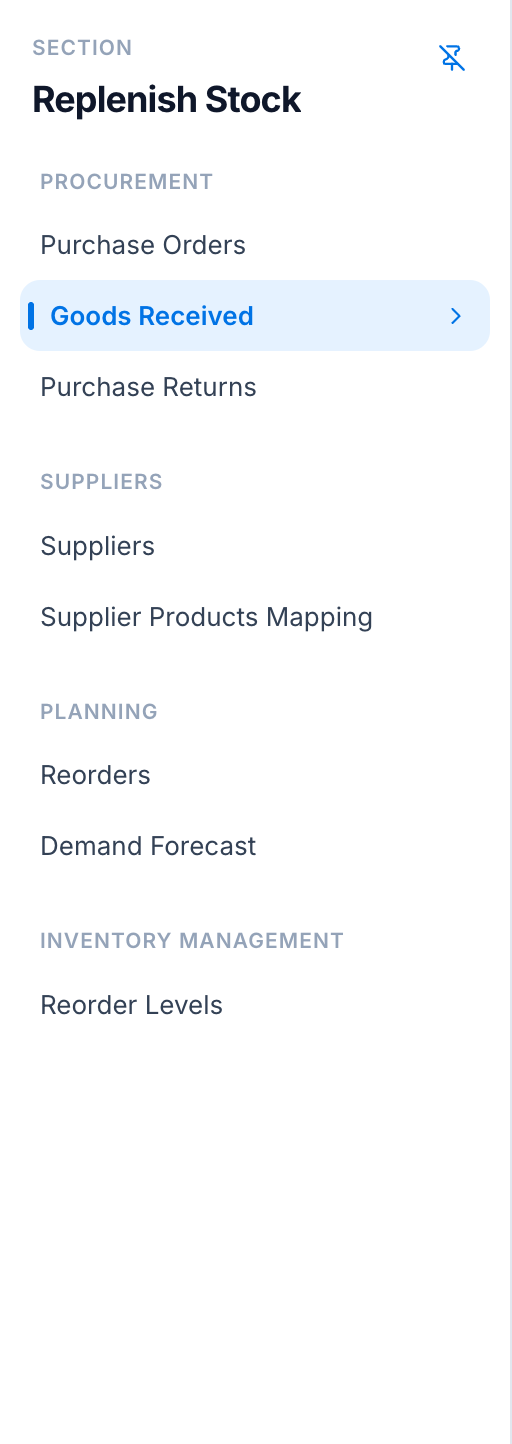
In the left sidebar, open Replenish Stock → Procurement → Goods Received Notes.