Categories (PIMS)
Audience: Catalog managers and pharmacists who maintain the product taxonomy — plus anyone supporting or evaluating PIMS.
Purpose: This is the front door to the Categories guide. It explains the three tabs at a glance, then points you to the right page — a single task, a rule, or why the screen works the way it does.
Categories is where you maintain three related layers of classification:
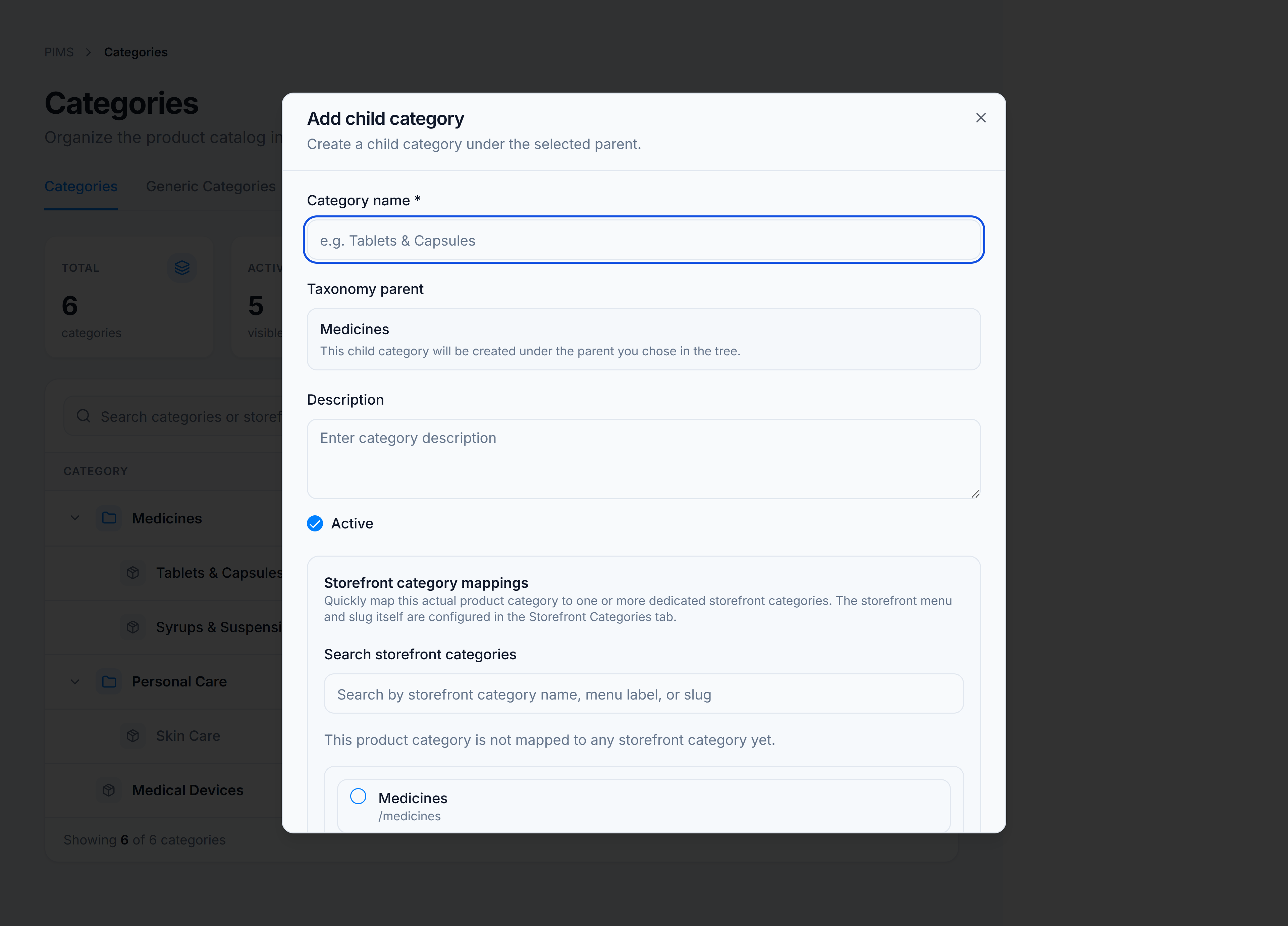
- Product categories — your internal catalog tree (parent/child taxonomy used when assigning products).
- Storefront categories — the customer-facing menu structure (slugs, icons, featured products).
- Generic categories — attribute schemas for regulated product types (medicines, devices, etc.).
Pick the kind of help you need
The Academy organises every guide as learn, do, look up, understand.
The screen
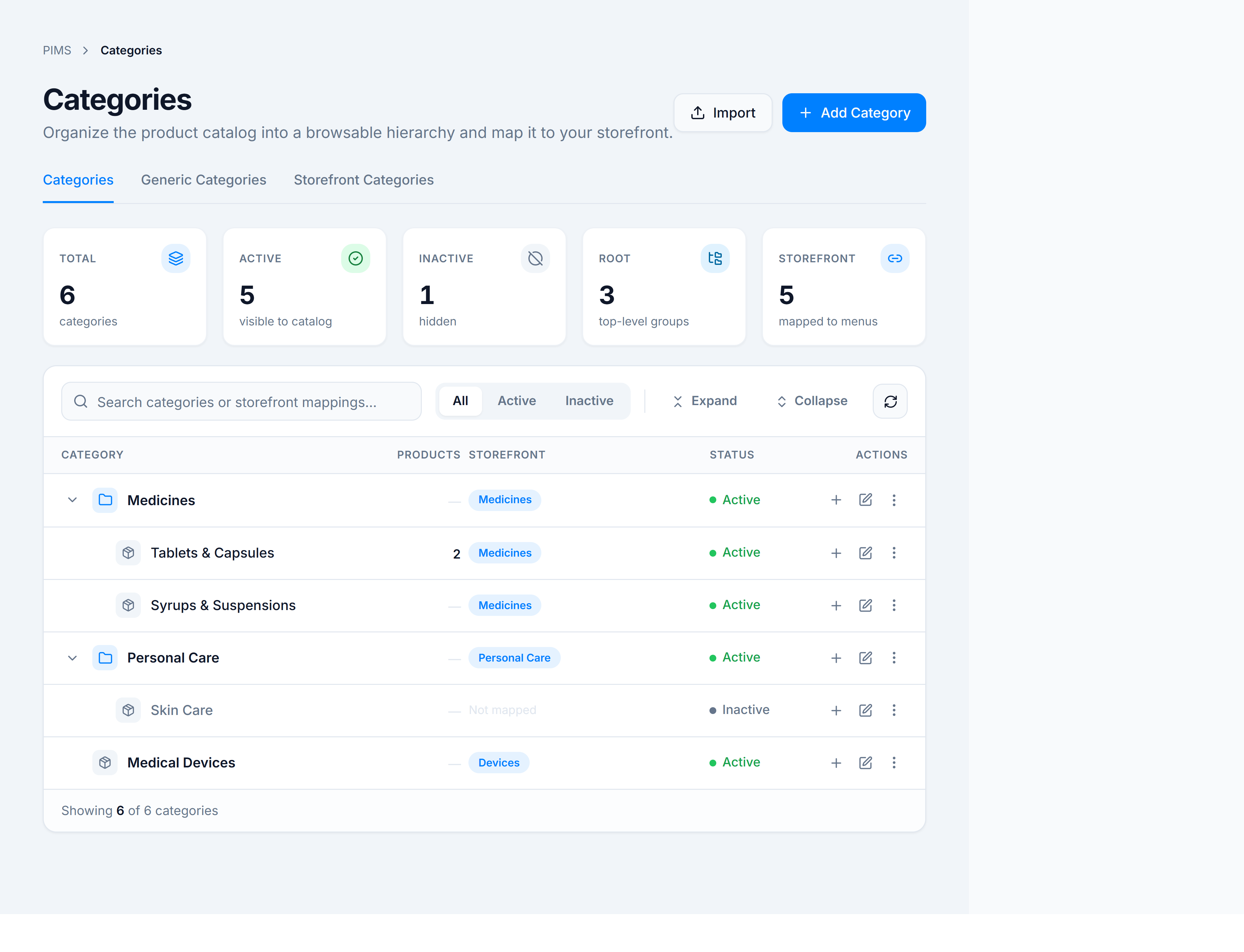
The Categories tab opens with a summary rail (total, active, inactive, root, storefront-mapped), a searchable tree with status filters, and columns for products, storefront mappings, and status. Use Import in the page header for bulk CSV upload, or Add Category for a single root node.
How to get there
In the app sidebar: Catalog → Classification → Categories.
The route is /pims/categories.