Request a feature
Goal: ask for a new capability or a meaningful improvement to an existing flow. Where: Support → Help → Feature Requests (
/support/features), then Request a Feature.
When you’d do this
Use a feature request when:
- The product works as designed, but you need something it does not do yet
- You want a workflow shorter, clearer, or automated
- You have an idea that would help other pharmacies like yours
Use a bug report instead when something is broken or incorrect — see Report a bug.
Steps
-
Open Support → Help → Feature Requests.
-
Click Request a Feature.
-
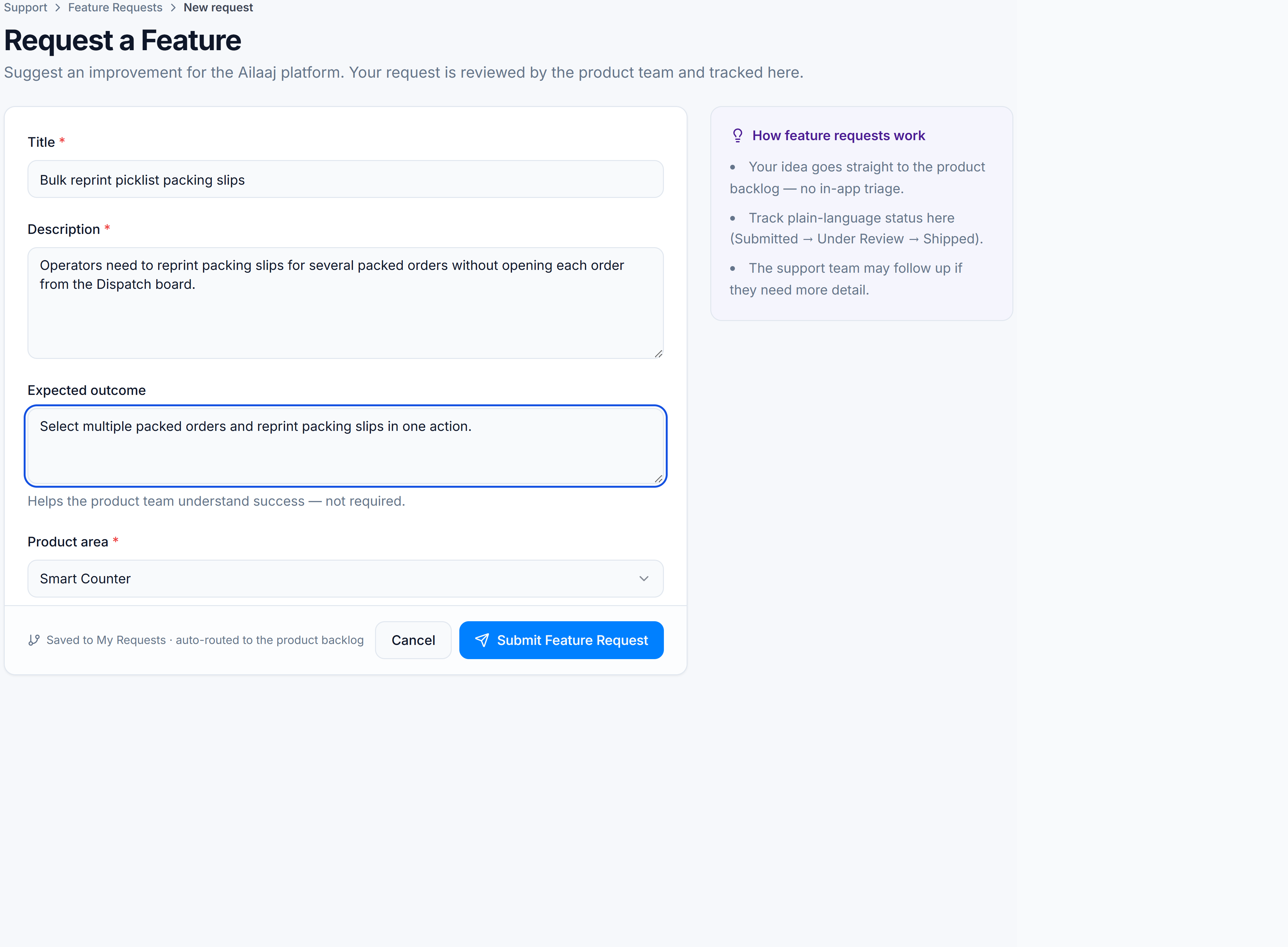
Enter a short Title for the idea.
-
Write a Description of the capability you need and the problem it solves (who benefits, how often).
-
Optionally add an Expected outcome — what “done” looks like for your team.
-
Select a Product area (category):
Category Covers Smart Counter POS / checkout Warehouse (WMS) Procurement, GRN, transfers Catalog (PIMS) Products, brands, categories Orders OMS / fulfillment Inventory Stock levels and adjustments Accounting Ledgers and vouchers Reports Analytics and exports Clinic CMS Clinic surfaces Storefront B2C storefront Other Anything else -
Click Submit Feature Request.
Success looks like
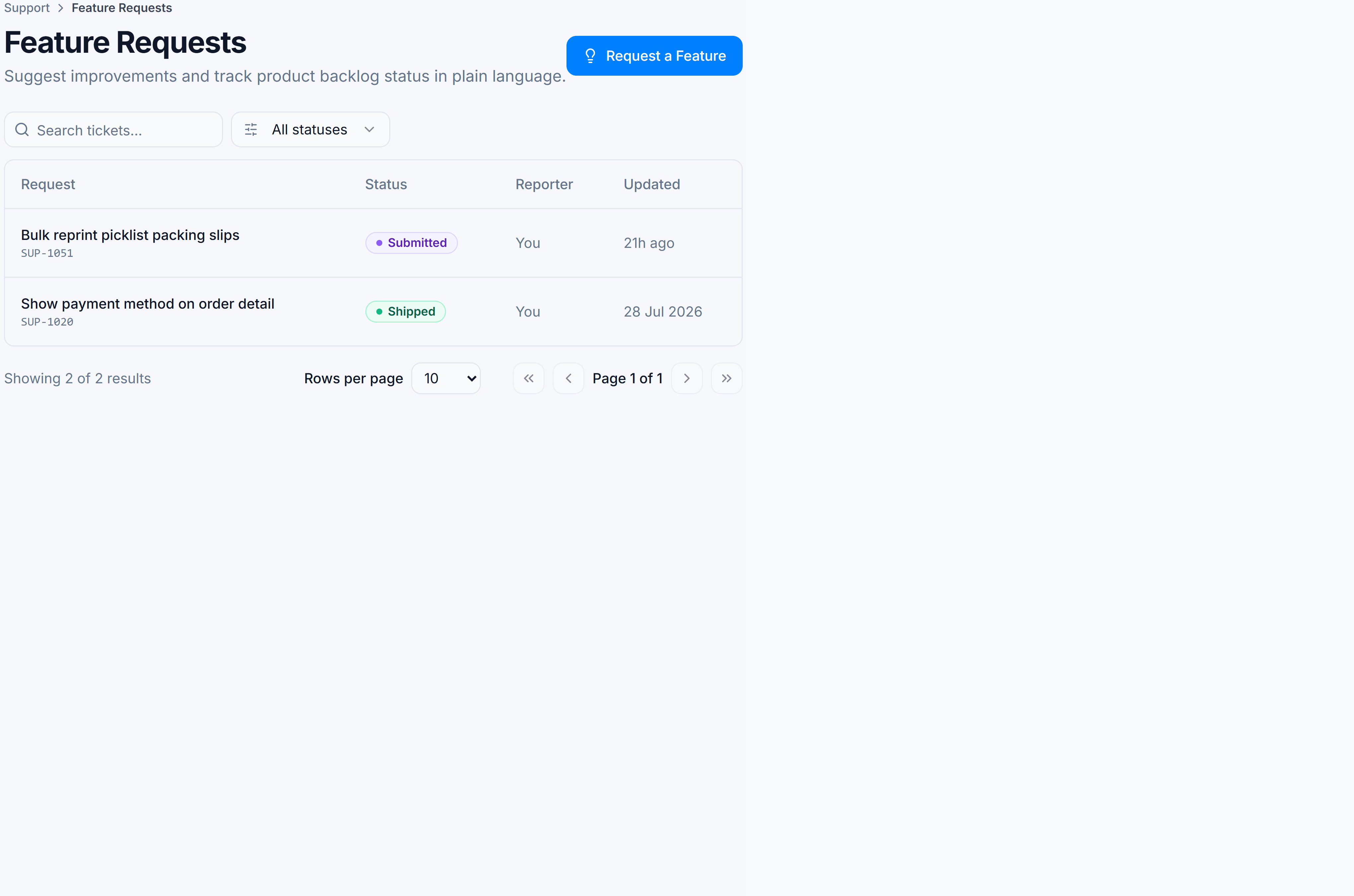
Confirmation that the idea was sent, and the request appears on the Feature Requests list with status Submitted. Feature requests use product-oriented labels (Under Review, Shipped, Declined) — see Ticket statuses & fields.
If it goes wrong
| Symptom | Cause | Fix |
|---|---|---|
| Validation errors | Title or description too short; category missing | Complete required fields |
| Submit fails | Session or network issue | Re-authenticate and retry |
| Feature Requests missing from nav | Role or module access | Ask a tenant admin for Support Help access |
After you submit
Not every request ships. Accepted work typically lands in What’s New and the matching Academy module guide when it is released. Declined requests show as Declined on My Tickets.