Read the Fulfilment tab
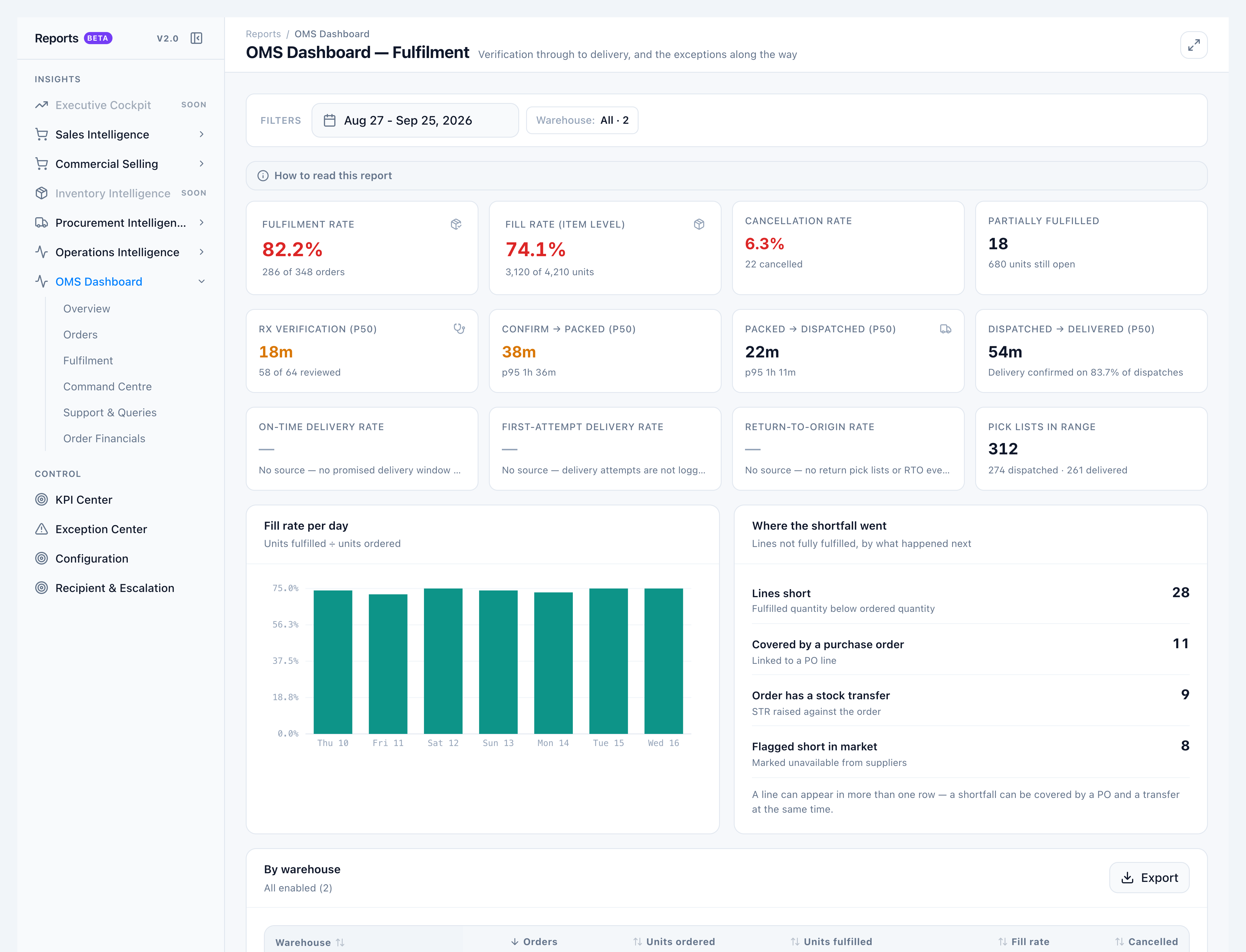
Use Fulfilment when the question is “did we ship what was ordered, and how long did each stage take?”
When to use this
- Investigating a drop in fill rate after a stock-out week
- Checking Rx verification time (pharmacist approvals plus storefront intakes, de-duplicated)
- Confirming Overview fulfilment tiles
Steps
- Open OMS Dashboard → Fulfilment.
- Read Fulfilment rate (orders that reached fulfilled), Fill rate (item level) (units fulfilled ÷ units ordered), and Cancellation rate.
- Read Rx verification (p50) and the stage medians: Confirm → packed, Packed → dispatched, Dispatched → delivered.
- Confirm On-time delivery rate, First-attempt delivery rate, and Return-to-origin rate are blank with their No source notes.
Success looks like
- Shared rates match Overview for the same filters.
- An order of 10 units with 6 fulfilled and 4 cancelled contributes 60% to fill rate, not 100%.
- Timing tiles stay blank when no completed stage transitions exist — they do not show 0 minutes.
If it goes wrong
- Fill rate looks too high — You may be mentally excluding cancelled lines. The dashboard keeps them in.
- Rx verification empty — No pharmacist approval or storefront prescription intake in range.