Purchase Orders
Audience: Procurement and warehouse managers who raise and track purchase orders — plus anyone evaluating, selling, or supporting the feature.
Purpose: This is the front door to the Purchase Orders guide. It explains the screen at a glance, then points you to the right page — a single task, a rule, or why a feature works the way it does.
What shipped and when: Purchase Orders release notes.
The Purchase Orders screen is where you procure stock. The list opens with a KPI strip (Open POs · Awaiting Approval · In-Transit Value · Monthly Spend), a filter bar (search, date range, warehouses, suppliers, Status), and a table whose rows carry a status pill (a colored dot + label). From here you create a PO, view one, edit a draft, send or download a PO to a supplier, or bulk-import many at once.
Pick the kind of help you need
The Academy organises every guide as learn, do, look up, understand.
The screen
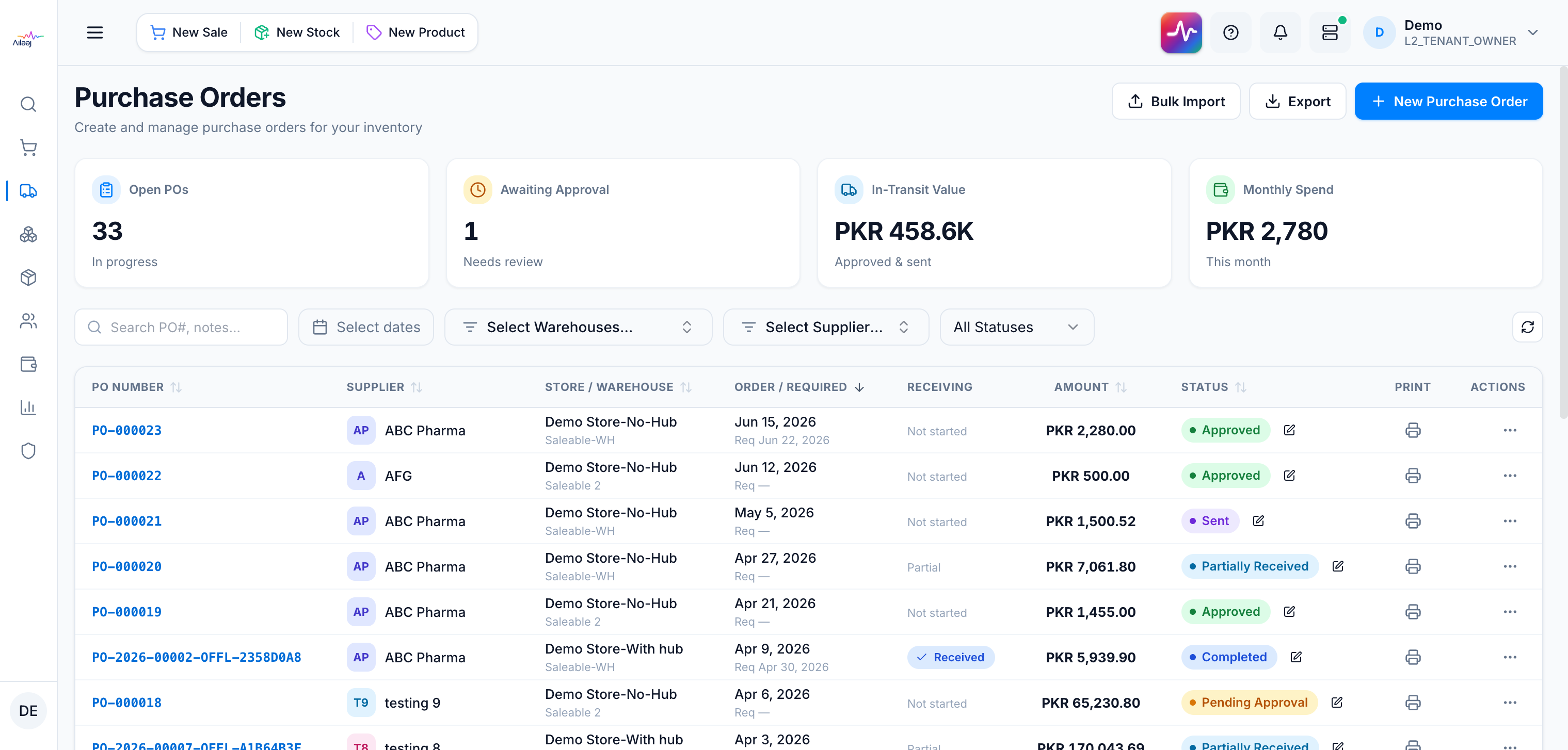
How to get there
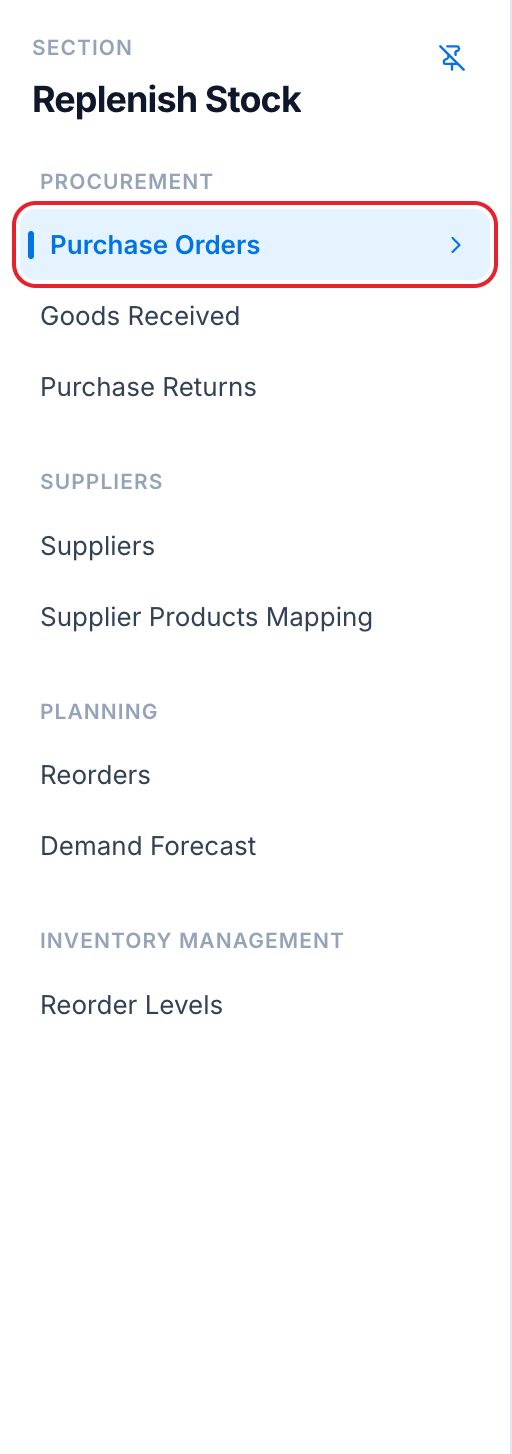
In the left sidebar, open Replenish Stock → Procurement → Purchase Orders.
Two ways to build a PO’s line items:
- Standard — add products by hand (search, quantity, discount, repeat).
- Demand projection — pick the supplier, choose which stores/warehouses to project across, and the app suggests order quantities from the forecasting engine’s sales velocity. This is the fastest way to turn “what’s selling” into “what to buy.”