Read the Orders tab
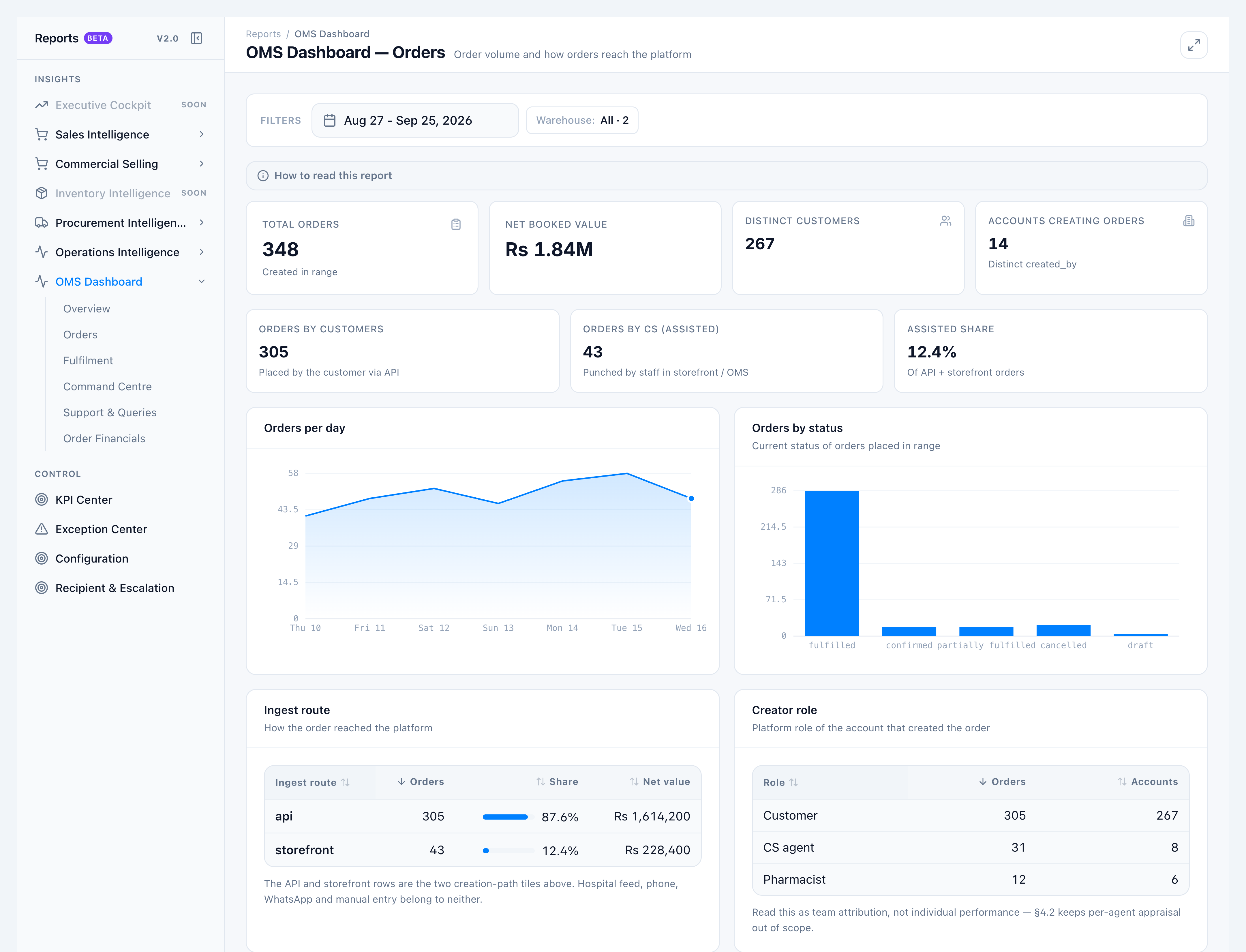
Use Orders when you need who placed the work — customers through the API, or CS punching on their behalf through the storefront / OMS module.
When to use this
- Explaining assisted share to a store manager
- Exporting a daily volume file for the range
- Checking that Overview Orders and Net booked value are not drifting
Steps
- Open OMS Dashboard → Orders (same date and warehouse as Overview).
- Read Total orders, Net booked value, Distinct customers, and Accounts creating orders.
- Read Orders by customers (API), Orders by CS (assisted) (storefront), and Assisted share.
- Scan ingest route, creator role, status, and warehouse tables.
- Optional: Download — file name is
oms-dashboard-orders-<from>-to-<to>.
Success looks like
- Total orders and Net booked value match Overview.
- Assisted share equals the first figure on Overview Order mix.
- Empty channel range → Assisted share blank with No customer-channel orders in this range.
If it goes wrong
- Hospital / phone / WhatsApp missing from the mix — Those sources are excluded from assisted share on purpose. They still appear in Total orders.
- Export empty — No orders in the selected range or warehouse.