Order Management — Feature & User Guide
Audience: Pharmacy owners, operations & fulfillment managers, and warehouse staff.
Purpose: Configure your order channels, then run an order all the way from capture to a dispatched, invoiced sale.
Companion docs: items that can’t be filled from stock are covered in the Pending Stock guide; orders rung up face-to-face are in the Smart Counter guide.
Order Management (OMS) takes every customer order — no matter how it arrived — and carries it through to a delivered, invoiced sale. It sits between “a customer wants something” and “we picked it, packed it, shipped it, and billed it.” One Orders list and one fulfillment pipeline cover all your sales channels.
1. Overview
The journey of an order
Every order, from any channel, follows the same path:
Order in → Confirm → Book & reserve stock → Pick → Pack → Dispatch → Invoice
- An order is created (or received from your website/Shopify) and confirmed.
- OMS reserves the exact stock for it so it can’t be sold twice.
- Warehouse staff pick, pack and dispatch it.
- OMS raises the sales invoice — and only then is stock actually deducted.
The order is what the customer wanted; the sales invoice is what they actually got. Stock leaves your inventory at the invoice step, not before.
Terms you’ll see
| Term | What it means |
|---|---|
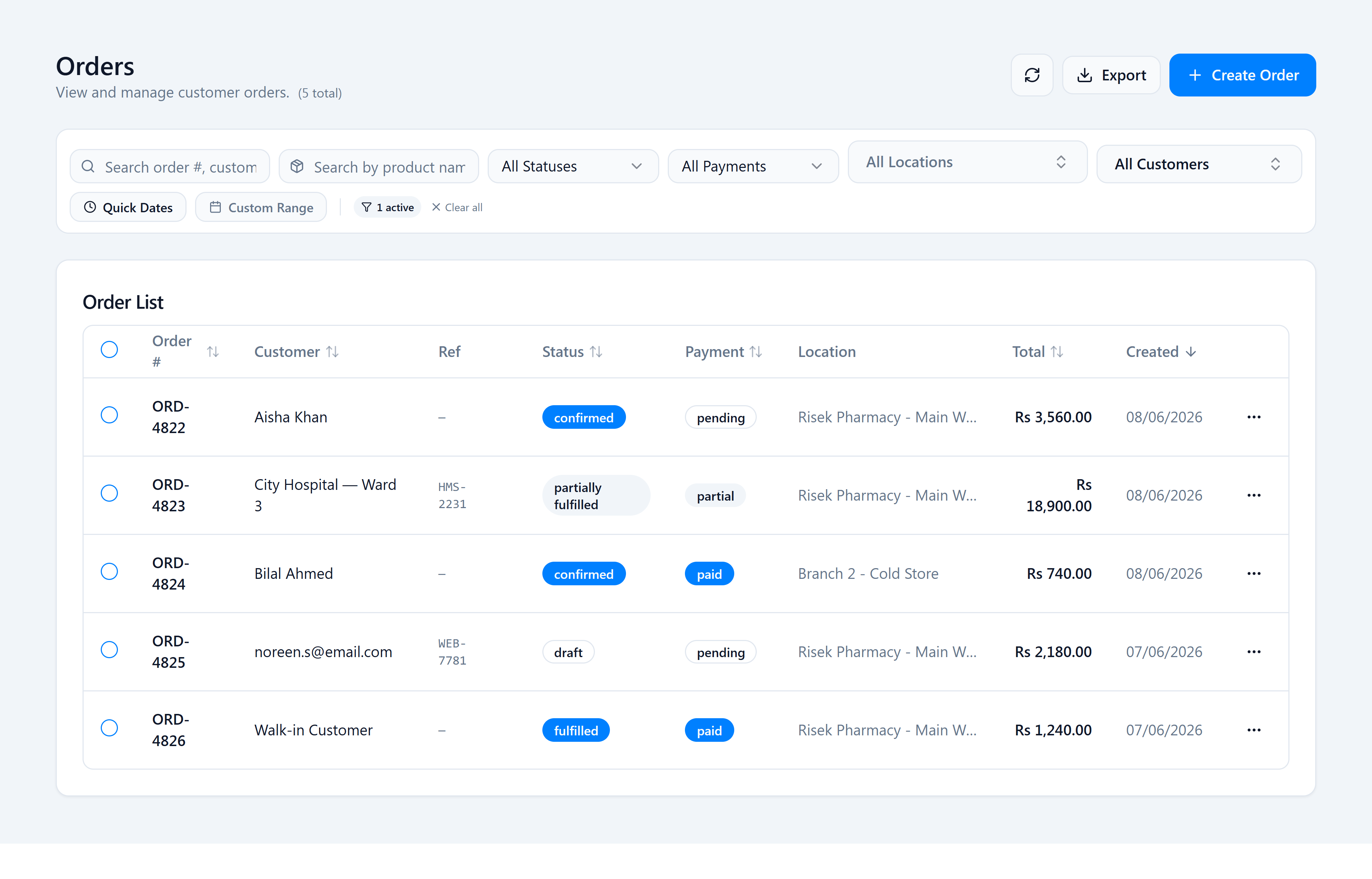
| Channel / source | Where the order came from — counter, phone, WhatsApp, hospital, your website, or Shopify. |
| Confirmation | The point an order becomes a firm commitment — automatically on creation, or after someone confirms it. |
| Reservation | Stock held aside for one specific order so nothing else can sell it. |
| Earliest-expiry-first | Reservations and picks always use the batch that expires soonest. |
| Picklist | The pick instruction listing what to gather for one or more orders. |
| Dispatch | Handing the packed order to a rider or delivery. |
| Sales invoice | The financial record of what was sold, created after dispatch. |
| Pending item | An order line that can’t be filled from shelf stock yet — see the Pending Stock guide. |
2. Where orders come from
All channels land in the same Orders list and follow the same pipeline.
| Channel | How orders arrive |
|---|---|
| Counter / manual | Created by staff in the hub, e.g. for a walk-in or a quick manual order. |
| Phone | Logged by staff taking a call. |
| Logged from a WhatsApp enquiry. | |
| Hospital | Ward/clinic orders, linked to a patient record. |
| Your own website | Orders placed on your customer-facing site flow in automatically. |
| Shopify | Orders from a connected Shopify store flow in automatically. |
Which channels are available can depend on your plan. Hide the channels you don’t use so staff only see what’s relevant.
3. Set up Order Management (admins)
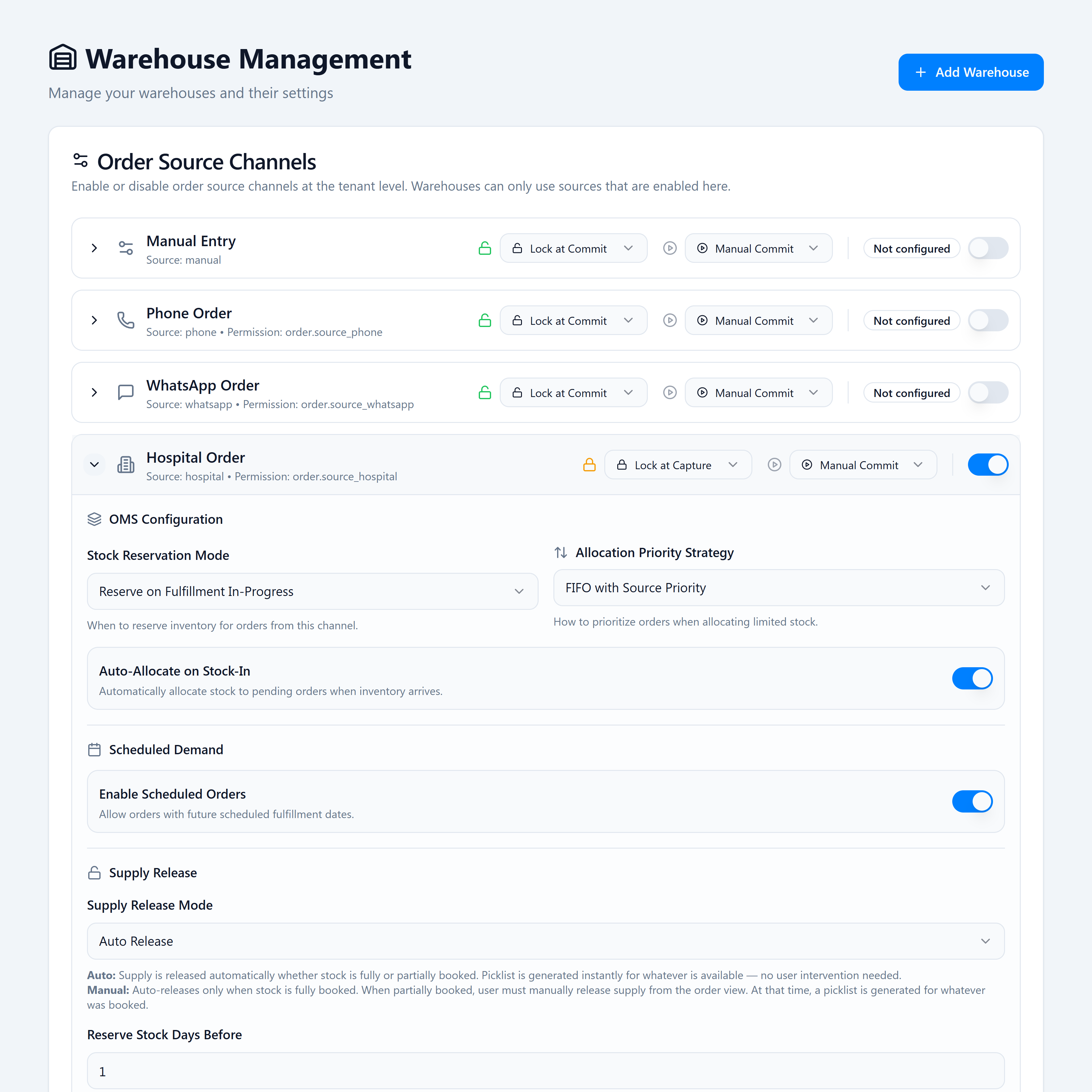
Go to Admin → System → Tenant Warehouse and open the Order Source Channels card. Turn a channel on or off there, and expand its OMS Configuration to set the rules below. A pharmacy owner or admin sets these up once, then adjusts as needed.
| Setting | What it controls |
|---|---|
| Price Lock Policy | Whether an item’s price is fixed when it’s added (Lock at Capture) or stays editable until the order is confirmed (Lock at Commit). |
| Commitment Policy | Whether orders auto-confirm on creation or start as a draft that needs manual confirmation. |
| Stock Reservation Mode | Whether stock is reserved when fulfillment starts, or not reserved at all. |
| Allocation Priority Strategy | How orders are prioritised when stock is limited (FIFO, or FIFO with source priority). |
| Auto-Allocate on Stock-In | Automatically fill waiting orders when new stock arrives. |
| Scheduled Orders | Allow orders with a future fulfillment date (see §5). |
| Supply Release Mode | Auto generates a picklist as soon as any stock is booked; Manual waits until fully booked. |
| Auto-STR | Automatically raise a stock transfer on a shortage, and choose which warehouses to pull from. |
| Payment & shipping methods | The payment options and carriers/delivery types available. |
4. Who does what
| Role | What they do in Order Management |
|---|---|
| Owner / admin | Turn channels on, set confirmation/reservation/auto-transfer rules, configure payment & shipping, connect the website/Shopify, and decide who has access. |
| Operations / fulfillment manager | Book stock, generate picklists, oversee the fulfillment queue and dispatch, and watch the pending and SLA reports. |
| Warehouse / picking staff | Pick, pack and dispatch orders; dispatch and receive stock transfers. |
| Purchasing team | Order items that no warehouse can supply (true pending). |
5. Create and confirm an order
Create an order (phone, hospital, manual)
- Open Create Order.
- Choose the source channel and the customer (or add a new one with New; a hospital order links a patient record).
- Add products and quantities to the cart.
- Pick a payment method and the shipment method.
- (Optional) Set up scheduling — see below.
- Create Order. It’s created as a draft, or auto-confirms, depending on the channel’s policy.
Schedule an order
If the channel allows scheduled orders, turn on Schedule:
- For most channels, pick a delivery date.
- For hospital orders, set Clinical dosing — a Frequency (OD, BD, TDS, QID, QHS, PRN, STAT), the times of day, and an end date — so the order is fulfilled on the right schedule.
Confirm an order
- Open the order from the Orders list (website and Shopify orders appear here automatically).
- Check the items, prices, and payment.
- Confirm. The order moves from Draft to Confirmed and is ready for fulfillment.
A draft order doesn’t reserve stock or enter fulfillment until it’s confirmed.
6. Fulfil an order
Once an order is confirmed, you work it through the Execution screen — booking stock, generating picklists, and tracking the fulfillment queue, all in one place.
Book stock & generate picklists (Execution)
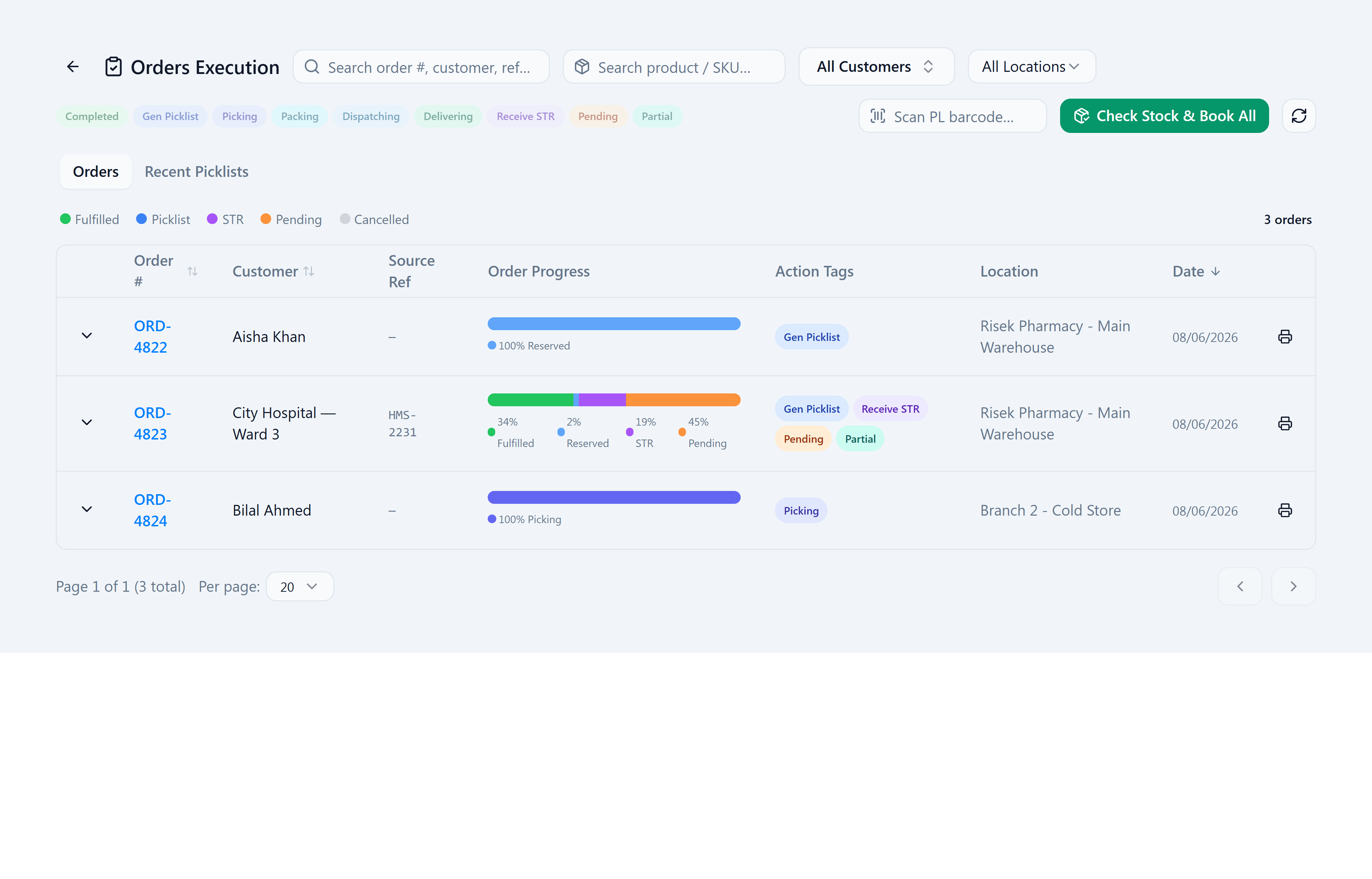
The Orders Execution screen (Sell → Order Pipeline → Execution) lists confirmed orders with an Order Progress bar and Action Tags that tell you the next step (Confirm, Gen Picklist, Picking, STR Pending, Receive STR…). Filter by the action-tag pills, customer, or location to focus the queue.
- Open Sell → Order Pipeline → Execution.
- Check Stock & Book All (or book a single order). OMS reserves the stock (earliest-expiry first). The bulk button reserves local stock only; booking a single order can also raise a stock transfer for the shortage when Auto-STR is enabled.
- Generate Picklist once stock is booked — the order’s reserved lines become one picklist at its assigned warehouse.
The Fulfillment Queue
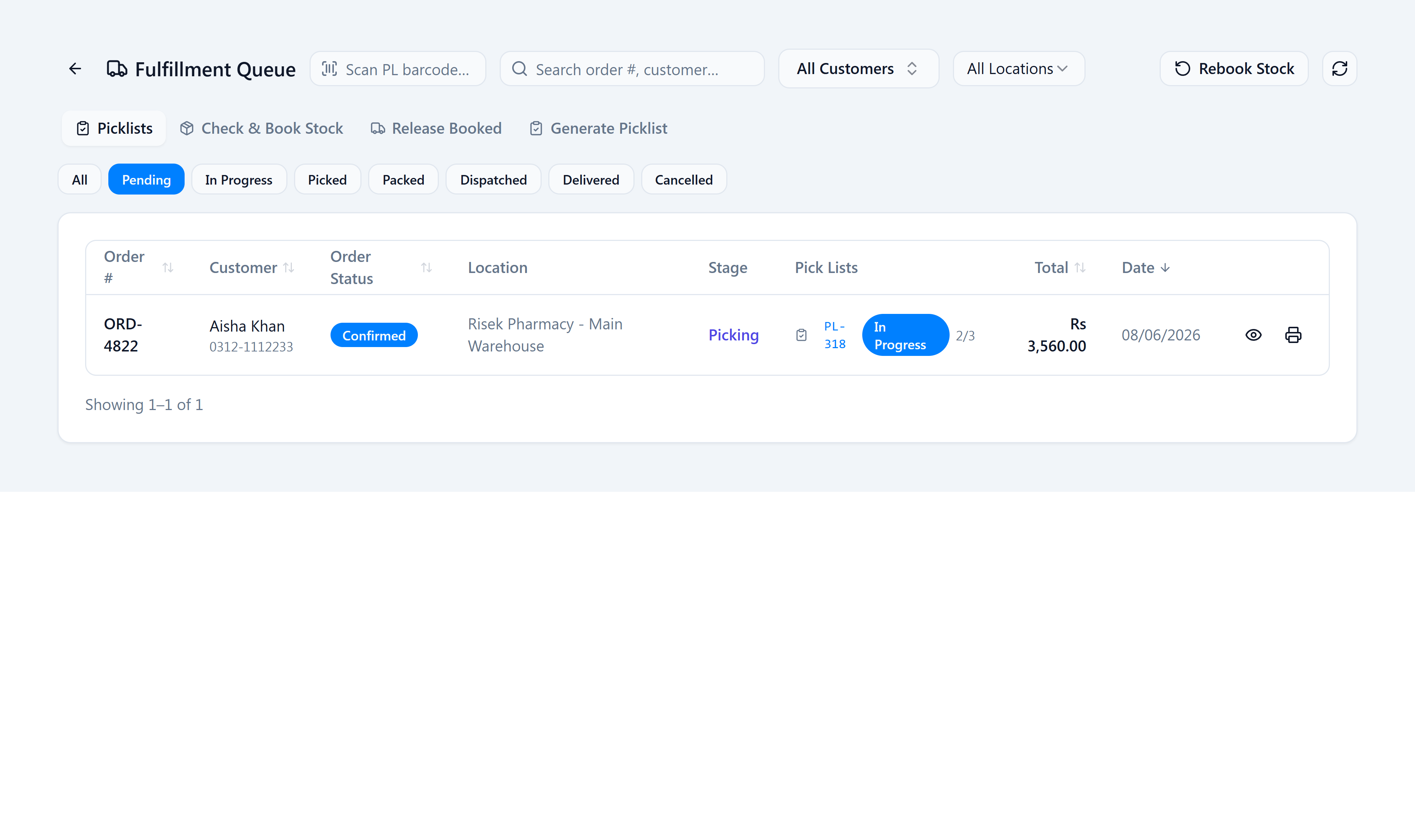
Generated picklists appear in the Fulfillment Queue, its own page at Sell → Order Pipeline → Fulfillment. Each row shows the order’s Stage (Picklist Pending → Picking → Picked — Pack → Packed — Dispatch → Dispatched). Use the status buttons to filter, or scan a picklist barcode to jump straight to it.
Pick
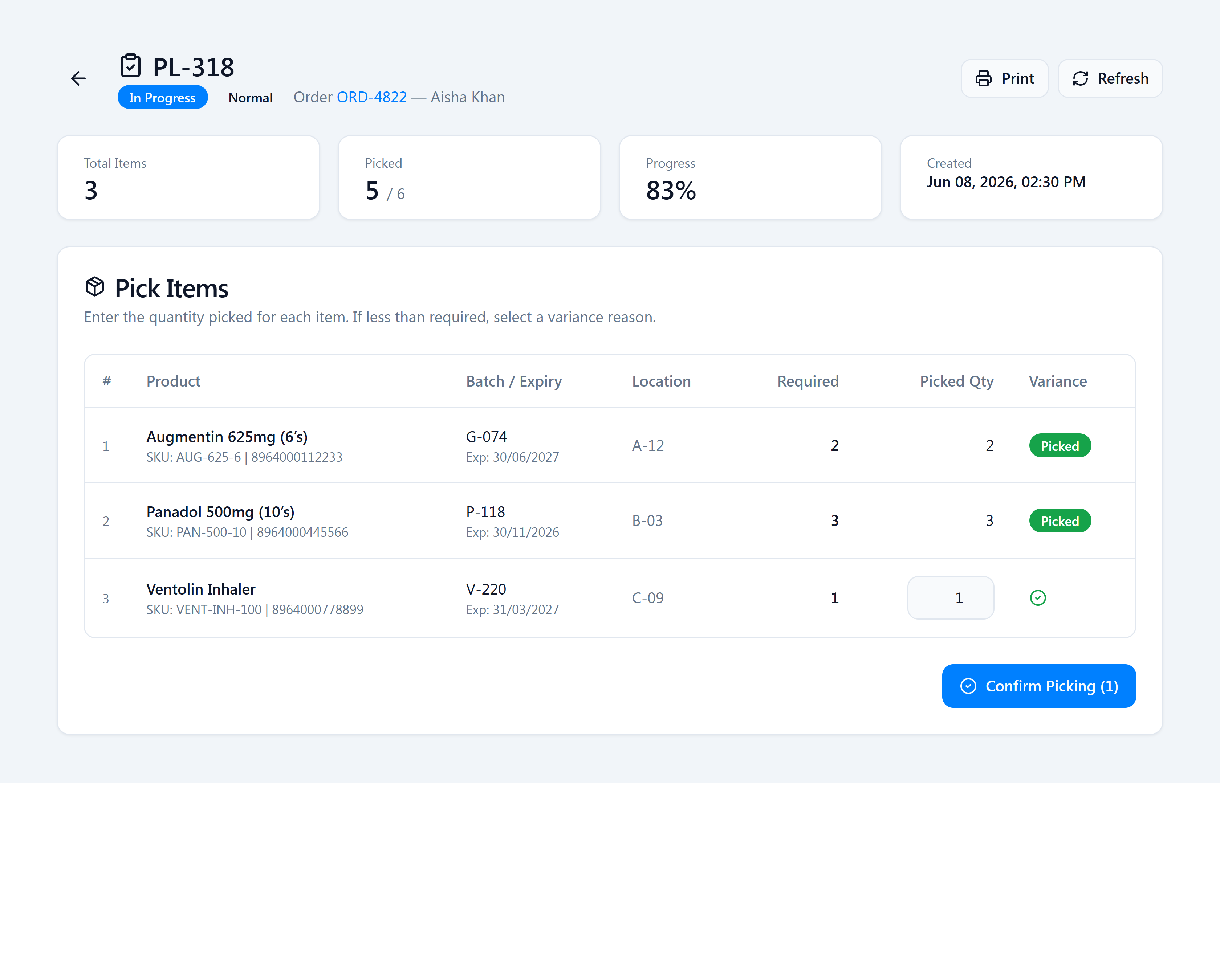
Open a picklist to enter picking. For each line, confirm the quantity picked against what’s required, picking the earliest-expiry batch at the listed location. If you pick fewer than required, choose a variance reason (Missing, Damaged, Expired). Then Confirm Picking.
Pack
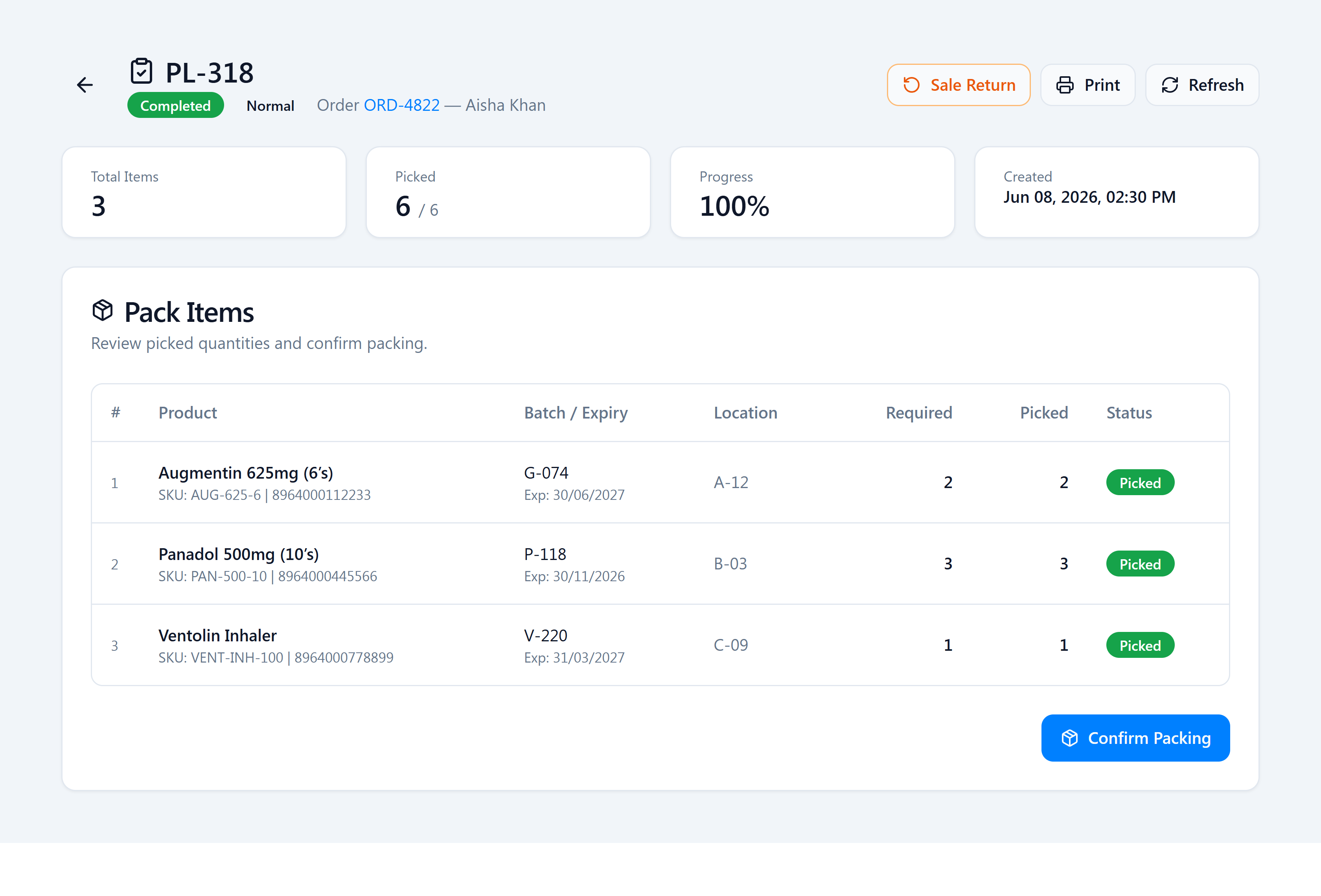
After picking, the picklist moves to packing. Review the picked quantities and Confirm Packing.
Dispatch & invoice
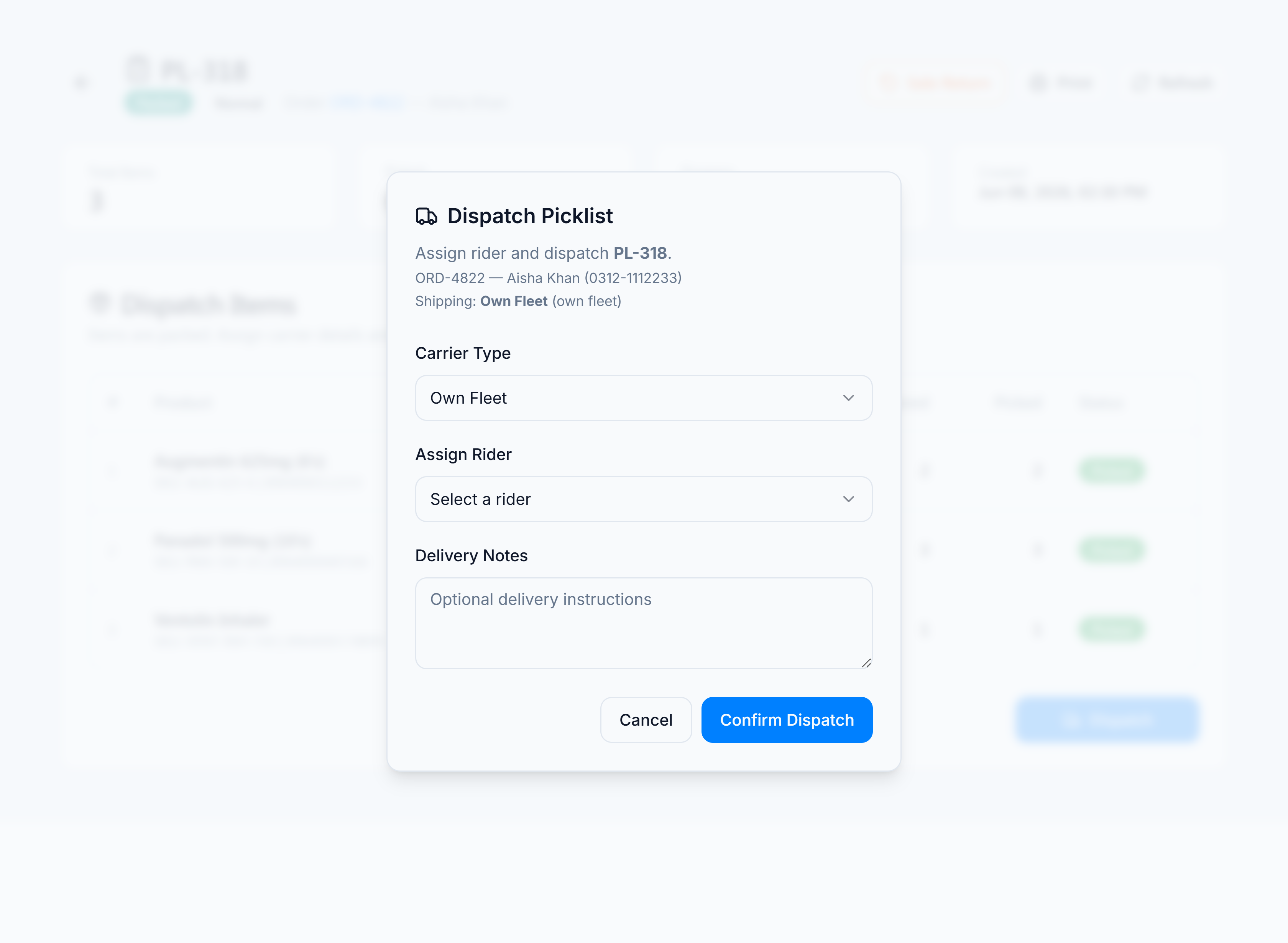
Finally, Dispatch the packed order. Choose a Carrier Type — Own Fleet (then Assign Rider), 3rd Party (3PL) (carrier name + tracking number), or Customer Pickup — add any delivery notes, and Confirm Dispatch. OMS then raises the sales invoice, and the order advances to Partially fulfilled or Fulfilled as its lines complete.
Reserved stock is held but not deducted. It’s only deducted when the sales invoice is created — so the Smart Counter can never sell units already reserved for an order.
7. Order statuses
| Status | Meaning |
|---|---|
| Draft | Created but not yet a firm commitment. No stock reserved. |
| Confirmed | Committed and ready for fulfillment. |
| Partially fulfilled | Some lines/quantities shipped and invoiced; the rest are still outstanding. |
| Fulfilled | Everything shipped and invoiced. |
| Cancelled | The order (or its remaining lines) won’t be fulfilled. |
Every status change and quantity change is logged with who did it and when.
8. FAQ & troubleshooting
“An order says Draft and isn’t moving.” Some channels are set to wait for confirmation rather than auto-confirm. Open the order from the Orders list and Confirm it; once confirmed it enters the normal fulfillment flow.
“When is stock actually deducted?” When the sales invoice is created, at the end of fulfillment — not when stock is reserved, and not when a transfer is dispatched. Reserved stock is held but not yet deducted.
“What does Partially fulfilled mean?” Some lines or quantities on the order have shipped and been invoiced while others are still outstanding. The order completes as the rest is fulfilled, or the remainder is cancelled.
“Can the counter accidentally sell stock reserved for an order?” No. Reserved stock is excluded from what’s sellable, so the same units can’t be sold twice.
“An item couldn’t be filled from stock — where did it go?” It became a pending item. See the Pending Stock guide for how pendings are tracked and resolved.