Demand Forecast
Audience: Procurement and warehouse leads who decide what to buy, and anyone evaluating or supporting the screen.
Purpose: Front door to Demand Forecast — generate a run, review lines, then approve and create purchase orders.
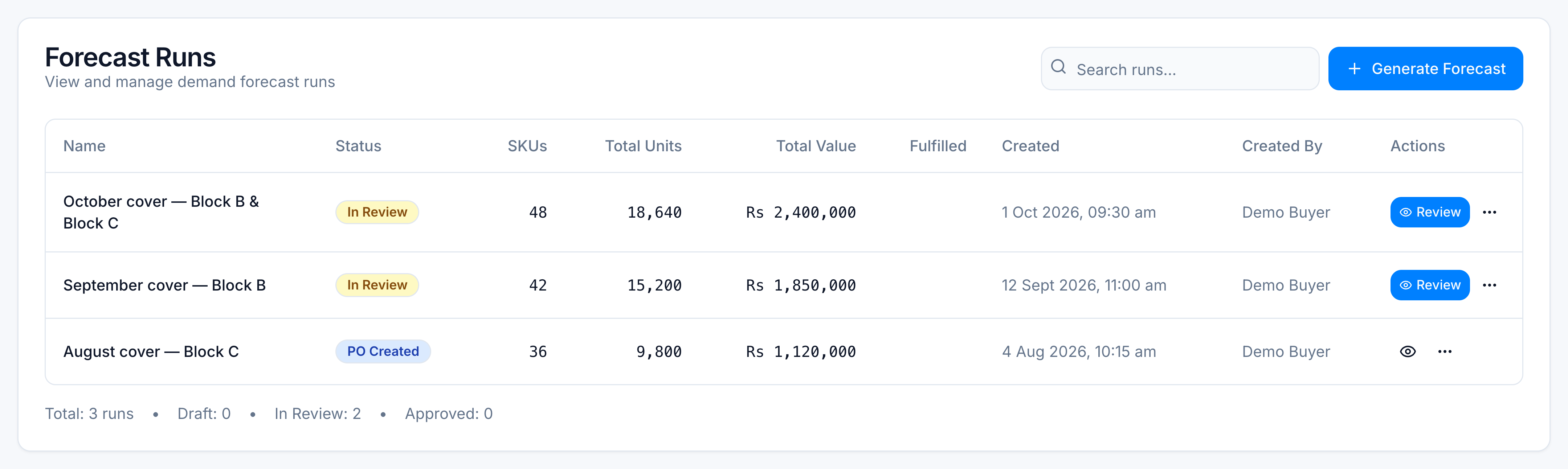
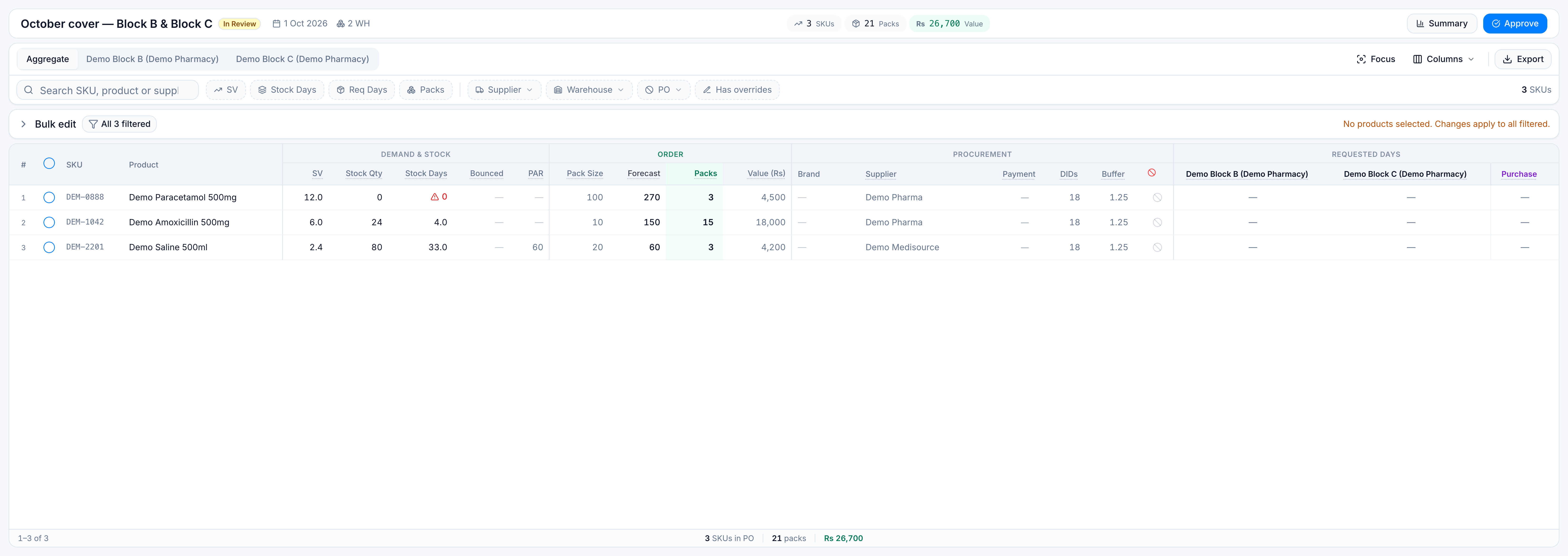
Demo data: Every table in this topic uses the fixture run October cover — Block B & Block C for Demo Pharmacy. Those SKUs, warehouses, and rupee amounts are sample data, not a live tenant.
Demand Forecast turns recent sales into a suggested buy. You pick warehouses, the engine writes one suggested order per product, and reviewers adjust days of cover, buffer, packs, and which lines belong on the purchase order.
The sample run below is what a populated review looks like. Your own runs will show different SKUs and totals.
| Demo value | |
|---|---|
| Run | October cover — Block B & Block C |
| Status | In Review |
| Warehouses | Demo Block B, Demo Block C (central stock sits at Demo Central) |
| SKUs | 48 |
| Packs on the PO | 1,240 |
| Order value | Rs 2,400,000 |
| Default cover | 18 Desired Inventory Days (DIDs), buffer 1.25 |
Three of those 48 lines, used throughout the how-tos:
| SKU | Product | SV | Stock days | Packs | Supplier | On PO |
|---|---|---|---|---|---|---|
| DEM-1042 | Demo Amoxicillin 500mg | 6.0 | 4 | 15 | Demo Pharma | Yes |
| DEM-2201 | Demo Saline 500ml | 2.4 | 33 | 3 | Demo Medisource | Yes |
| DEM-0888 | Demo Paracetamol 500mg | 12.0 | 0 | 3 | Demo Pharma | Yes |
Pick the kind of help you need
The Academy organises every guide as learn, do, look up, understand.
How to get there
In the left sidebar, open Replenish Stock → Planning → Demand Forecast.
The list opens on the Runs tab. Generate Forecast starts a new run. Forecast Report leaves this screen and opens Insights → Reports → Forecast Fulfilment, which compares what you ordered with what arrived.
Settings (calculation windows, DIDs, buffer, warehouse mapping) shows only when your role can view forecast settings. See Run statuses and settings.