Bulk-update prices
When to use this: a supplier price change or margin update that touches many products at once.
Steps
-
Select rows. Tick the checkbox on each row you want, or the header checkbox to select every row on the page. A bulk action bar appears showing “N selected.”
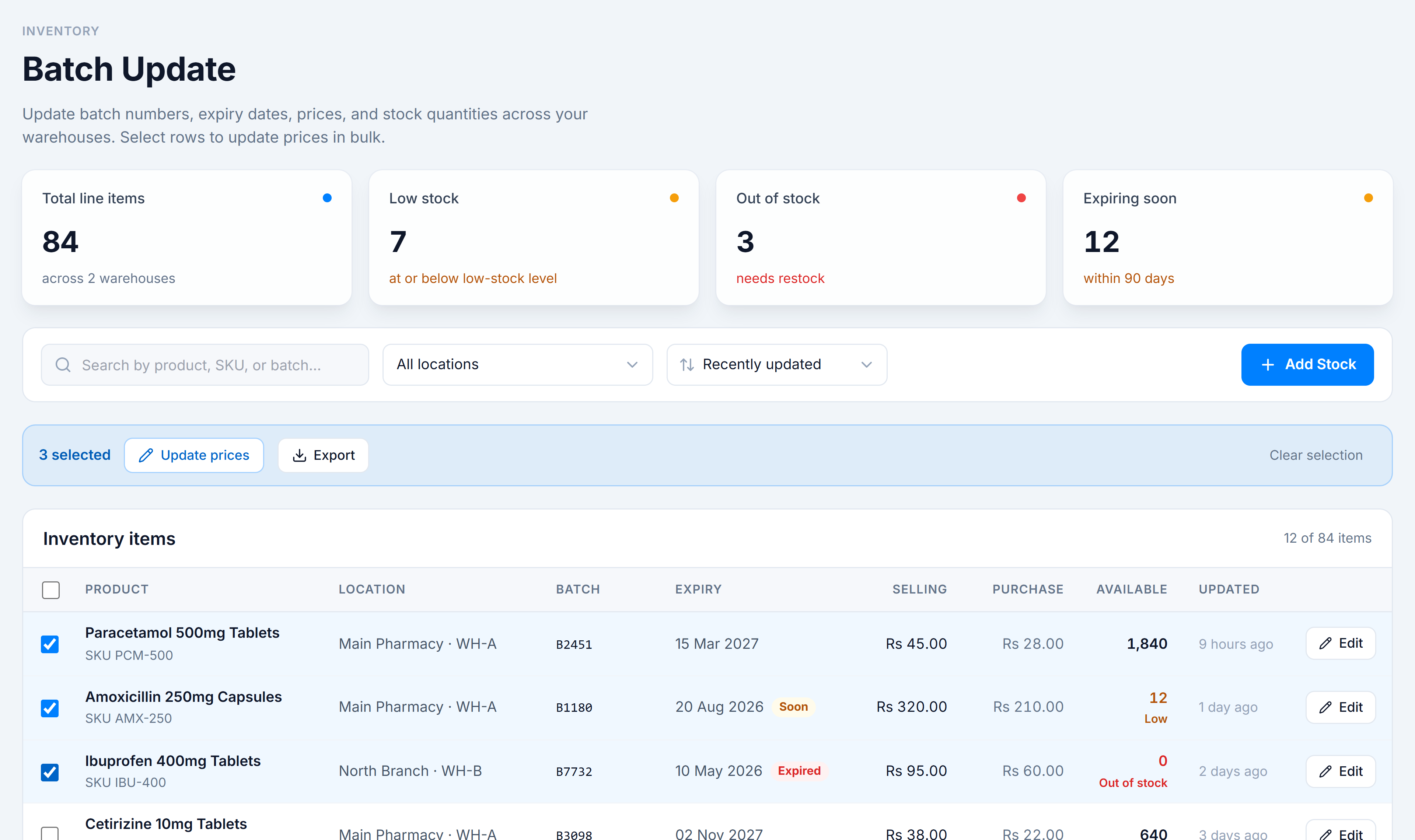
Selected rows tint blue and reveal the bulk action bar. -
Click Update prices in the bulk bar to expand the price panel.
-
Enter a New selling price, a New purchase price, or both (each shows an Rs prefix). Leave a field blank to keep the existing value.
-
Click Apply to N.
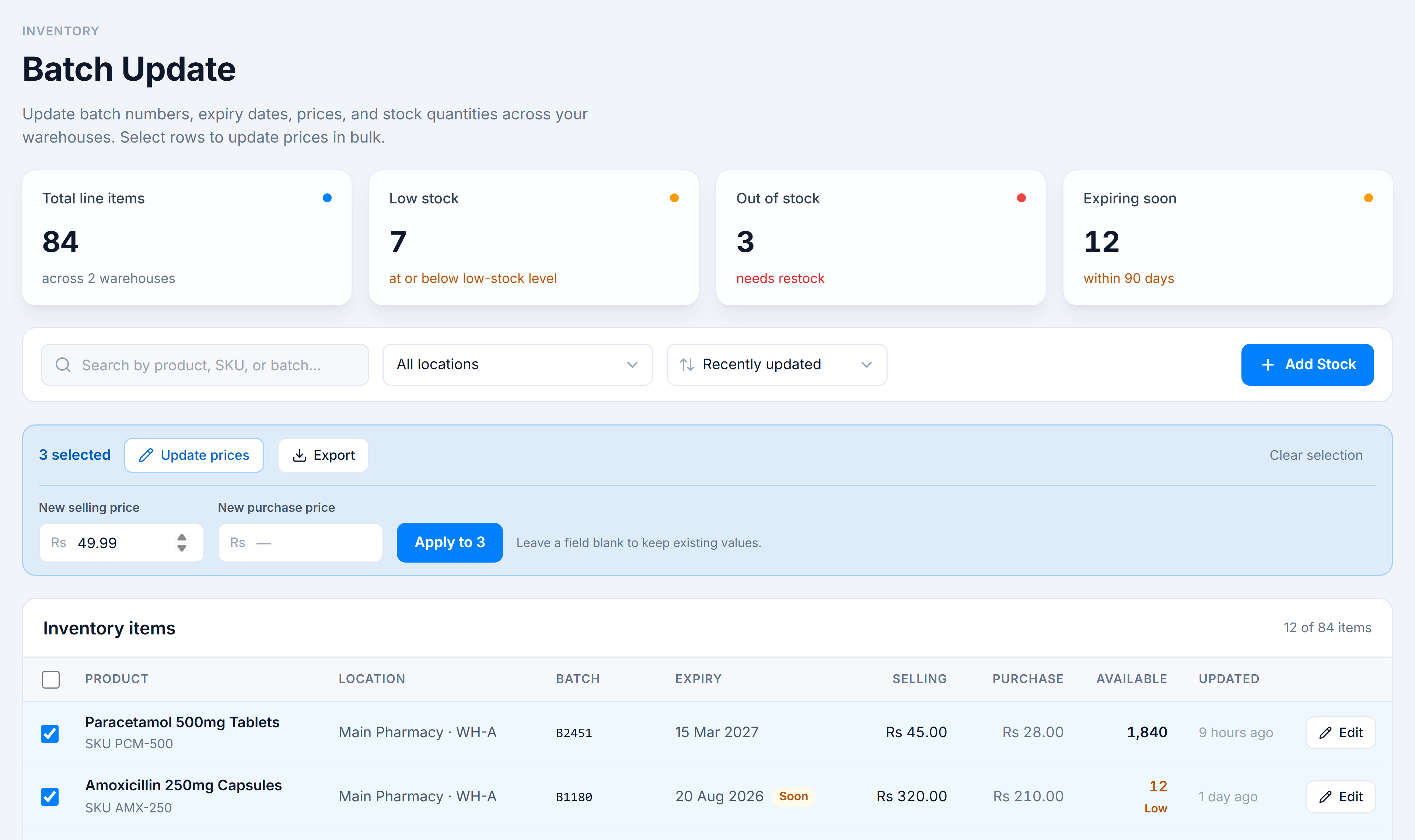
The bulk price panel — fill one or both fields, then Apply.
You’re done when
A toast confirms “Updated prices on N items” and the table refreshes with the new prices.
Good to know
- Only rows in warehouses you can edit are changed. If some selected rows are outside your access, the toast notes how many were skipped.
- Selecting an Aggregated row updates every underlying record for that product, so the price stays consistent.
- Selection persists as you page and sort, so you can gather rows from several pages before applying.
- Export in the same bar downloads the selected rows as CSV — see Export selected to CSV.
If it goes wrong
- “Enter a new selling or purchase price” — both fields were blank. Fill at least one.
- Nothing changed — you may lack the selling/purchase price permission, or every selected row was outside your warehouses. See Permissions.