Export selected to CSV
When to use this: to pull selected inventory into a spreadsheet — a price review, a stock-take worksheet, or a hand-off.
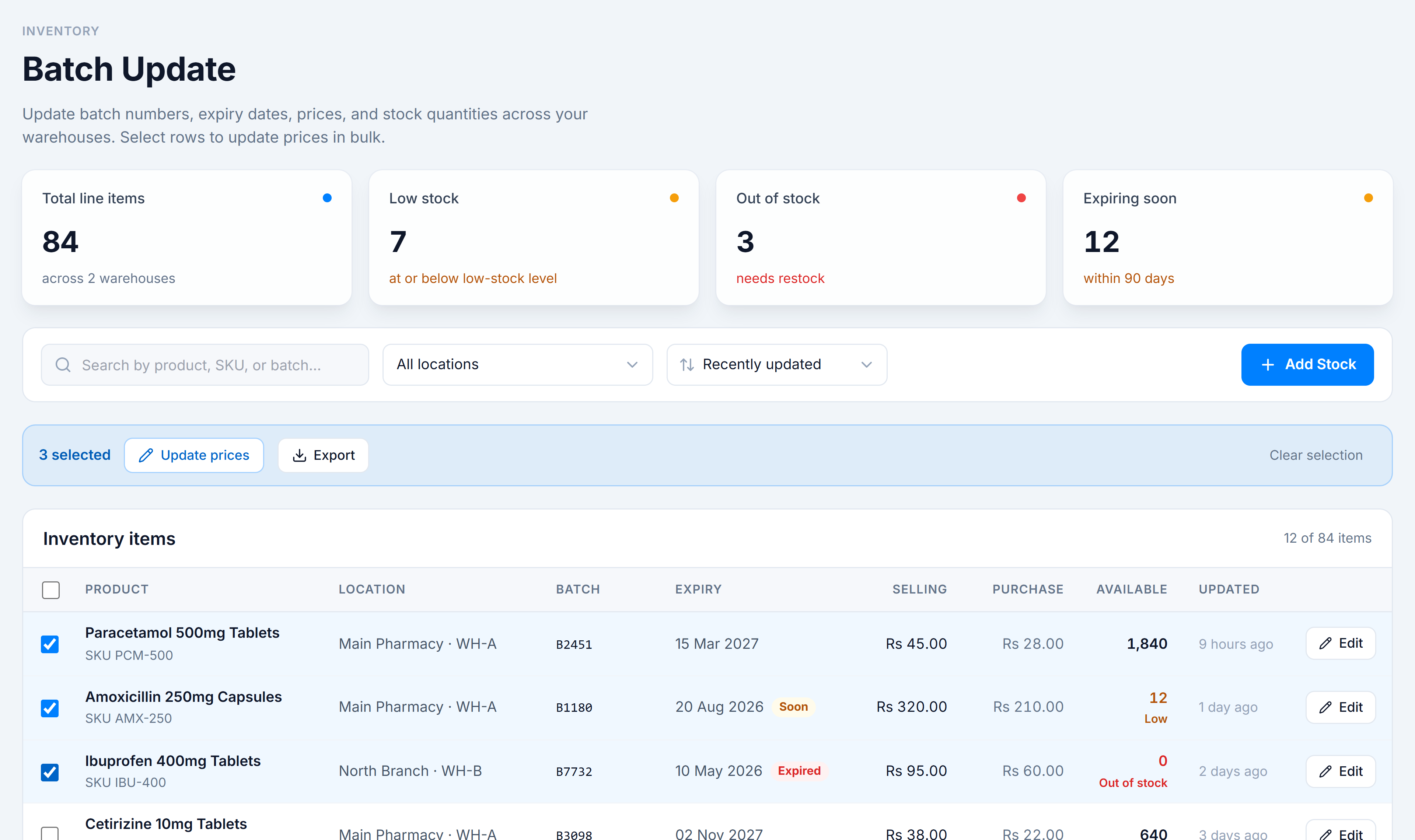
Steps
- Select rows with the row checkboxes (or the header checkbox for the whole page).
- In the bulk action bar, click Export.
- Your browser downloads
inventory-batch-update-YYYY-MM-DD.csv.
What’s in the file
One row per selected item, with these columns: Product, SKU, Location, Batch, Expiry, Selling, Purchase, Available, Updated. Aggregated rows export with Aggregated in the Batch column and a blank Expiry.
You’re done when
A toast confirms “Exported N items to CSV” and the file is in your downloads.
Good to know
- Export uses your current selection, not the whole table — tick exactly the rows you want.
- Selection persists across pages, so you can gather rows from several pages into one file.
- The export runs entirely in your browser; nothing is sent anywhere or changed.