Add adjustment stock
When to use this: stock that exists physically but was never received through a purchase order — opening balances, found stock, or samples.
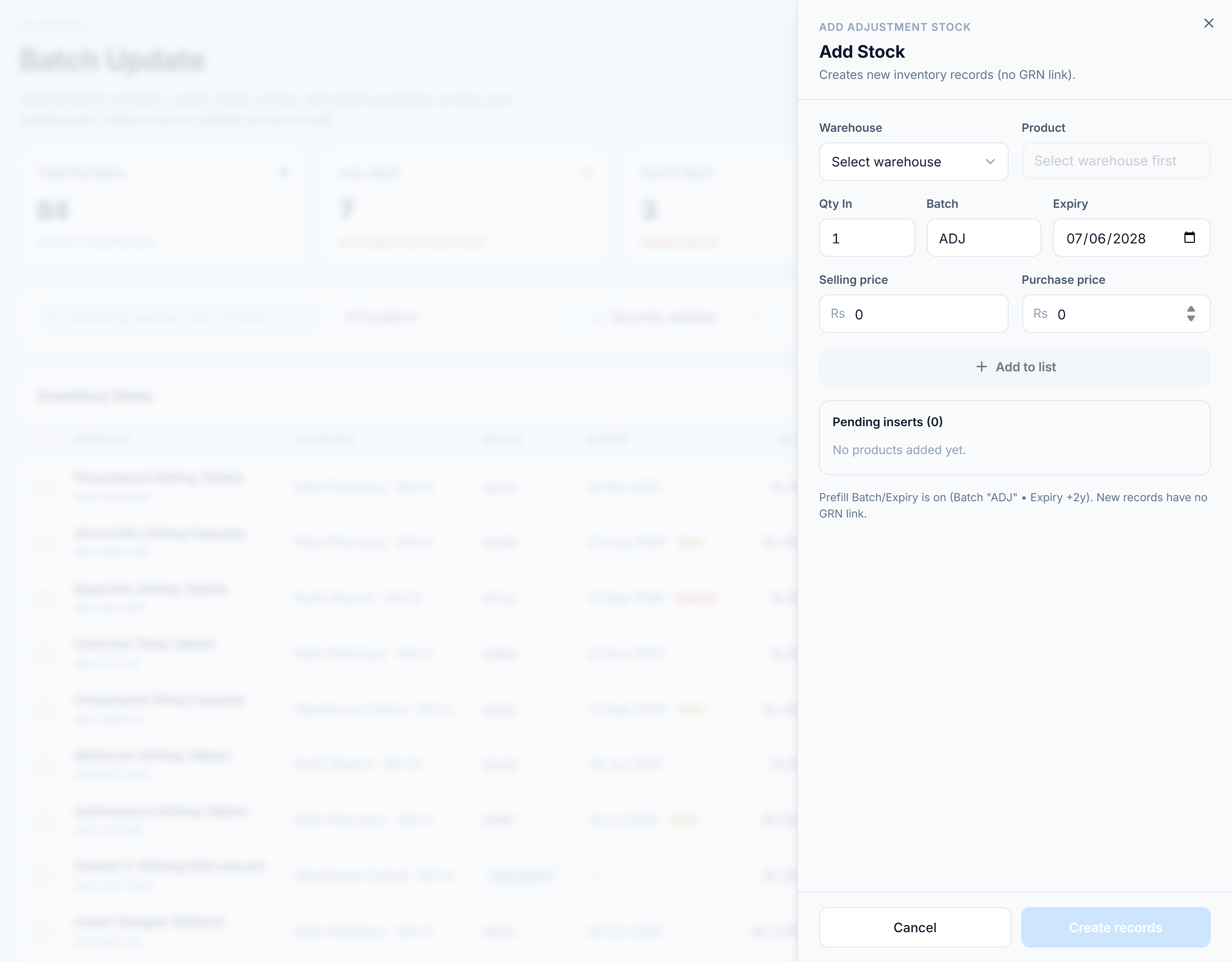
Steps
- Click Add Stock in the filter toolbar. The Add Stock drawer opens from the right.
- Choose a Warehouse, then search and select a Product.
- Set Qty In. When the warehouse tracks batches, also set Batch and Expiry (these prefill to
ADJand two years out; you can change them). - Set the Selling and Purchase price if needed — they prefill from the product.
- Click Add to list (or press Enter in Qty In). The product drops into Pending inserts, and the form clears for the next one.
- Repeat for each product. Remove any pending row with its ×, or Clear all to start over.
- Click Create N records.
You’re done when
A toast confirms “Added N inventory adjustment record(s)”, the drawer closes, and the new rows appear in the table.
Good to know
- These records are created with no GRN link — they’re adjustments, not receipts. The drawer says so under the title.
- The Qty In → Enter shortcut lets you add products quickly without reaching for the mouse.
- If you close the drawer with unsaved rows, you’ll be asked to confirm before discarding them.
If it goes wrong
- “Select a warehouse first” — the product search is disabled until a warehouse is chosen.
- Create is disabled — the pending list is empty; add at least one product first.