Update a line item
When to use this: to correct the batch, expiry, or price on a single inventory record.
Steps
- Find the row (search or filter if needed).
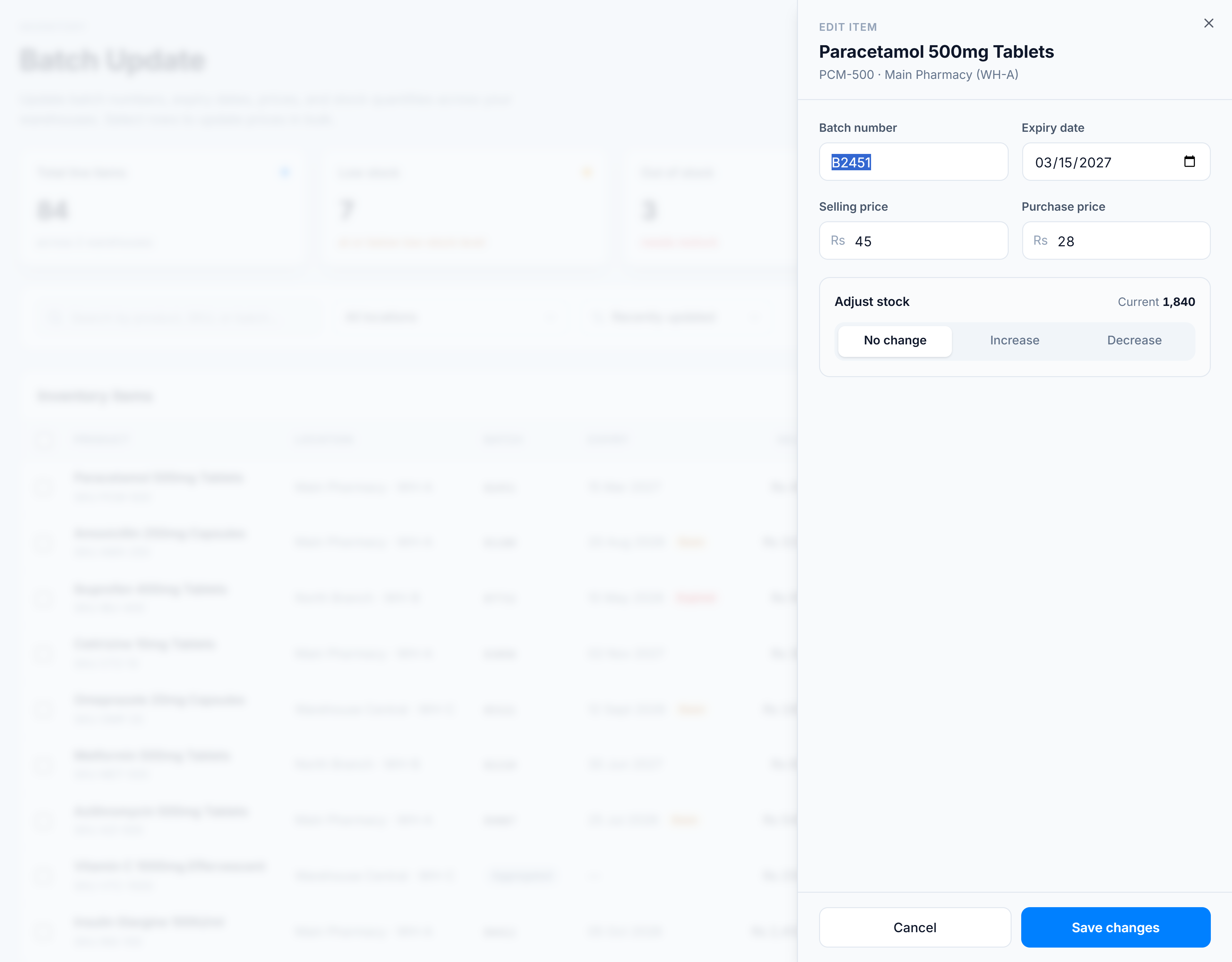
- Click Edit (the pencil) at the end of the row. The edit drawer slides in from the right, showing the product name, SKU, and location.
- Change any field you have permission for:
- Batch number and Expiry date — shown only when the warehouse tracks batches.
- Selling price and Purchase price — entered in PKR (the field shows an Rs prefix).
- To change the quantity as well, use Adjust stock in the same drawer — see Adjust stock quantity.
- Click Save changes.
You’re done when
The drawer closes and a toast confirms “Inventory item updated successfully.” The row’s Updated column now reads just now.
Good to know
- Fields you don’t have permission to change are shown but disabled — see Permissions.
- On an Aggregated row the batch and expiry fields are hidden and a short amber note explains why; a price change updates every underlying record for that product. See Aggregated vs tracked batches.
- If you change nothing and click Save, you’ll see “No changes to save” — that’s expected.
If it goes wrong
- Edit button is disabled / shows a lock — the row is in a warehouse you’re not assigned to. Ask an administrator to grant access to that warehouse.
- Save fails with a permission error — you may have edited a field your role can’t change; clear it back and save the rest.