Import categories from CSV
When to use this: you are onboarding a taxonomy from a spreadsheet or need to create many parent/child categories at once.
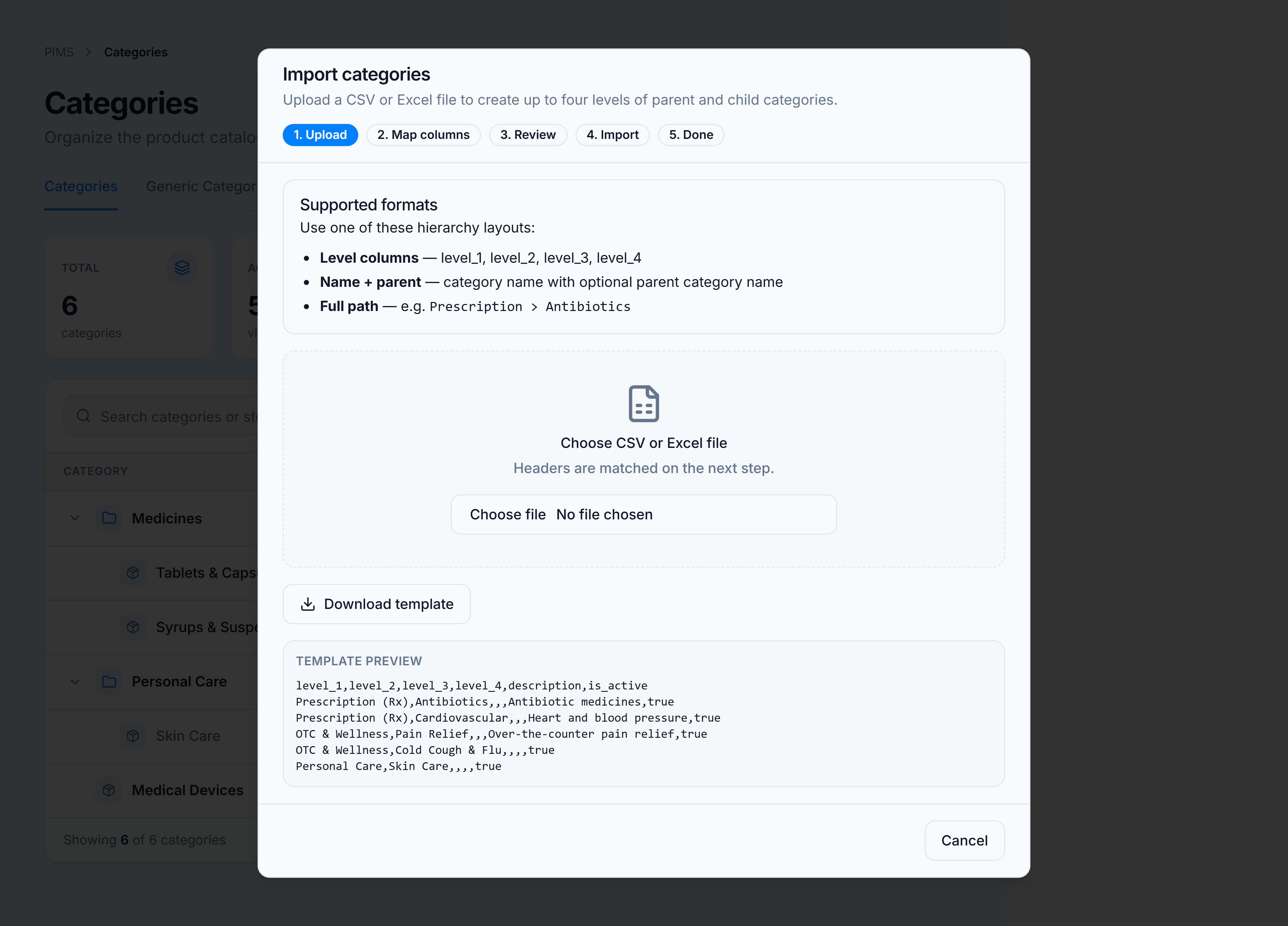
Steps
- Open Catalog → Classification → Categories and click Import in the page header.
- On the Upload step, choose a
.csv,.xlsx, or.xlsfile — or download the template first. - On Map columns, match your file headers to one of these hierarchy layouts:
- Level columns —
level_1throughlevel_4(root to deepest child) - Name + parent —
nameand optionalparent_name - Full path — one column such as
Prescription (Rx) > Antibiotics
- Level columns —
- Optionally map description and is_active columns.
- Click Review rows and confirm the create / skip / error summary.
- Click Import to create new categories. Existing paths are skipped automatically.
Supported hierarchy depth
You can import up to four levels — for example:
| level_1 | level_2 | level_3 | level_4 |
|---|---|---|---|
| Medicines | Tablets & Capsules | ||
| Medicines | Syrups & Suspensions | ||
| Personal Care | Skin Care |
Each row can define a root-only category (only level_1 filled) or a branch at any depth up to level 4.
You’re done when
The import summary shows how many categories were created, skipped, or failed — and the tree refreshes with the new taxonomy.
Good to know
- The dialog stays open if you click outside it — use Cancel or Done to close.
- Parent categories are created automatically when using level columns or full-path mode.
- For name + parent rows, parents must exist in the file or already in the catalog before children can import.