Approve and create purchase orders
Goal: turn an agreed forecast into purchase orders. Where: Replenish Stock → Planning → Demand Forecast, Runs tab.
Creating purchase orders from a forecast needs a cloud session. The button is hidden while the register is on the offline hub.
Steps
- Open the Draft run and finish the review in Review lines and bulk-edit.
- On the run row, open the actions menu and click Submit for Review. Status becomes In Review. You need
demand_forecast.submit_review.
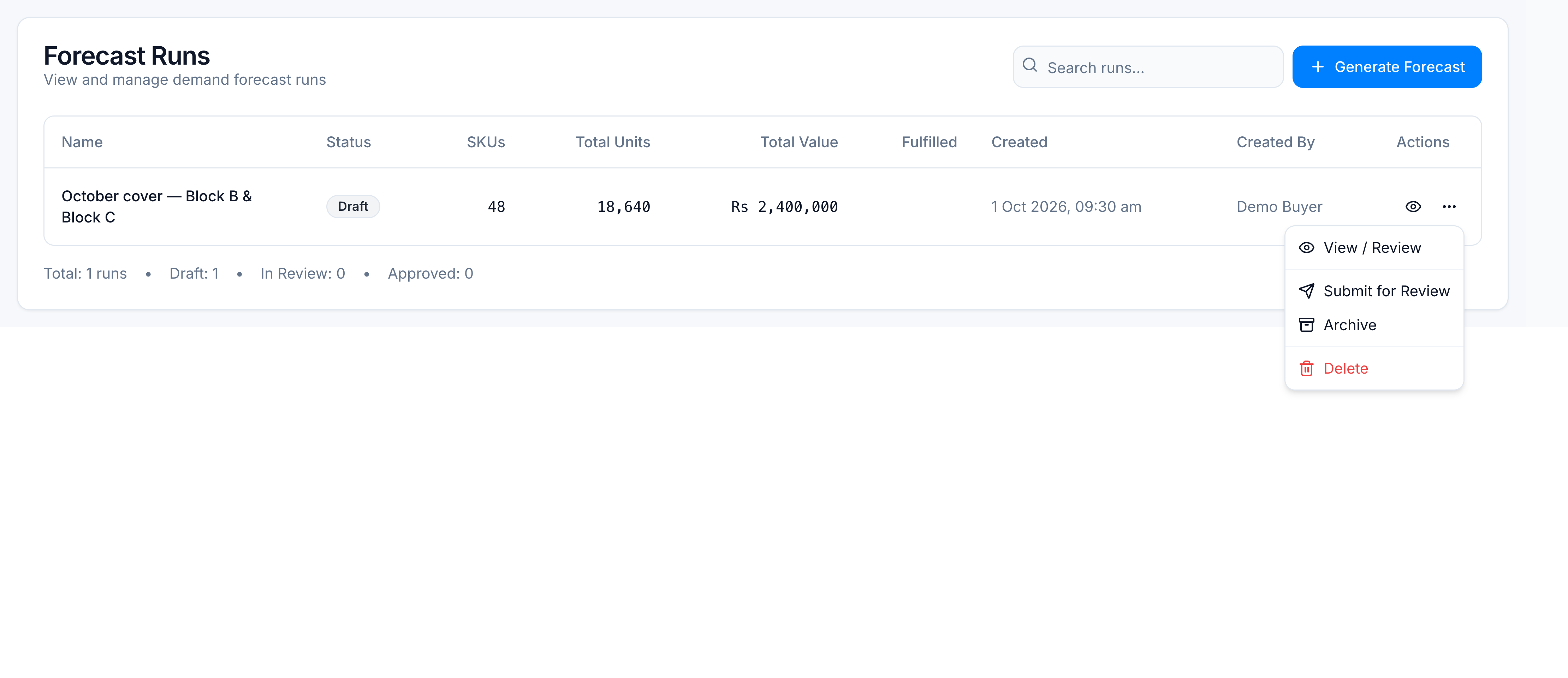
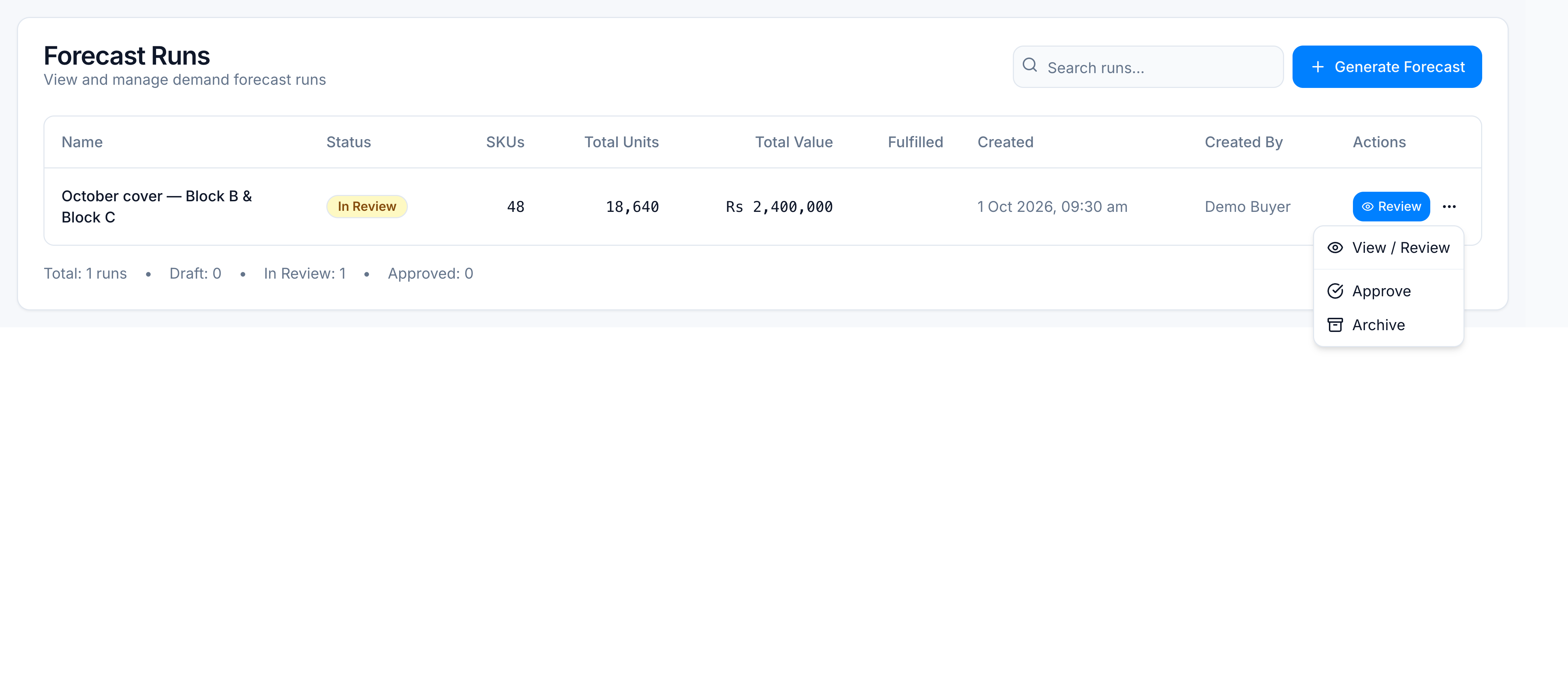
- A reviewer with
demand_forecast.approveopens the menu and clicks Approve. Status becomes Approved. The same Approve button is on the review header.
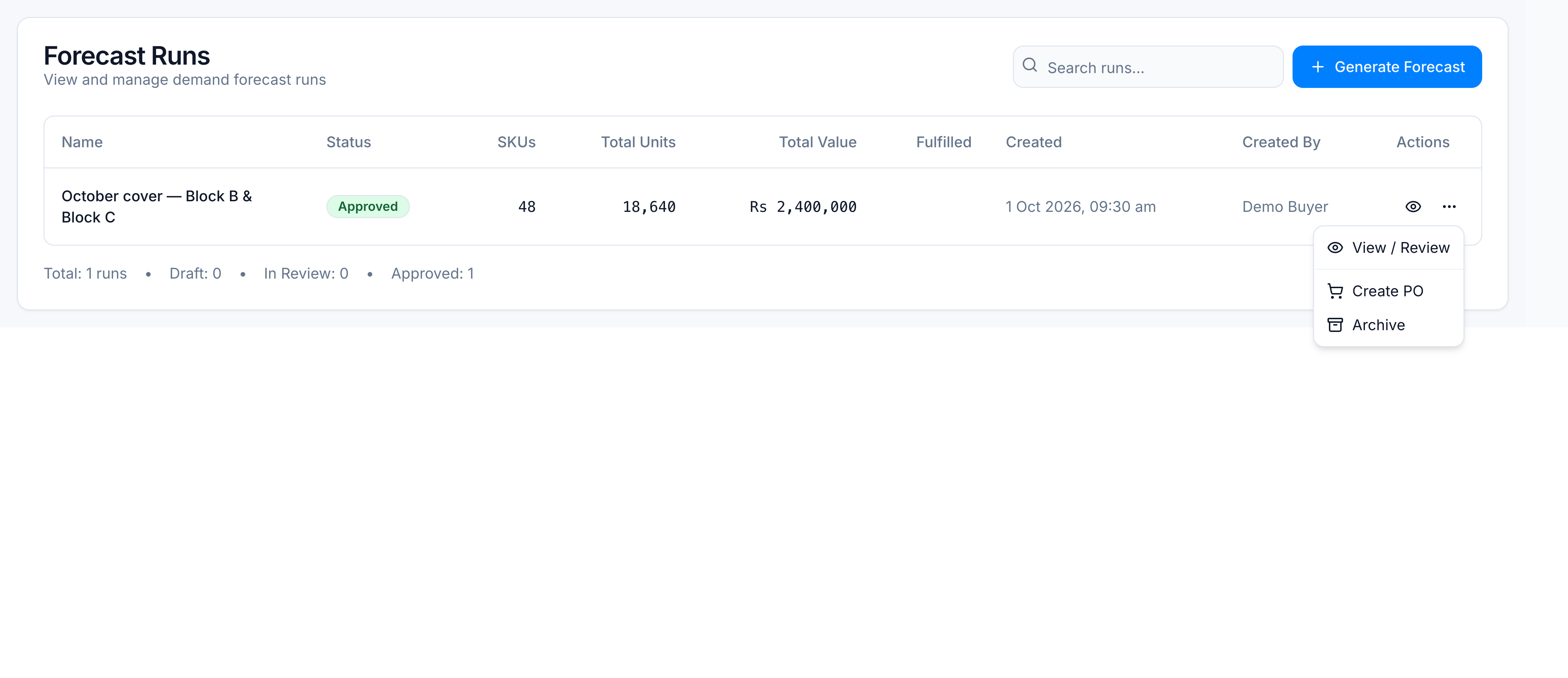
- Open the menu and click Create PO. One purchase order is raised per supplier for the lines still included. You need
demand_forecast.create_po.
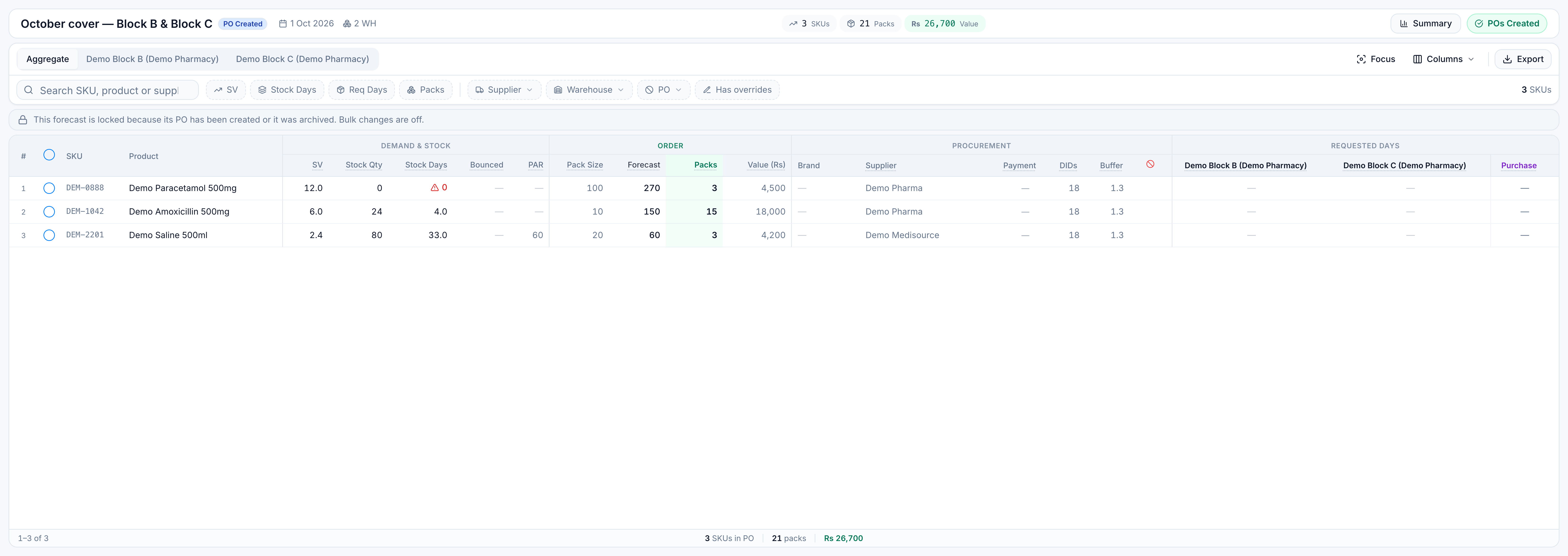
After purchase orders exist, the run is PO Created. Bulk edit is locked. Archive is for a run you are done with and do not want on the working list (demand_forecast.archive).
Demo outcome
Start from the fixture after review. Paracetamol was excluded on purpose (short-dated demo batch). The PO set is the other included lines.
| Step | Status | What the demo shows |
|---|---|---|
| Submit for Review | In Review | 48 SKUs, Rs 2,400,000 still on the PO |
| Exclude DEM-0888 | In Review | Paracetamol’s Rs 4,500 leaves the PO total |
| Approve | Approved | Reviewers can still edit only if they have edit-after-approval |
| Create PO | PO Created | Demo Pharma and Demo Medisource each get a PO for their included lines |
Open the purchase orders from Replenish Stock → Procurement → Purchase Orders. Sending, receiving, and statuses are covered in the Purchase Orders guide.
To see how much of this run has arrived later, use Forecast Report on the Demand Forecast screen, or Insights → Reports → Forecast Fulfilment.