Generate a forecast
Goal: create a new forecast run and open it for review. Where: Replenish Stock → Planning → Demand Forecast, then Generate Forecast.
You need permission to create a forecast (demand_forecast.create).
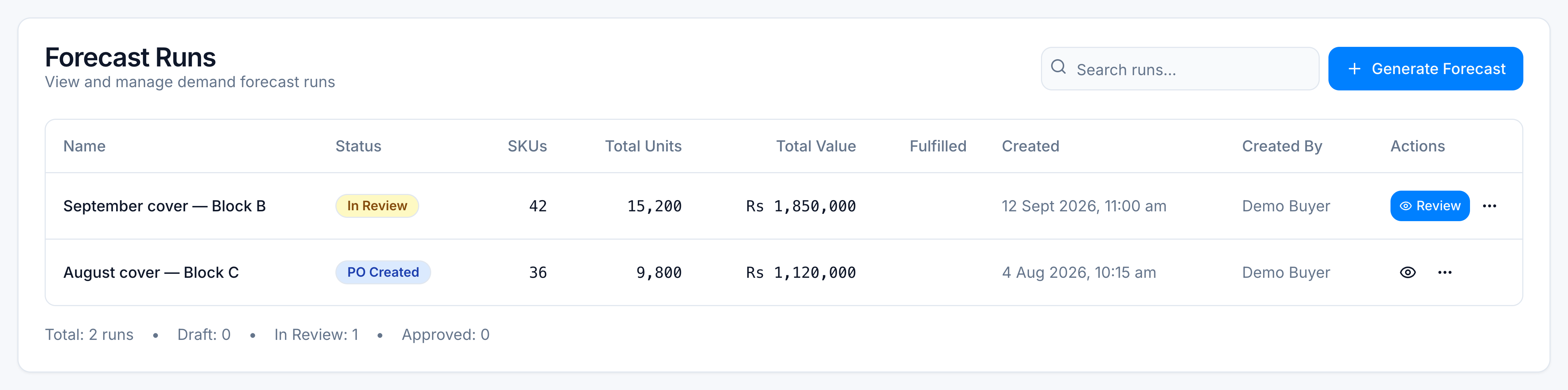
The screenshots use Demo Pharmacy. September and August runs are already on the list. This pass adds October cover — Block B & Block C.
Steps
- On the Runs tab, click Generate Forecast.
- Type a Run Name, or leave it blank to keep the suggested name. Example:
October cover — Block B & Block C. - Read Generation Mode. It follows the warehouse mapping saved in Settings:
- Standalone — demand is calculated directly for warehouses that are not fed from central stock.
- Central allocation — central stock is split across the mapped warehouses by their share of sales.
- Mixed — both of the above in one run.
- Tick the warehouses this run should cover. For the demo, tick Demo Block B and Demo Block C. Demo Central is shown as the central warehouse when the mode uses it; you do not order it as its own store.
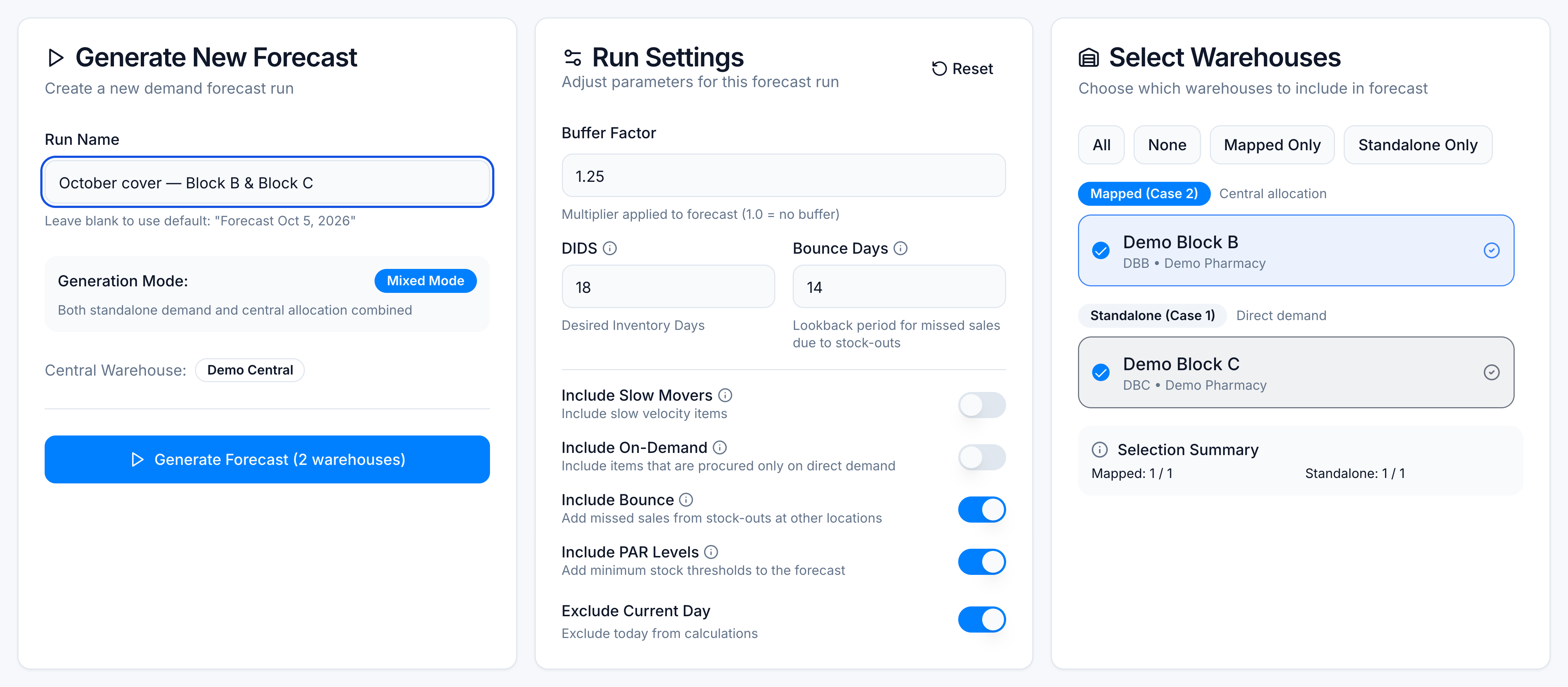
- Click Generate Forecast.
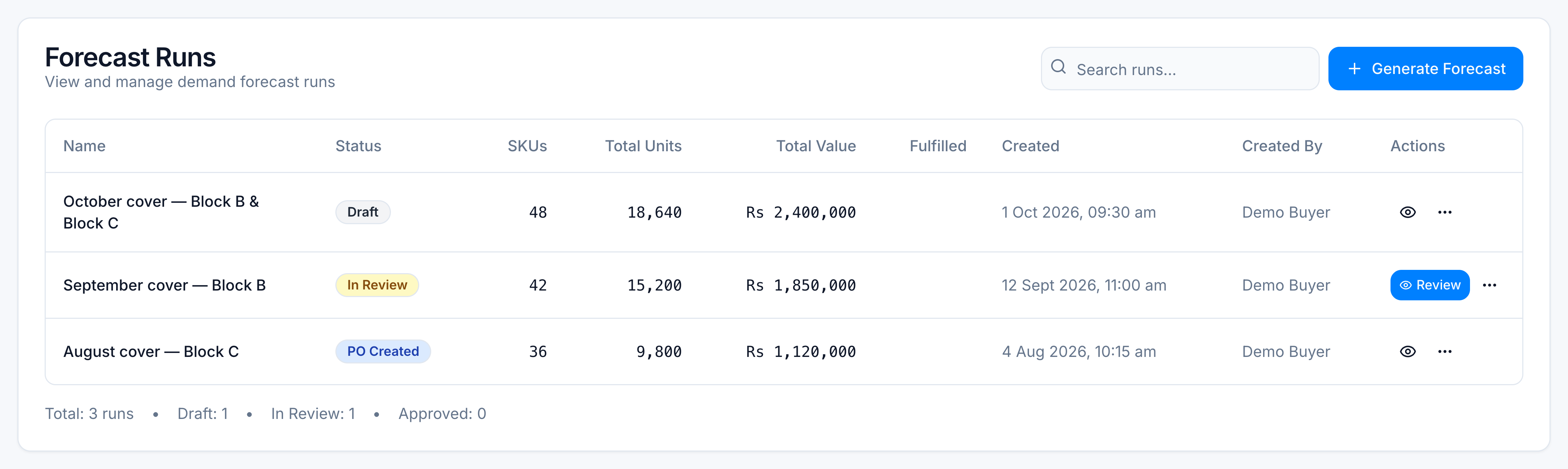
The new run appears on Runs as Draft, with SKU count, units, and value filled in. Open it to review before anyone approves it.
Demo outcome
| Name | Status | Warehouses | SKUs | Value |
|---|---|---|---|---|
| October cover — Block B & Block C | Draft | Demo Block B, Demo Block C | 48 | Rs 2,400,000 |
Cover length (DIDs), buffer, and the X / Y / Z sales windows come from Settings, not from this form. Change those before you generate if this buy should use a different cover than the last run. See Run statuses and settings.