Checkout & take payment
When to use this: to finish a sale once the cart is built.
Steps
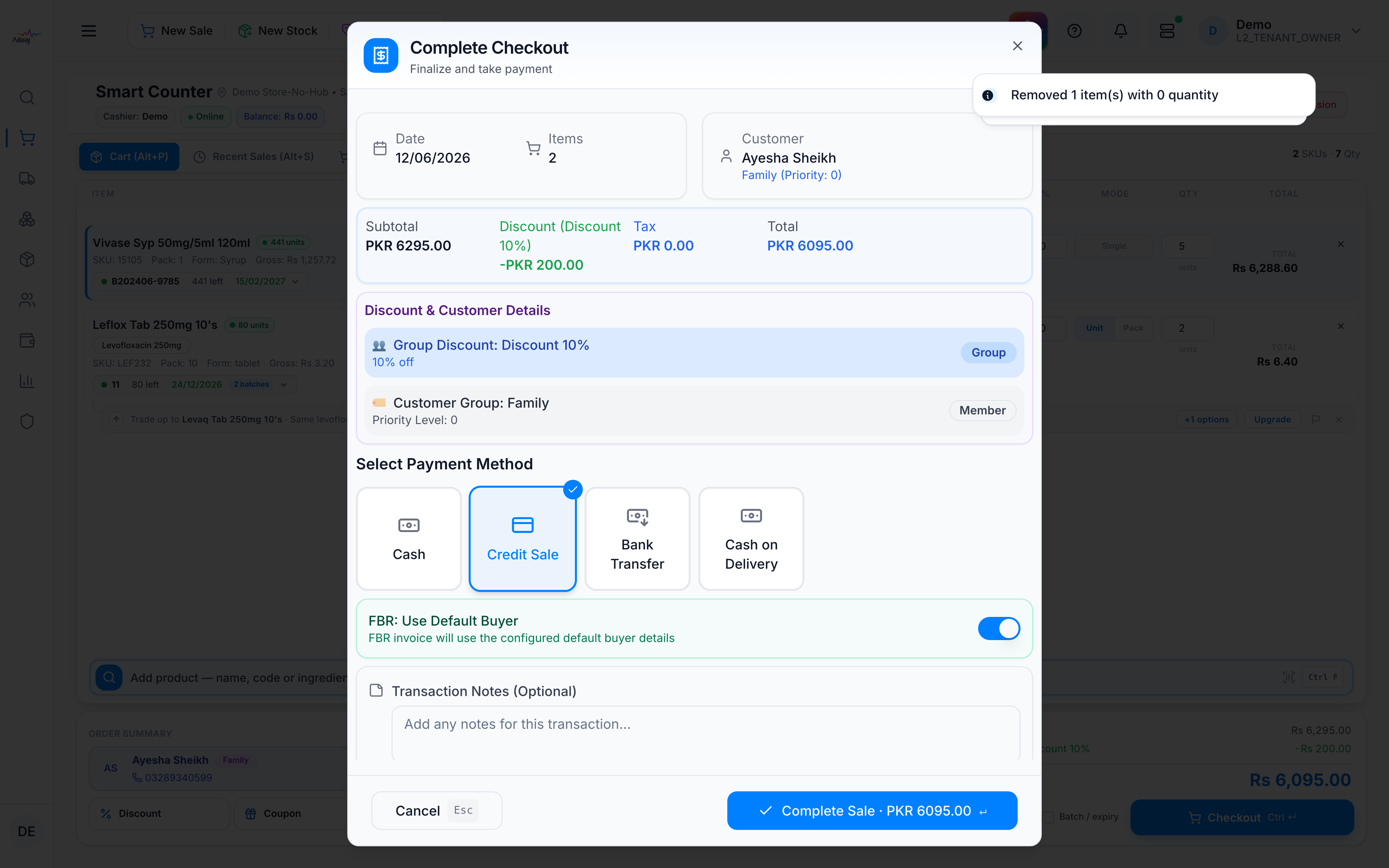
- Click Checkout (Ctrl+Enter). The payment dialog opens.
- If the cart still has out-of-stock lines, Smart Counter removes them first and auto-records a missed sale for each (same demand log as Missed). Checkout then continues with the sellable items. See Record a missed sale.
- Pick the payment method — Cash, Card, or Credit (defaults to Cash). For
a cash sale the Cash Received field pre-fills the rounded total and shows the
Change; the Grand Total includes any FBR charge.
- If this warehouse has bag charges on, the bag amount is on the sale and posts to Bag Charges (4210) when accounting is set up.
- If rounding-up is on, the extra rupee posts to Rounding Off Adjustment (4220).
- Confirm to complete the sale.
- In the “Sale Completed Successfully!” dialog, choose Print Receipt and / or Start New Sale.
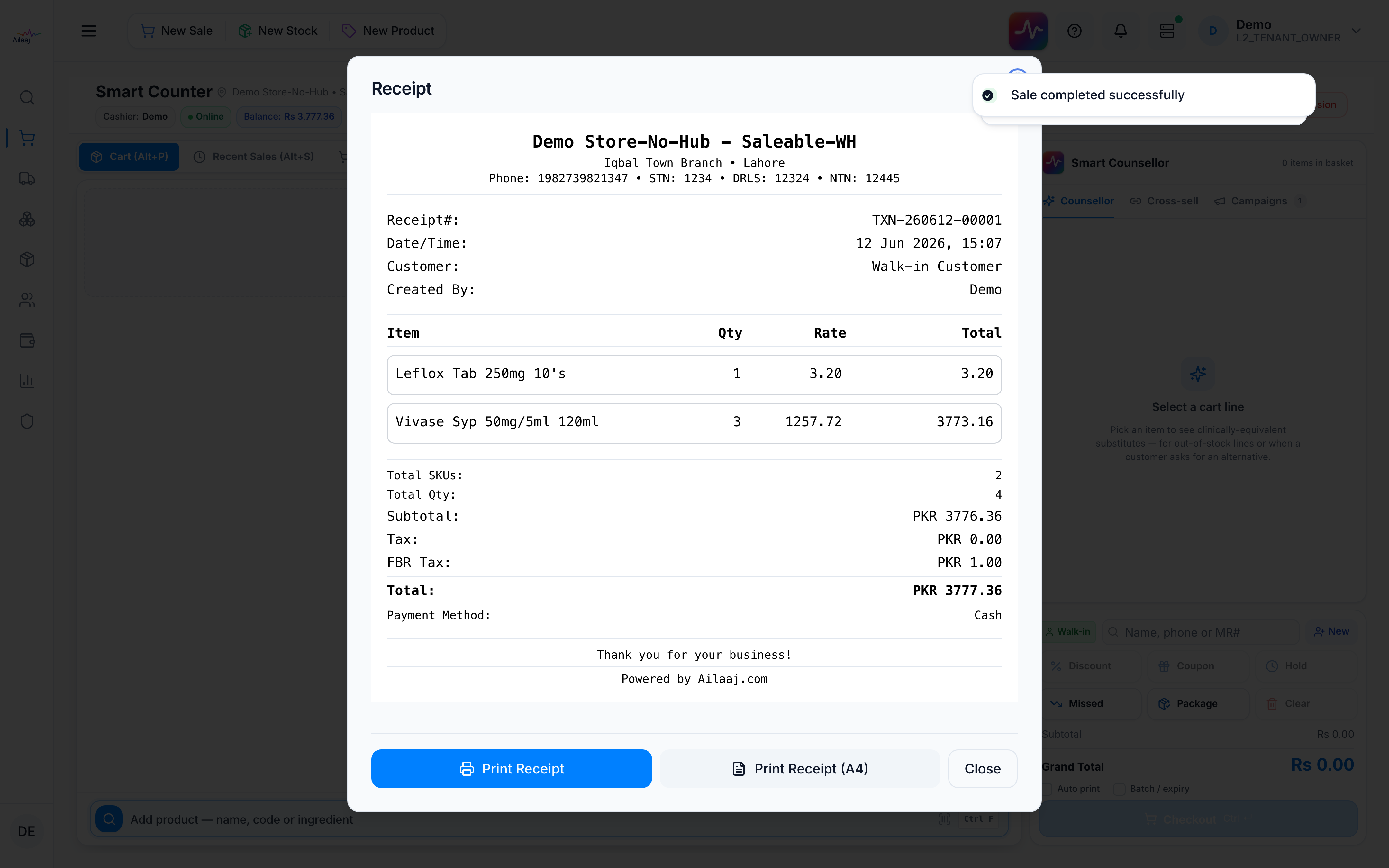
You’re done when
The sale is recorded and the completion dialog is shown. A cash sale updates the till Balance.
Good to know
- If auto-print is on, the receipt prints automatically on completion — see Print a receipt.
- Not ready to complete? Hold the sale instead to serve someone else first — see Hold & recall a sale.
Related
- Before: Add products · Apply a discount · Add a customer
- After: Print a receipt · Process a return