Record a missed sale (out-of-stock demand)
When to use this: a customer wants something you don’t have in stock. Capture the lost demand so purchasing can act on it.
There are two ways demand is recorded — the same Missed Sales report either way.
Auto at checkout (no extra tap)
If an out-of-stock product is already on the cart and you press Checkout (Ctrl/Cmd+Enter):
- Smart Counter removes those out-of-stock lines (they cannot be sold).
- It automatically records a missed sale for each removed line — same demand record as the Missed dialog.
- Checkout continues with the sellable items that remain.
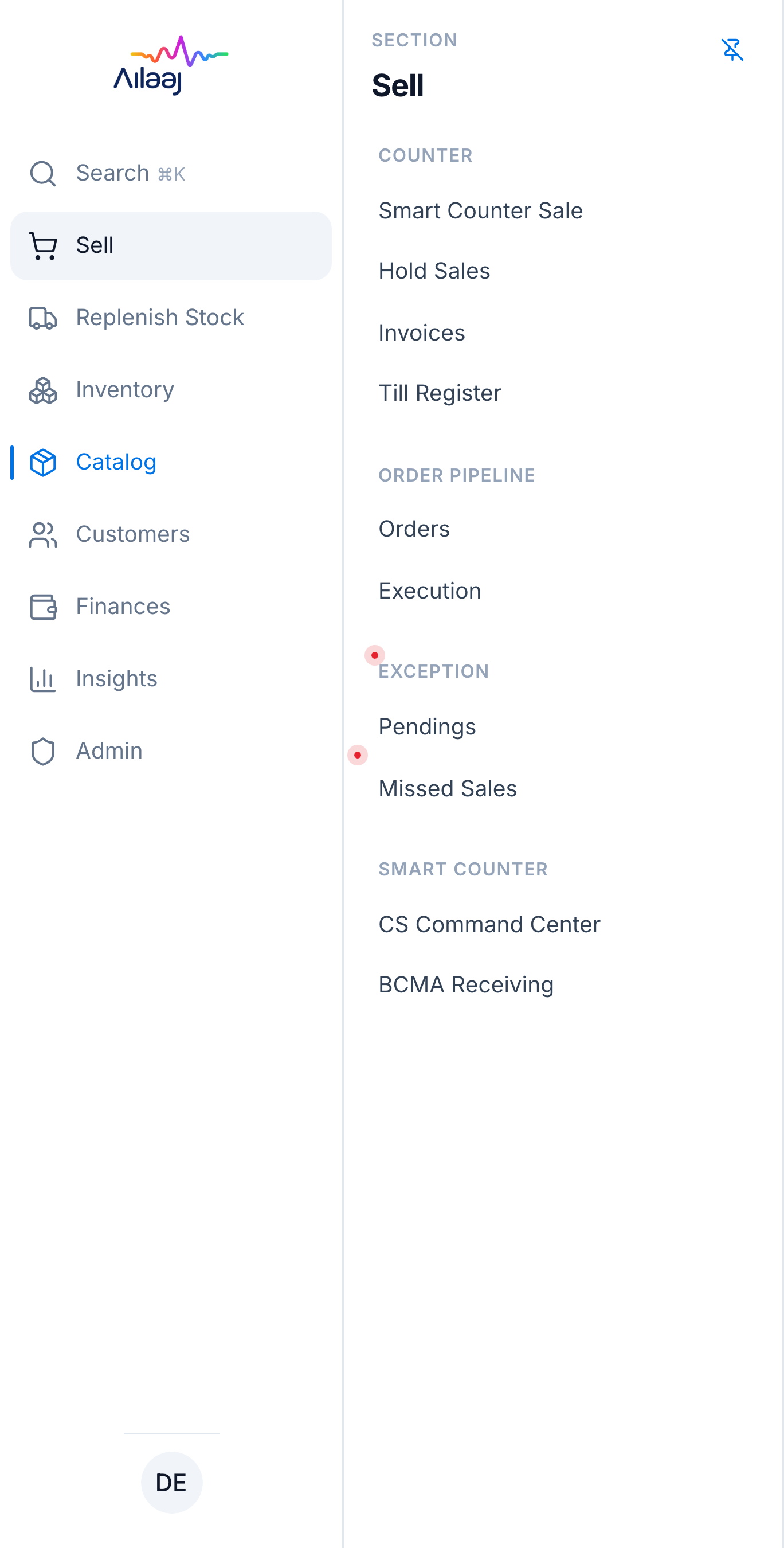
You’ll see a short toast such as Recorded 1 missed sale for out-of-stock items removed at checkout. Review those rows later under Sell → Exception → Missed Sales.
Use the manual steps below when you want notes, a specific quantity, or to log demand without checking out (customer left before payment).
Manual steps (Missed dialog)
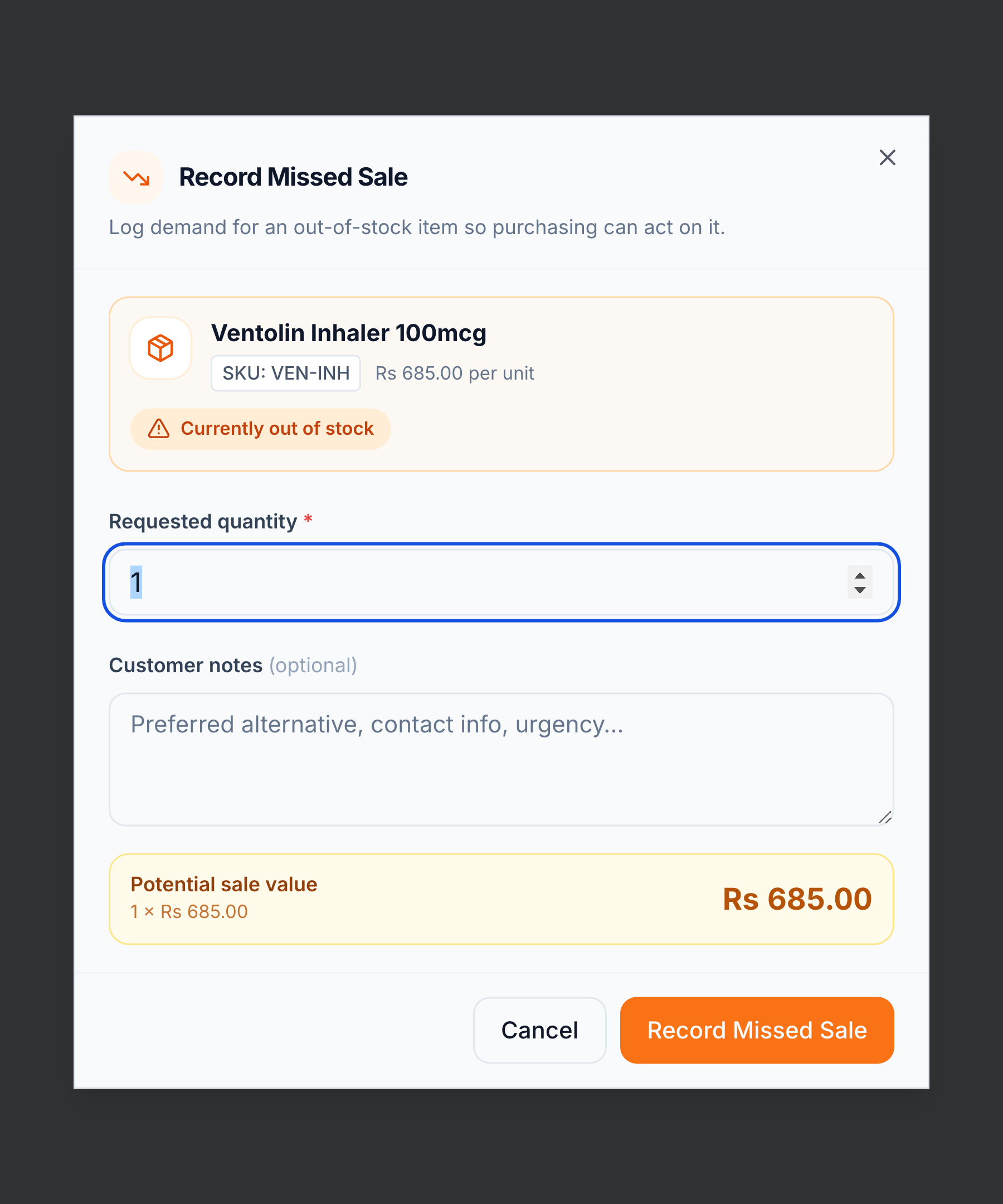
- Click Missed (M) → Record Missed Sale.
- Select the product (or it’s pre-filled from an out-of-stock cart line).
- Enter the Requested quantity and optionally add Customer notes. The dialog shows the Potential sale value.
- Confirm.
You’re done when
The missed sale is recorded (manually or at checkout). This records demand only — no payment, no stock change.
Where to review missed sales
Open the Missed Sale report — in the app sidebar, Sell → Exception → Missed Sales — to see everything customers asked for but couldn’t buy, by product, quantity, and value, so purchasing can act on it. The same demand feeds the pharmacy’s KPI reports.
Related
- Checkout & take payment · Add products (when an item is out of stock) · Why capture demand: Why Smart Counter