Print a receipt
When to use this: to give the customer a receipt — at completion, or any time afterwards.
Steps
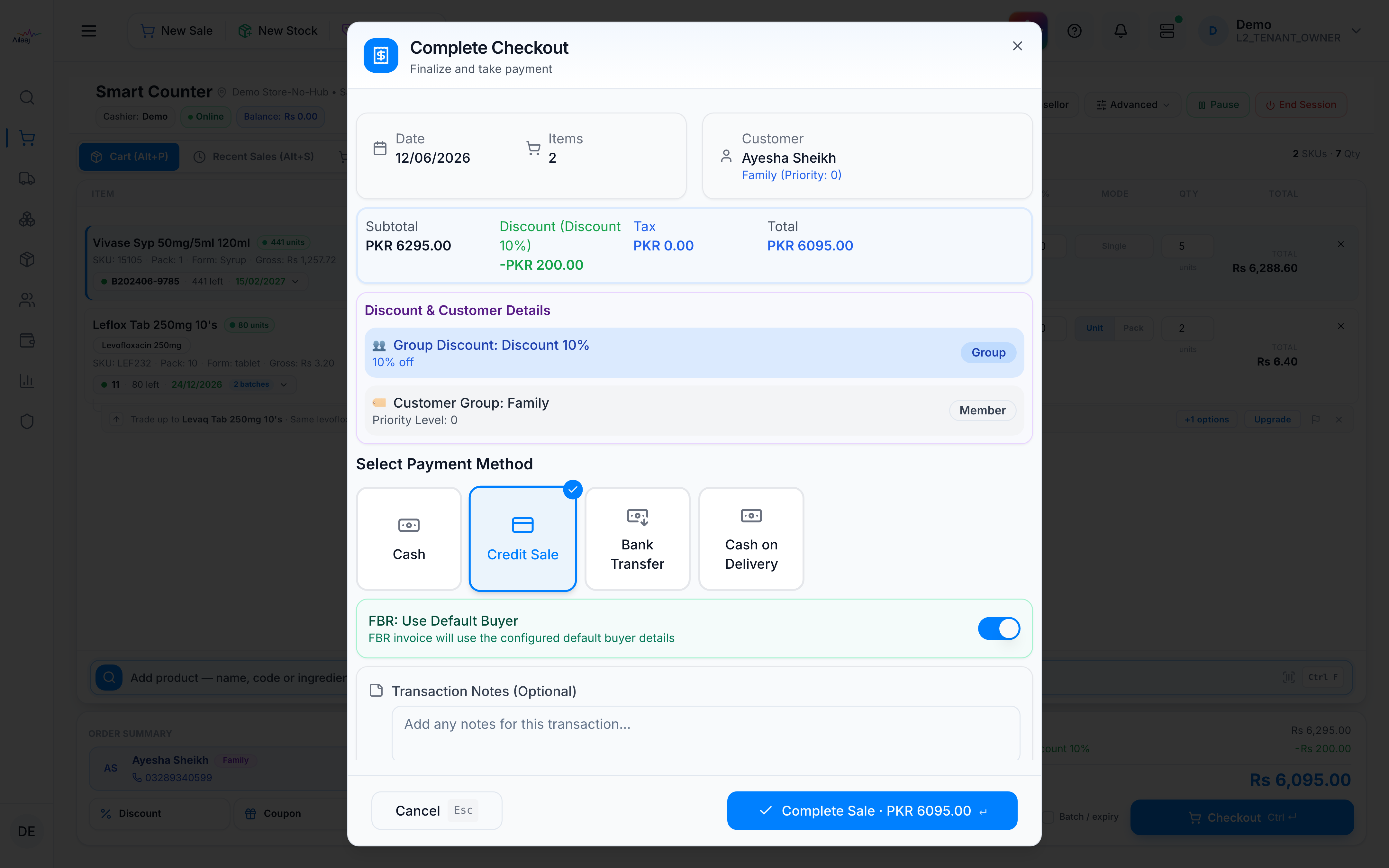
- At completion — press Print Receipt in the completion dialog.
- Later / reprint — open Recent Sales and click the printer icon on the sale to open its print preview.
Options
- Store logo and email — when the store has a logo and email, they print on the thermal receipt.
- Auto-print — if it’s on, receipts print automatically on completion (no button needed).
- Batch numbers & expiry on the receipt — tick the Batch / expiry checkbox in the toolbar (remembered on this device). This affects the receipt only — the batch is always shown on the cart line regardless. See Change the batch selection.