Apply a cart discount
When to use this: to take a manual discount off the whole cart. Requires discount permission.
Steps
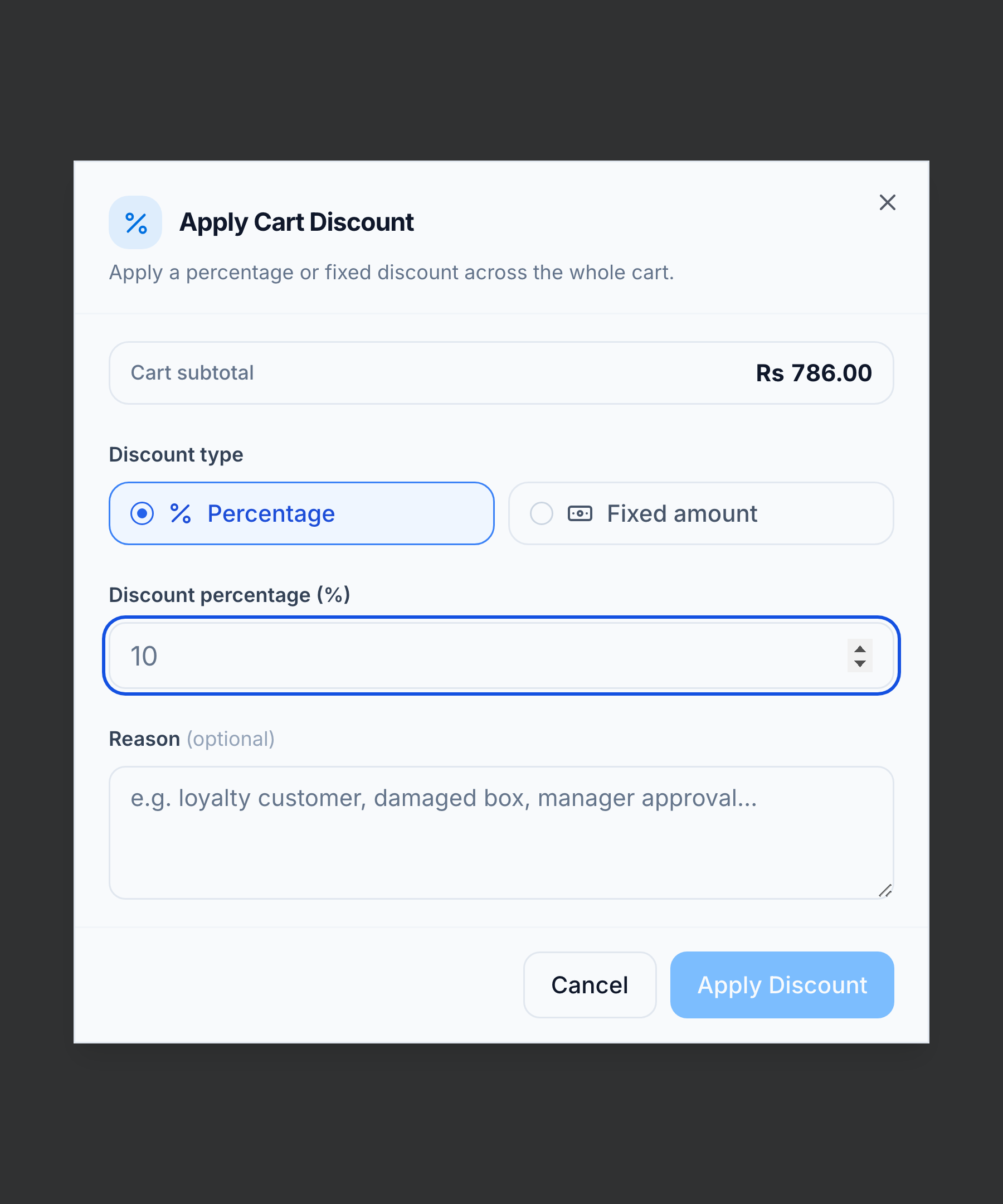
- Click Discount (Ctrl+D) to open Apply Cart Discount.
- Choose Percentage (≤ 100%) or Fixed Amount (less than the subtotal).
- Enter the value and an optional reason.
- Press Apply Discount.
You’re done when
The discount appears in the order summary. It spreads proportionally across the cart lines.
Good to know
- Only one discount applies at a time. A manual discount is the lowest priority — a customer-group discount or a coupon will override it. Full rule: Discounts, coupons & groups.
- For a single item, use the Disc % field on that cart line instead of the cart discount (same permission). Customer credit accounts and loyalty points are not part of this screen.
If it goes wrong
- No Discount button / it’s disabled — you don’t have discount permission. Ask a manager.
Related
- Apply a coupon · Add a customer (group discounts) · Discounts, coupons & groups