Add a customer to the sale
When to use this: to attach a customer to the sale — for their record, for a group discount, or because they asked for an invoice. The field next to the totals defaults to Walk-in.
Attach an existing customer
Type a name / phone / MR# into the customer field, then press Enter (or click) to attach the match. The attached customer replaces Walk-in next to the totals.
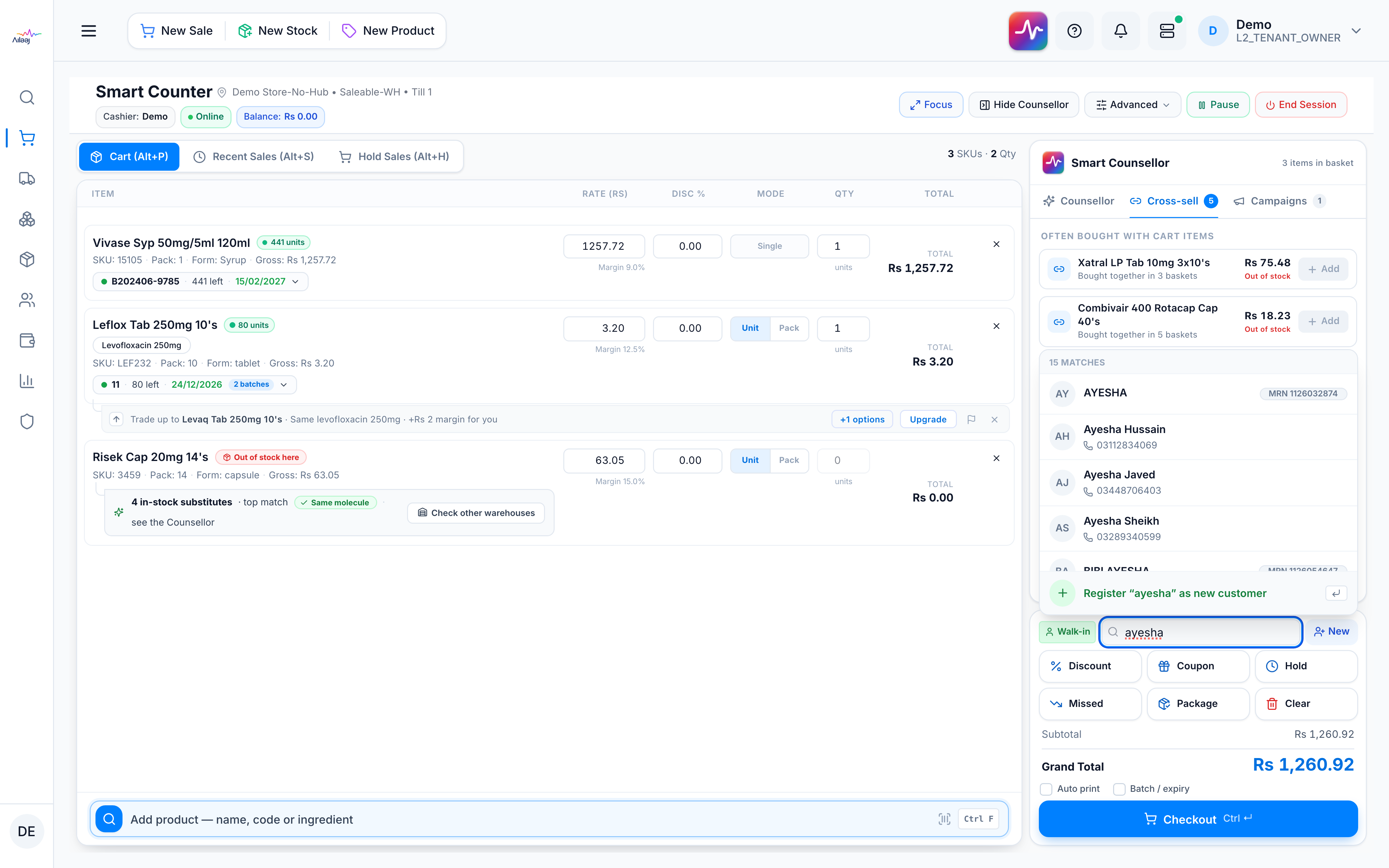
Create a customer on the spot
Click the customer field and choose “Click to add a new customer” — it’s offered the moment you click, even before you type (type a name first and it pre-fills). In the Register customer dialog, fill Full name (required) and optional Phone, Email, NTN, CNIC. You can also pick a Customer group. Press Create customer — the customer is created and attached to the sale without leaving the counter.
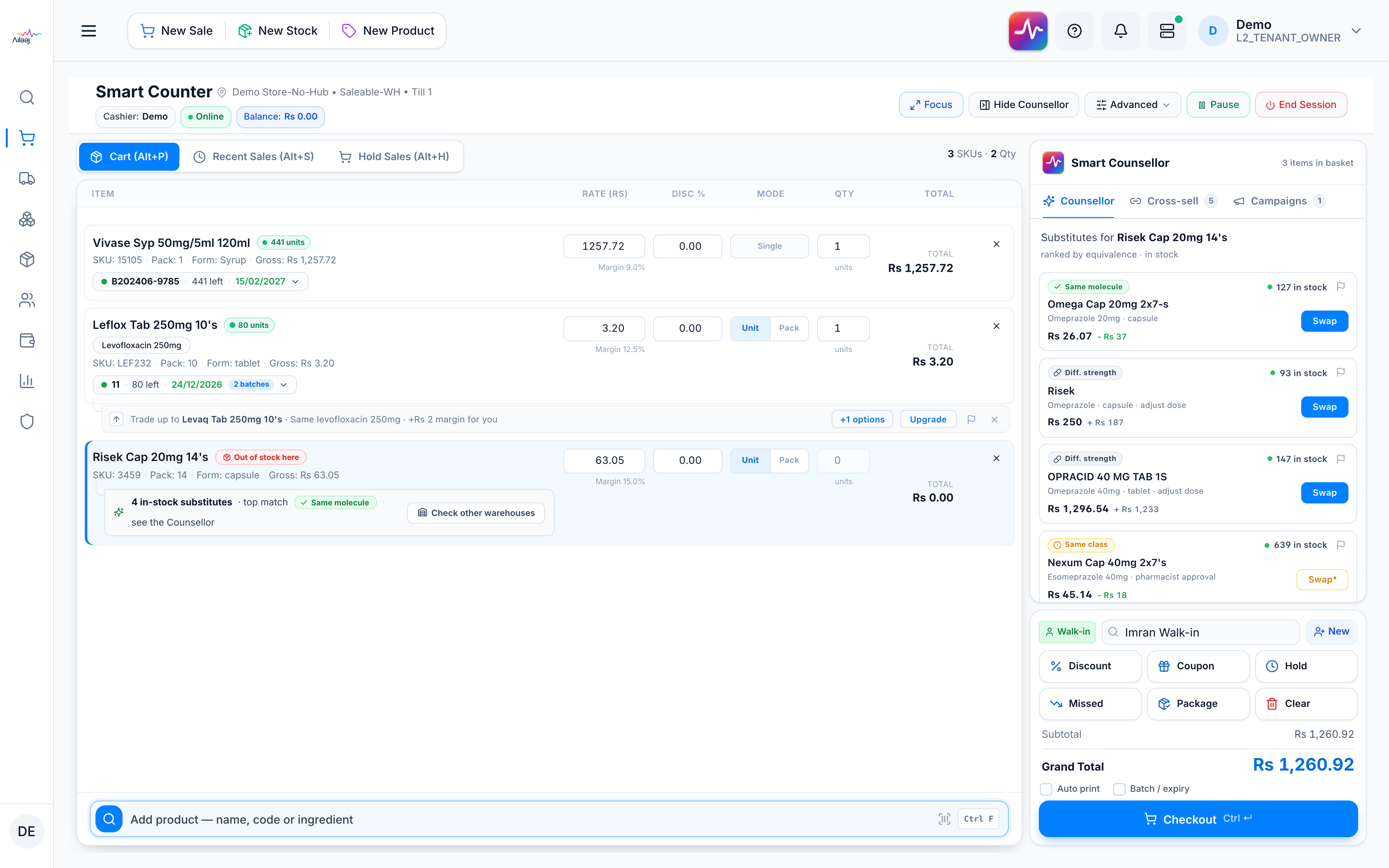
Group discounts apply automatically
If the customer belongs to a customer group that has a discount, that discount is applied to the cart the moment they’re attached — you don’t add it by hand. Clearing the customer removes it.
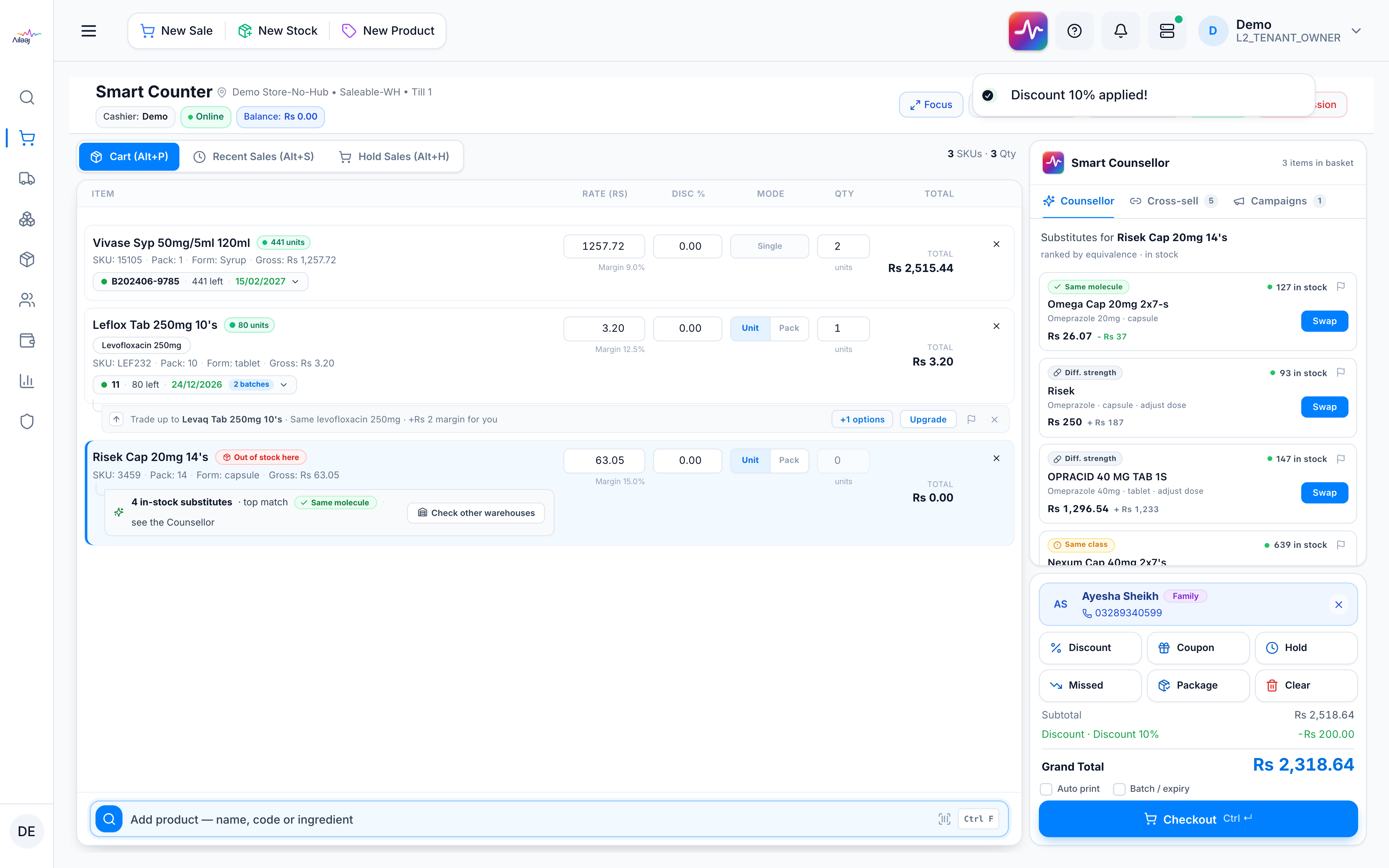
Good to know
- A group discount is the highest-priority discount — it overrides a coupon or a manual discount, and only one discount applies at a time. Full rule: Discounts, coupons & groups.
- Why this matters and how it compares to other software: Automatic group discounts.