Process a return (refund a transaction)
When to use this: a customer is returning items from a past sale. Returns are processed from Recent Sales — there’s no separate Returns page. Requires return permission.
Steps
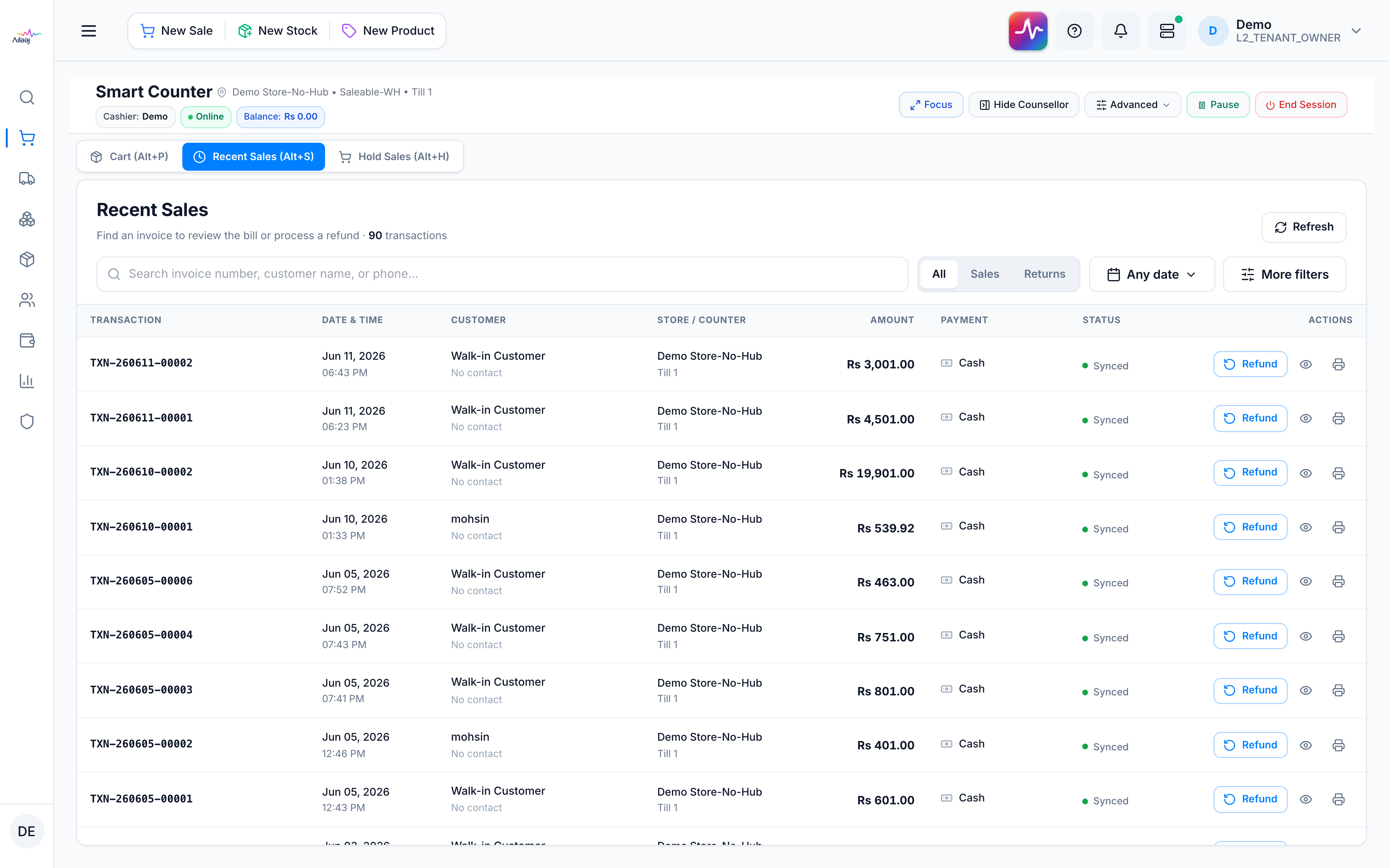
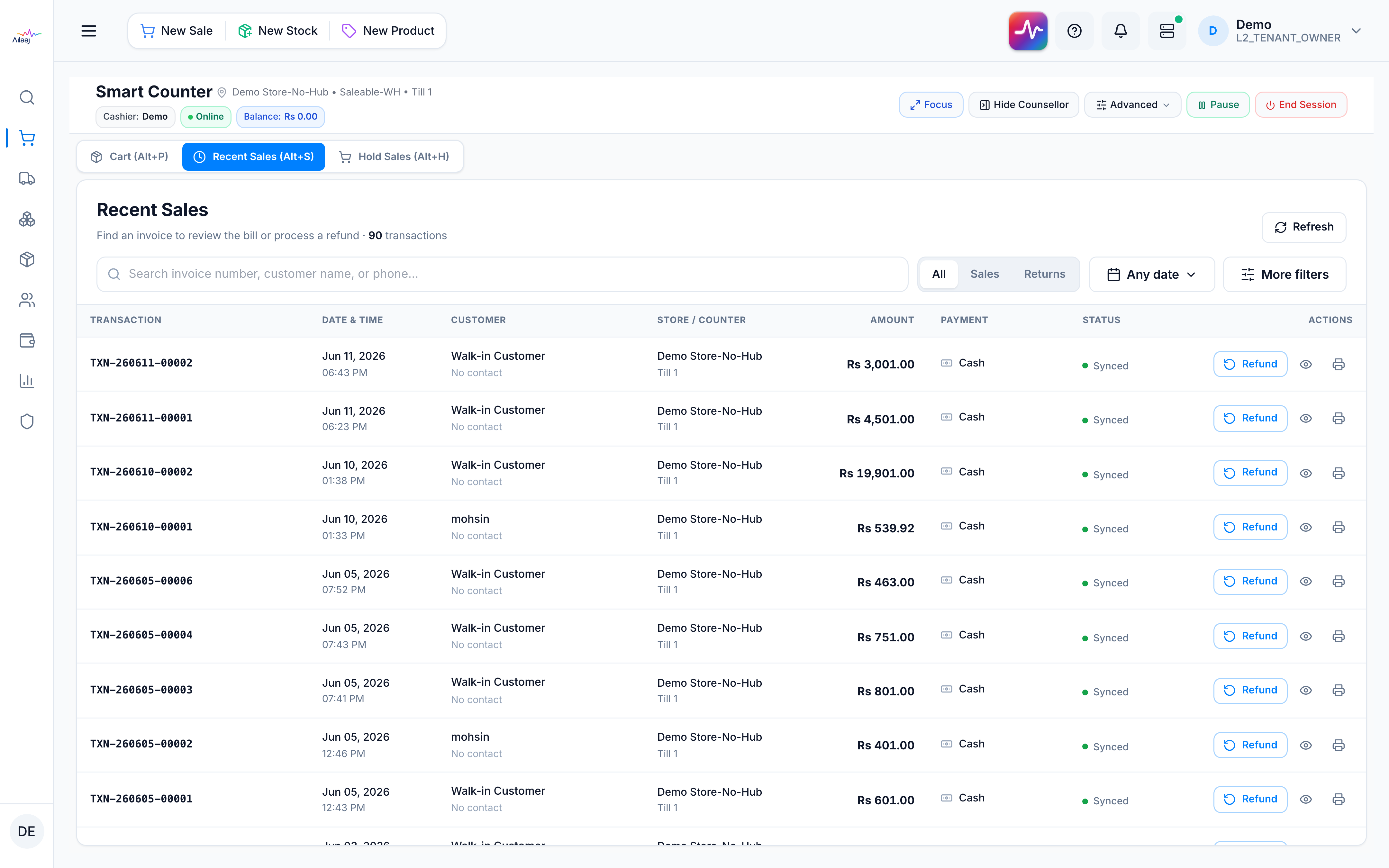
- Open Recent Sales, find the sale (filter by customer, date, or transaction type, or search by invoice number), and click its Refund button (↺) in the Actions column — this opens the Process Refund dialog.
- Pick the lines to return. The dialog lists the Sale Items on the left. Click Add on each line you want to return — or Add all items for the whole invoice. Each added item appears under Items to Return, where you can adjust the quantity to return fewer than were sold. Lines you don’t add are not refunded.
- Choose a Return Reason and Refund Method (Original payment method / Cash / Card / Credit). If the sale had shipping, you can optionally refund it (reason required).
- Press Process Refund (the button shows the refund amount).
You’re done when
Stock goes back to inventory, and a cash refund affects the till balance (card / credit refunds don’t).
Good to know
- Partial and per-item returns are fully supported. You can return the remaining quantity across multiple visits until a line is fully returned.
Full rules: Returns.
If it goes wrong
- No Refund button — you don’t have return permission. Ask a manager.