Add products to the cart
When to use this: every time you build a sale — this is the core of punching a sale.
By search
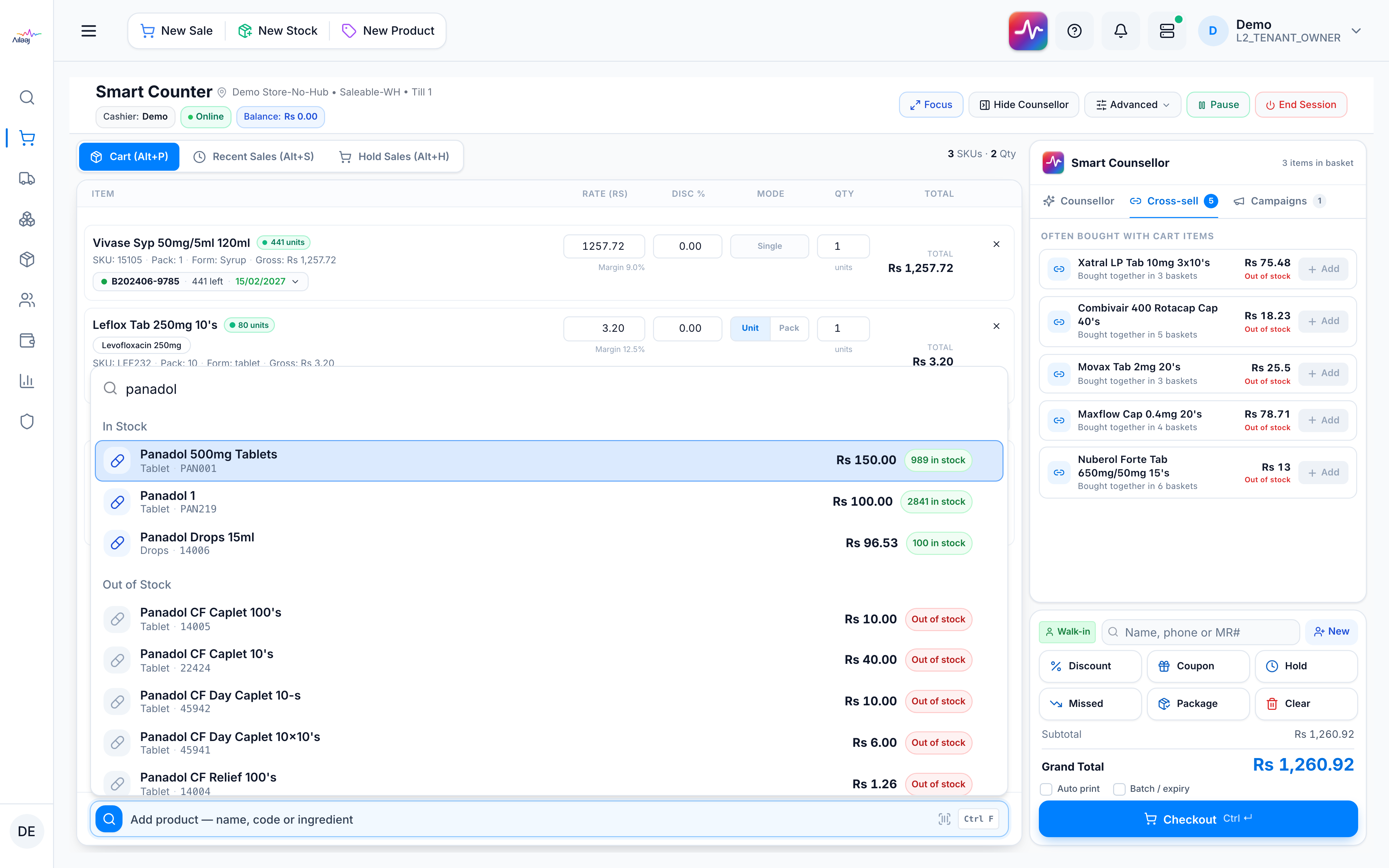
Click Add product (Ctrl+F), type ≥2 characters of the name or SKU, and pick from the In Stock / Out of Stock results. The item is added at quantity 1 and its quantity field is focused, so you can type the count immediately. Each result shows its live stock. In-stock prices are the FEFO lot’s inventory selling price (the same price that lands on the cart); out-of-stock results show the product catalogue price.
By barcode
Scan into the same Add product bar (Ctrl+F) — there is no separate scan field. The code is matched against barcodes/SKUs, the product is added at 1 unit, and the bar clears for the next scan.
On the cart
Each line shows the product name. If the product has a brand, that name appears
directly under it (not as Brand:). Products with no brand look the same as before.
Other ways to add
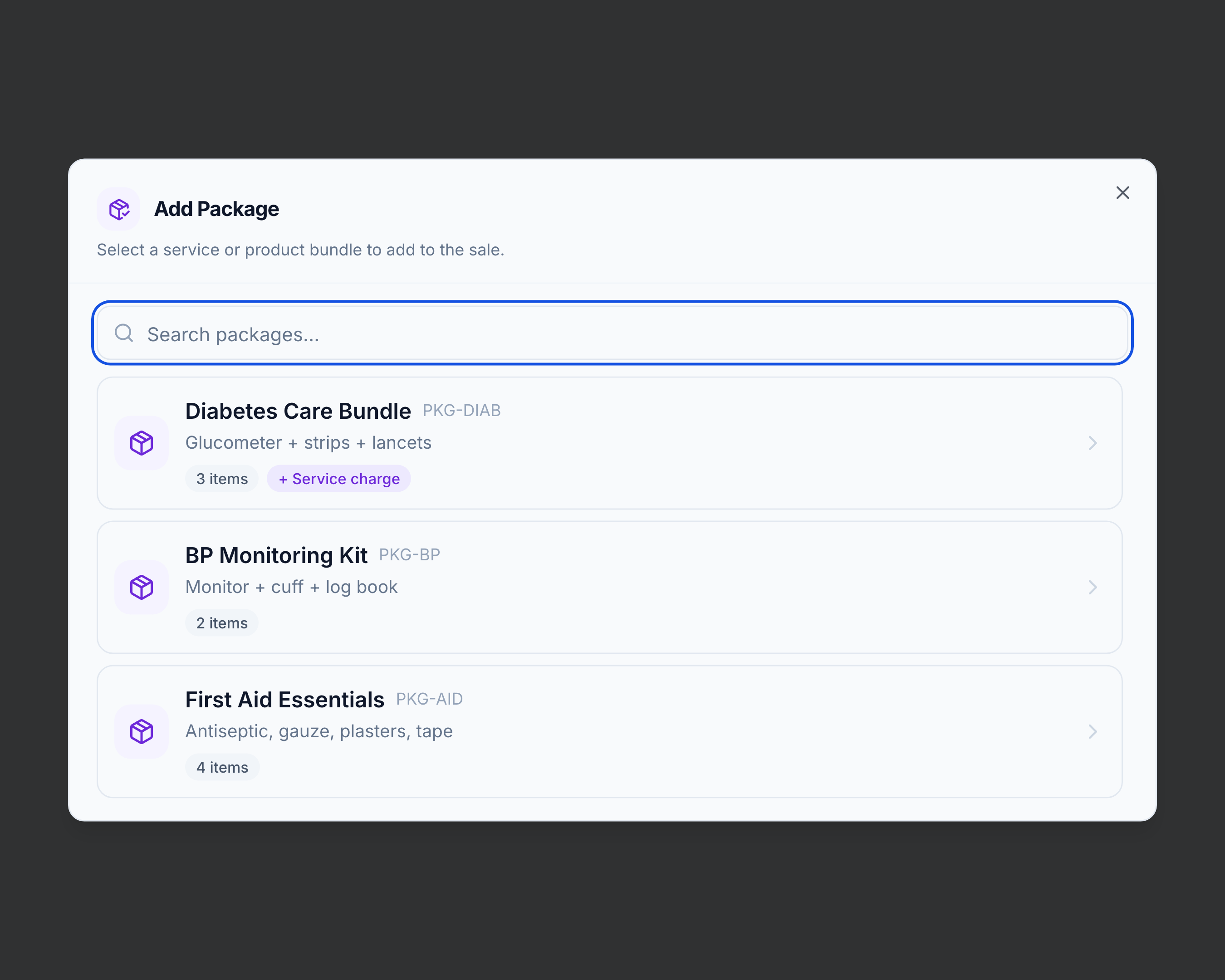
- Package — a pre-built bundle (may carry a service charge). Click Package to open Add Package, search or pick a bundle, then in its detail view set the package quantity and review the items table with per-line stock status (in / low / out) and any service charge before Add to cart.
- Counsellor — Add an up-sell, substitute, or cross-sell from the Smart Counsellor panel on the right (see Smart Counsellor).
Batch & expiry
Batch and expiry are chosen automatically — earliest expiry first (FEFO), then oldest stock. The line also shows a separate location pill with the zone → aisle → rack → shelf names of the selected lot (the names you set in warehouse layout, never the internal code). To sell a different batch, see Change the batch selection. Why FEFO: Batch selection (FEFO).
If it goes wrong
- Item is out of stock — press S on the line to find an in-stock substitute, or capture the lost demand as a Missed sale. If the OOS line is still on the cart when you press Checkout, Smart Counter removes it and auto-records the missed sale.