Audience & visibility — reference
The home of record for campaign targeting and rack display. The how-to (Set who earns it & what staff see) links here.
Who can earn it (targeting)
| Dimension | Default | Notes |
|---|---|---|
| Staff roles | none / all | Chips; needs roles configured in Tenant → Role Management |
| Stores | All stores | — |
| Department | All departments | — |
Targeting is role + store + department — there is no customer-group targeting.
Visibility modes
| Mode | On the rack |
|---|---|
| Staff visible | Commission values shown on rack tiles. |
| Motivation only | Highlighted as a bonus SKU; amounts hidden. |
| Silent tracking | No staff UI; tracked for reporting only. |
How a campaign appears to the cashier
On the Smart Counter, the Smart Counsellor rack has a Campaigns tab. When a campaign is live for that cashier’s store/role they see a banner (campaign name, a LIVE badge, the end date) and promoted SKU tiles (priority pill P1/P2…, a Campaign badge, price, stock). The commission indicator depends on the visibility mode:
| Mode | Indicator |
|---|---|
| Staff visible | The amount — e.g. +PKR 10/unit, a %, or Rs N at target. |
| Motivation only | A Bonus highlight; for threshold campaigns, a team-target progress bar and “X% to go — hit the team target to unlock the bonus.” |
| Silent tracking | ”Tracked for management reporting” (no amount). |
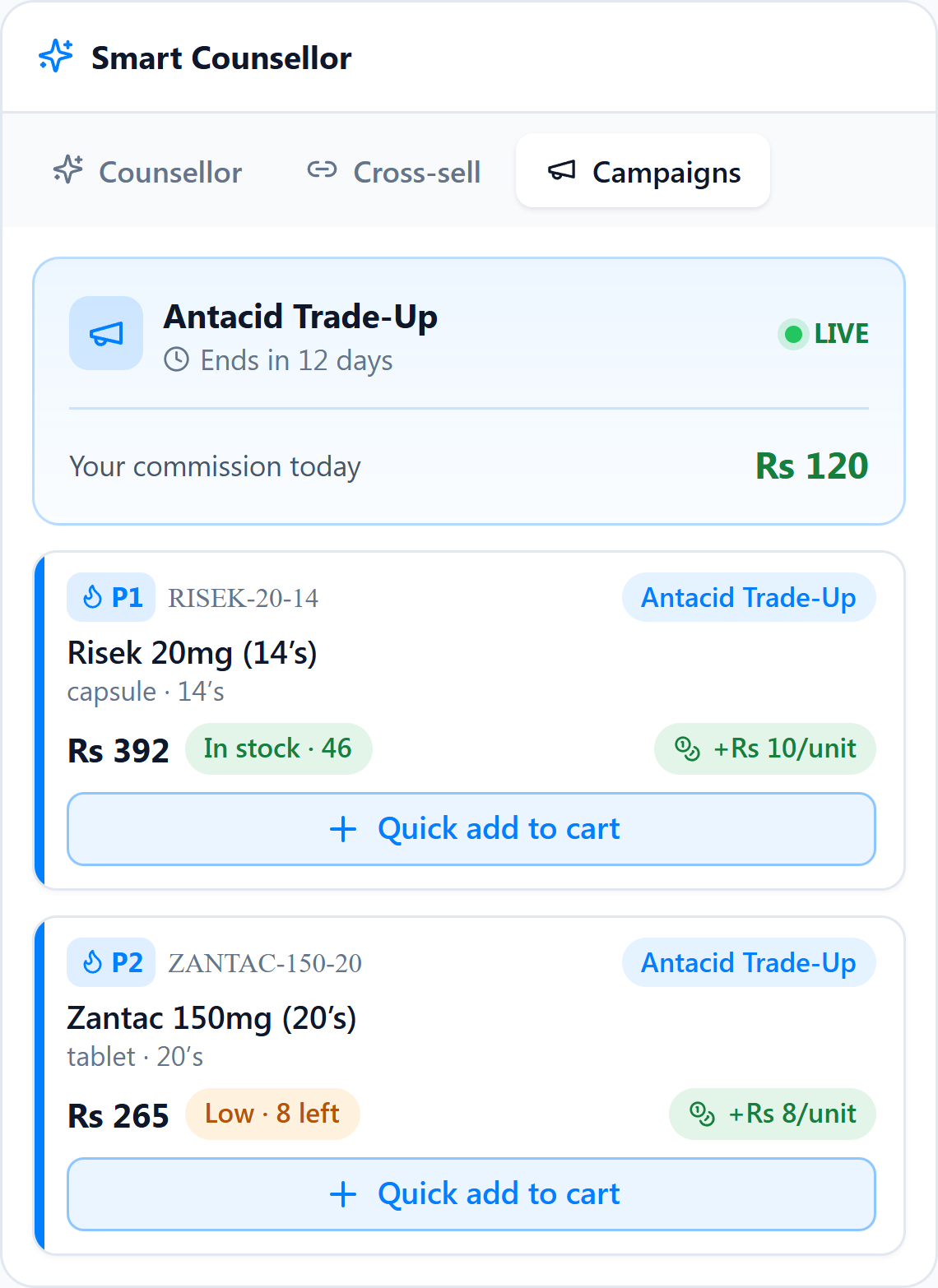
Adding a promoted SKU to the cart attributes the sale (and any commission) to that cashier for reporting.
Related
- Why three modes exist: Staff incentives & visibility.