Add & manage promoted SKUs
When to use this: on Step 4 · Rack items, to choose which SKUs the campaign promotes and in what order.
Add a product
- Click Add SKU.
- In the Add SKU popover, search “by name, SKU or barcode…” (type at least 2 characters; up to 25 matches show).
- Click Add next to a product. It changes to Added and a toast confirms “{Product} added to rack.”
Products already in the campaign are excluded from results. Products are added one at a time — there’s no bulk / CSV import.
Manage the promoted SKUs
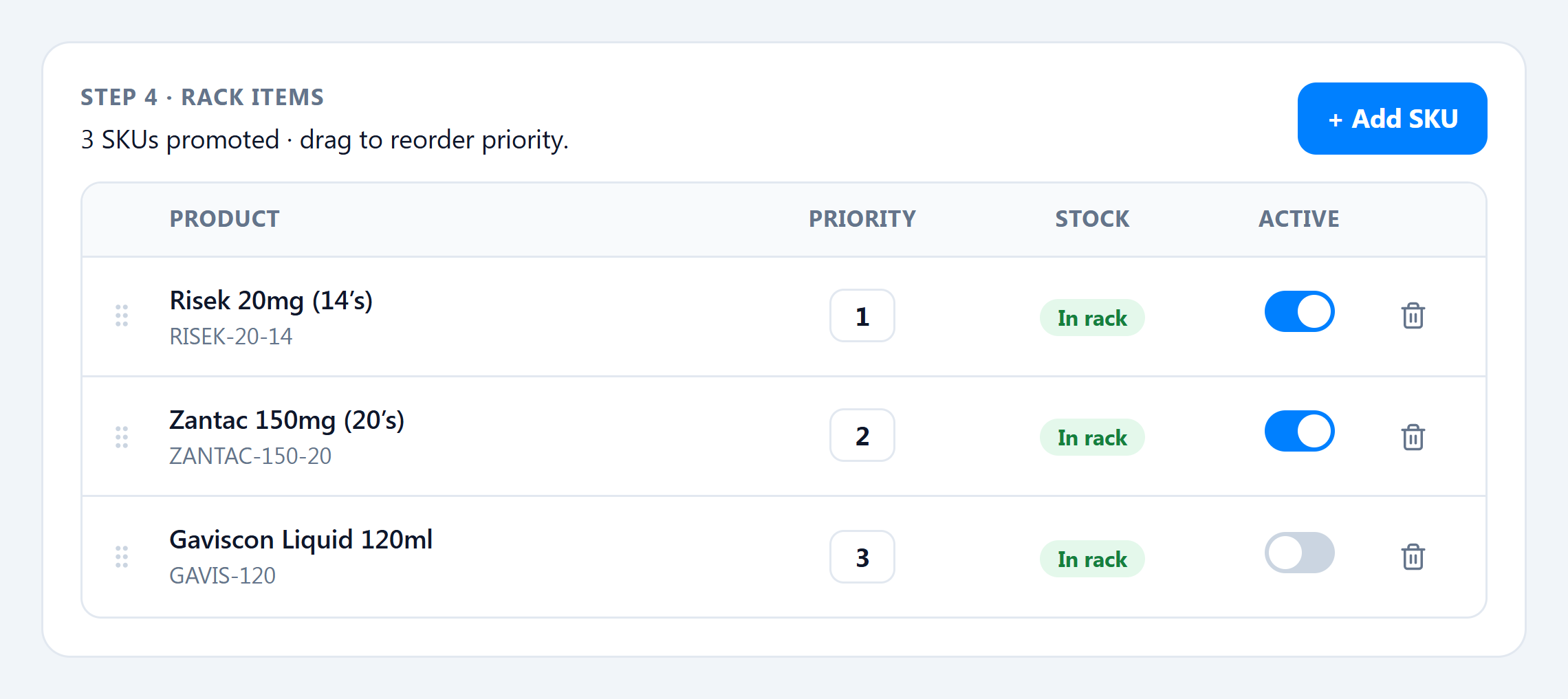
The Rack items table lists every promoted SKU:
| Column | What it does |
|---|---|
| (drag handle) | Drag to reorder priority. |
| Product | Product name + SKU. |
| Priority | Numeric order (1 = highest); higher priority shows first on the rack. |
| Stock | ”In rack” indicator. |
| Active | Toggle a SKU on/off without removing it. |
| (delete) | Remove the SKU — confirms “Remove {product} from the rack?” |
Empty state: “No SKUs on this campaign yet. Click ‘Add SKU’ to promote products.”