Set who earns it & what staff see
When to use this: on Step 3 · Audience, to control who can earn the incentive and how it’s shown on the counter.
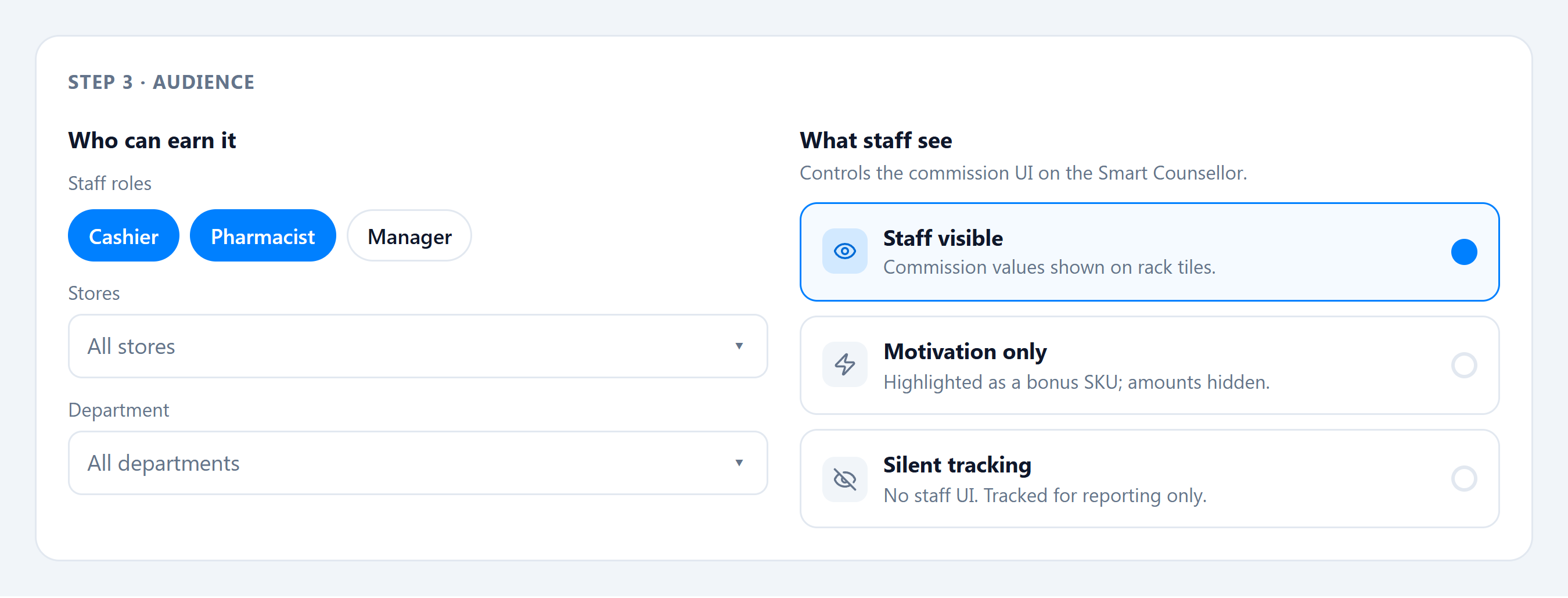
Who can earn it
- Staff roles (chips) — restrict to specific roles. If none are configured you’ll see “No roles configured for this tenant. Add roles in Tenant → Role Management to enable role filtering.”
- Stores — defaults to All stores.
- Department — defaults to All departments.
What staff see
Under “Controls the commission UI on the Smart Counsellor,” choose a visibility mode:
| Mode | On the rack |
|---|---|
| Staff visible | Commission values shown on rack tiles. |
| Motivation only | Highlighted as a bonus SKU; amounts hidden. |
| Silent tracking | No staff UI; tracked for reporting only. |
A live preview (“How staff see it on the rack”) shows a mock tile so you can check the effect before publishing.
Good to know
- Targeting is role + store + department — there’s no customer-group targeting.
- The full rules, and exactly what each visibility mode shows on the cashier’s rack: Audience & visibility. Why the three modes exist: Staff incentives & visibility.