Bulk-import purchase orders
Goal: create several purchase orders in one pass from a spreadsheet. Where: Purchase Orders → Bulk Import.
Steps
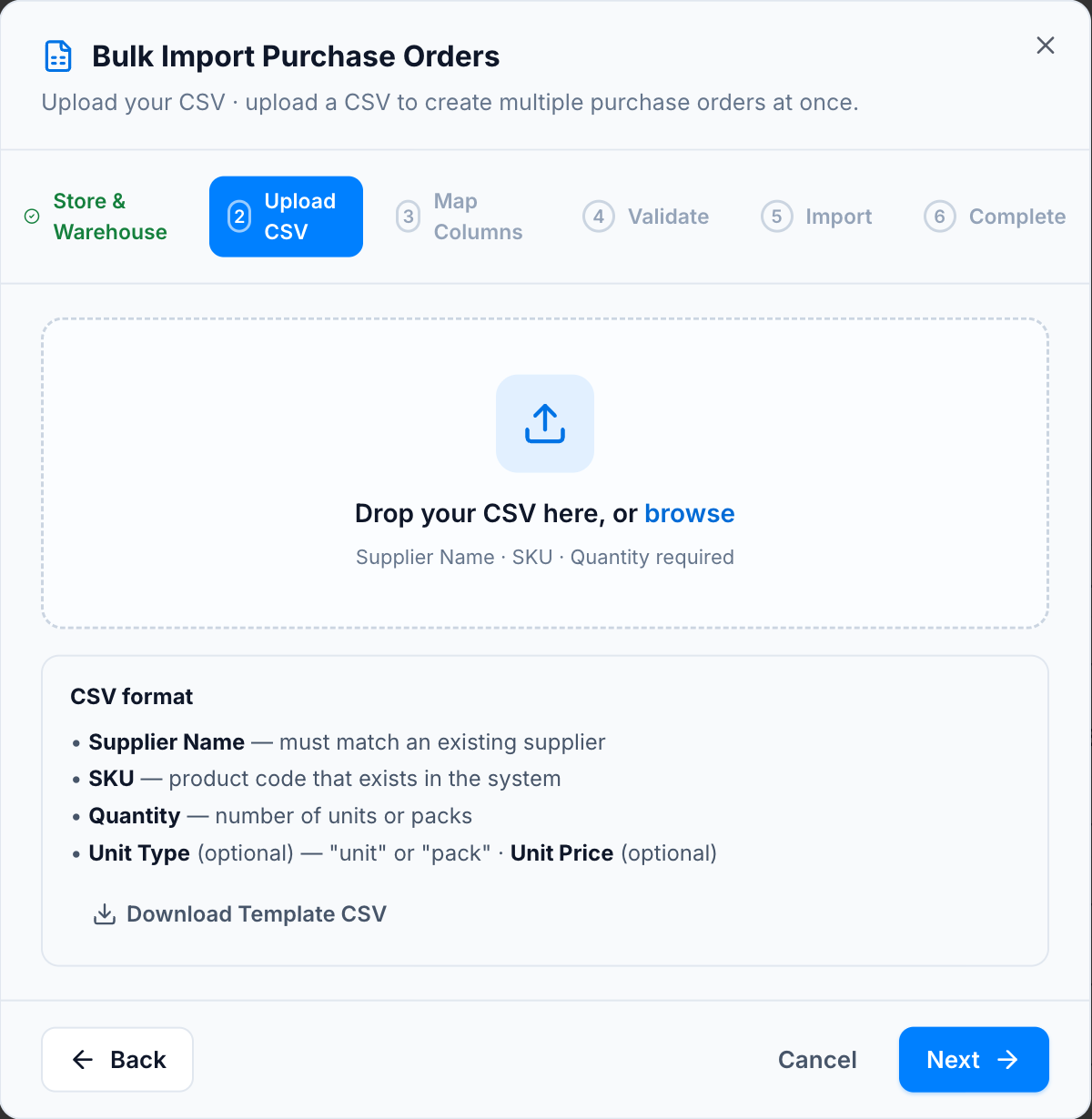
The wizard runs in six steps:
- Store & Warehouse — choose the destination for every PO in this import. (Optional notes are added to each PO created.)
- Upload CSV — drop or pick your file. Detected columns are shown back to you.
- Map Columns — confirm the mapping (auto-detected where possible):
supplier(required) ·sku(required) ·quantity(required) ·unit_type(unit/pack, optional) ·unit_price(optional).- See Bulk-import CSV format for accepted header aliases and the validation rules.
- Validate — review the summary cards (valid / errors / warnings). Suppliers and SKUs are resolved; pack quantities are converted to base units; tax and retail are filled in.
- Import — rows are created, with a progress indicator.
- Complete — a report of created PO numbers and any failed rows.
Notes
- Rows are grouped by supplier — you get one PO per supplier, each containing that supplier’s lines.
- Each created PO starts in Draft, the same as a hand-made one.
Related
- Bulk-import CSV format — the exact columns, header aliases, and rules.
- Create a purchase order — the single-PO flow.