Create a purchase order
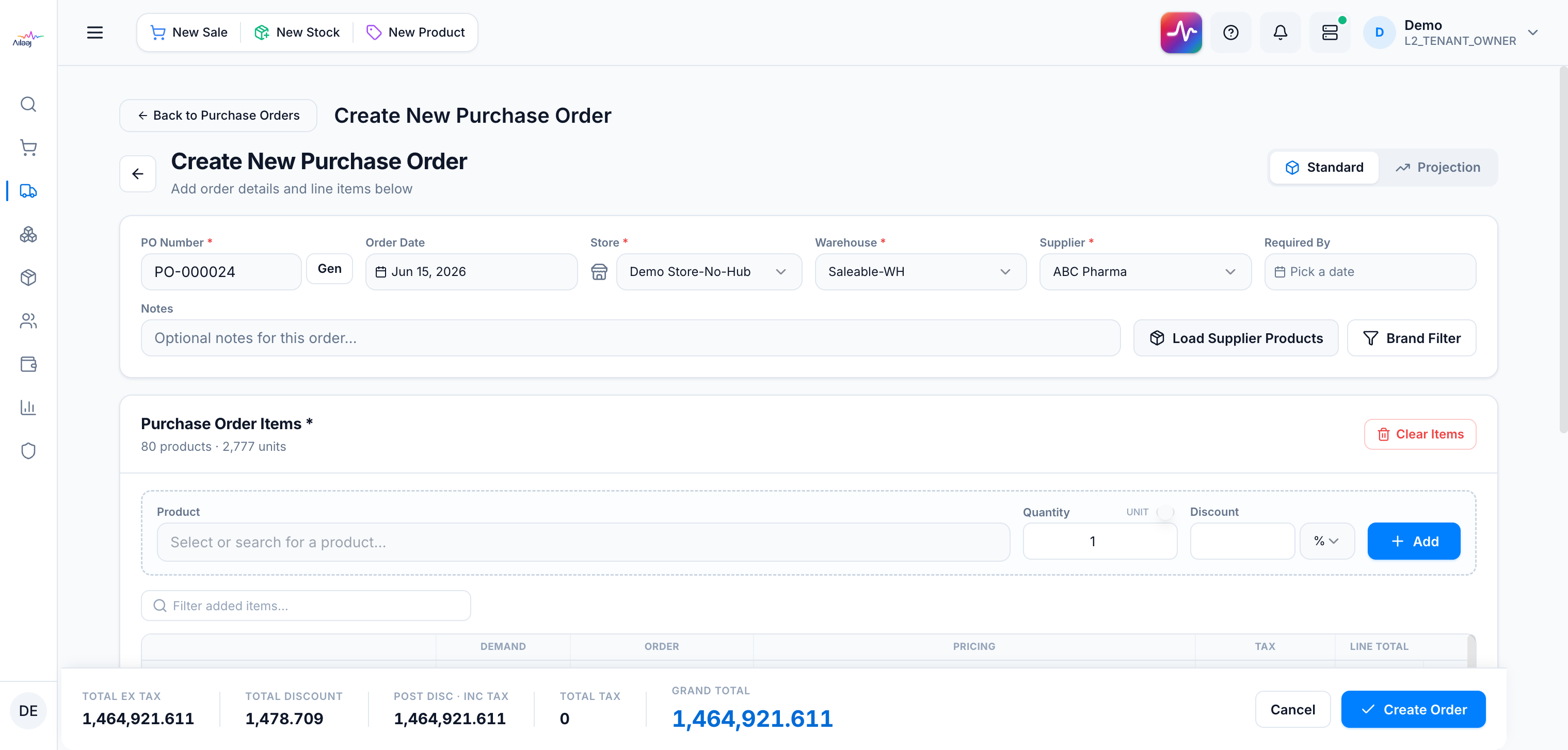
Goal: create a new purchase order and save it as a draft. Where: Purchase Orders → New Purchase Order.
Steps
-
Click New Purchase Order.
-
Fill the header. Store, Warehouse, and Supplier are required (each marked with a red asterisk), and you must add at least one line item:
- PO Number (required) — auto-generated; click Gen to regenerate, or type your own.
- Order Date — defaults to today.
- Store (required) then Warehouse (required) — the warehouse list filters to the chosen store.
- Supplier (required).
- Required By (optional) and Notes (optional).
-
Add line items, either way:
- Standard — search a product, set Quantity (toggle Unit / Pack) and a
Discount (
%orPKR), then Add. Repeat. - Projection — see Project demand to auto-fill from sales velocity.
- Standard — search a product, set Quantity (toggle Unit / Pack) and a
Discount (
-
Review each line: cost, retail, net margin (color-coded), tax, and the line total are computed for you. Click a product name to open its purchase history.
Adjusting line pricing. Both Discount % and Purchase Rate are editable and stay in sync — change one and the other re-derives, along with the line discount, tax, totals, and margin:
- Discount % — step
0.001, stored to 3 decimals. - Purchase Rate — step
0.01; on blur/Enter it updates the discount %.
Net margin follows the pharmacy convention: trade margin + supplier discount % (additive), where trade margin is
(retail − list cost) / retail. For example a line with list cost 168.30, retail 198, and a 5% discount reads 20% (15% trade + 5%), not 19.25% (which is what you get compounding margin on the discounted landing cost). - Discount % — step
-
Watch the sticky totals bar (Ex-Tax, Discount, Post-Disc Inc-Tax, Tax, Grand Total).
-
Click Create Order. The PO is saved as a Draft.
Notes
- Missing a required field? If Store, Warehouse, Supplier, or any line items are empty, Create Order is blocked — the empty fields are highlighted with a Required hint and a “Missing required fields” message lists what to fill.
- Clearing a line’s Quantity sets it to 0 but keeps the row — use the row’s × to remove a line.
- Number fields start empty rather than showing a stuck
0; type the value you want. - New POs always start in Draft; move them forward from the list’s inline status editor (see Purchase order statuses).