Open a till session
When to use this: at the start of every shift. Pick your till and open a session before you can sell.
Pick a till
- Open the counter — in the app sidebar, Sell → Counter → Smart Counter Sale. If you don’t already have a session open, the till picker appears.
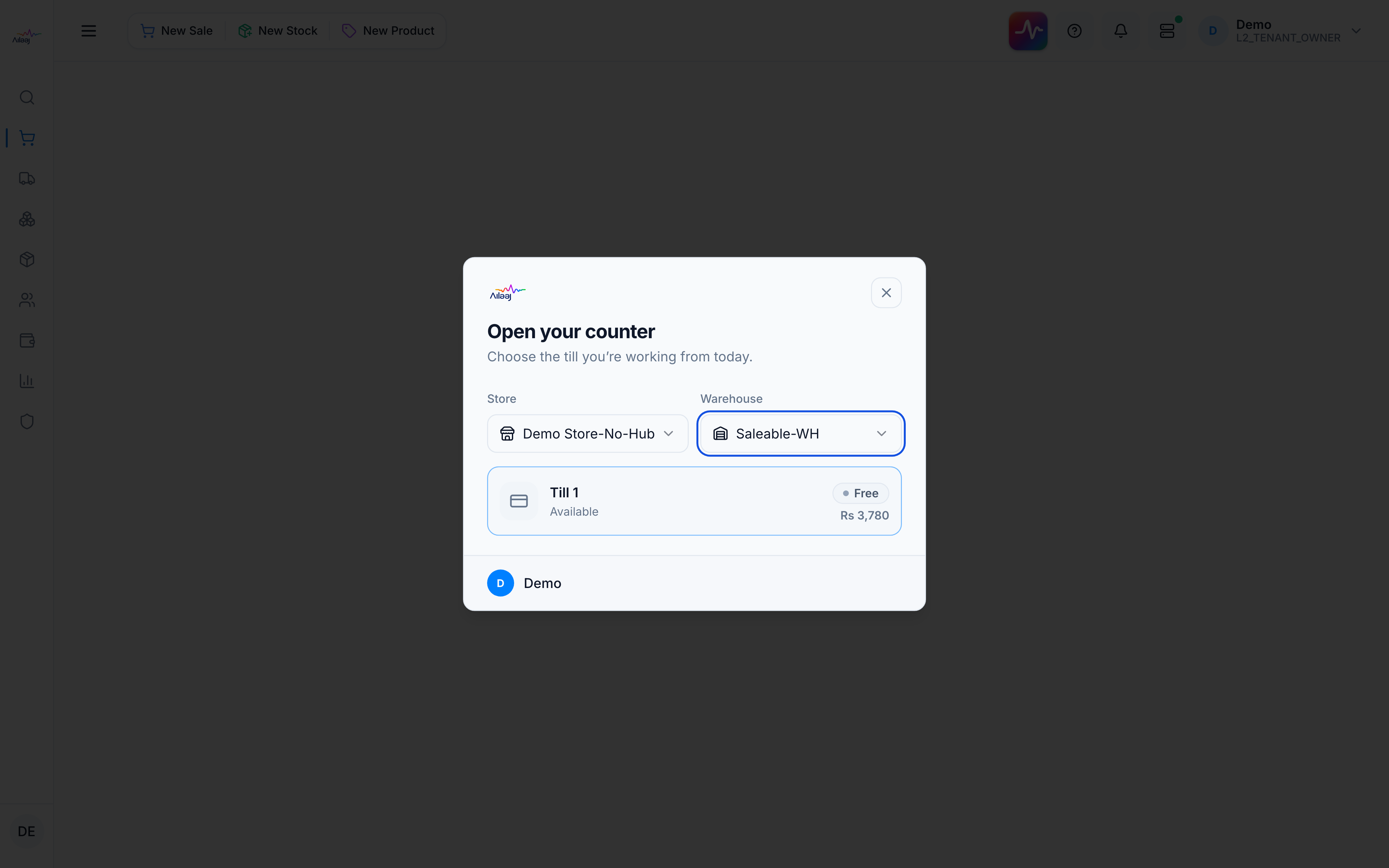
- Choose your store and warehouse at the top. That warehouse’s tills are listed as cards, each showing a status, its current balance, and — for a till in use — who opened it and since when:
| Status | What it means | What you do |
|---|---|---|
| Open · your session (green) | You already have this till open | Resume — straight back in, no balance to re-enter |
| Free (grey) | Available | Open it (enter the opening float — below) |
| In use (amber) | A colleague has it open | Join session if it’s a Shared till; otherwise it’s locked |
| Maintenance (red) | Taken offline | Unavailable |
Open a free till
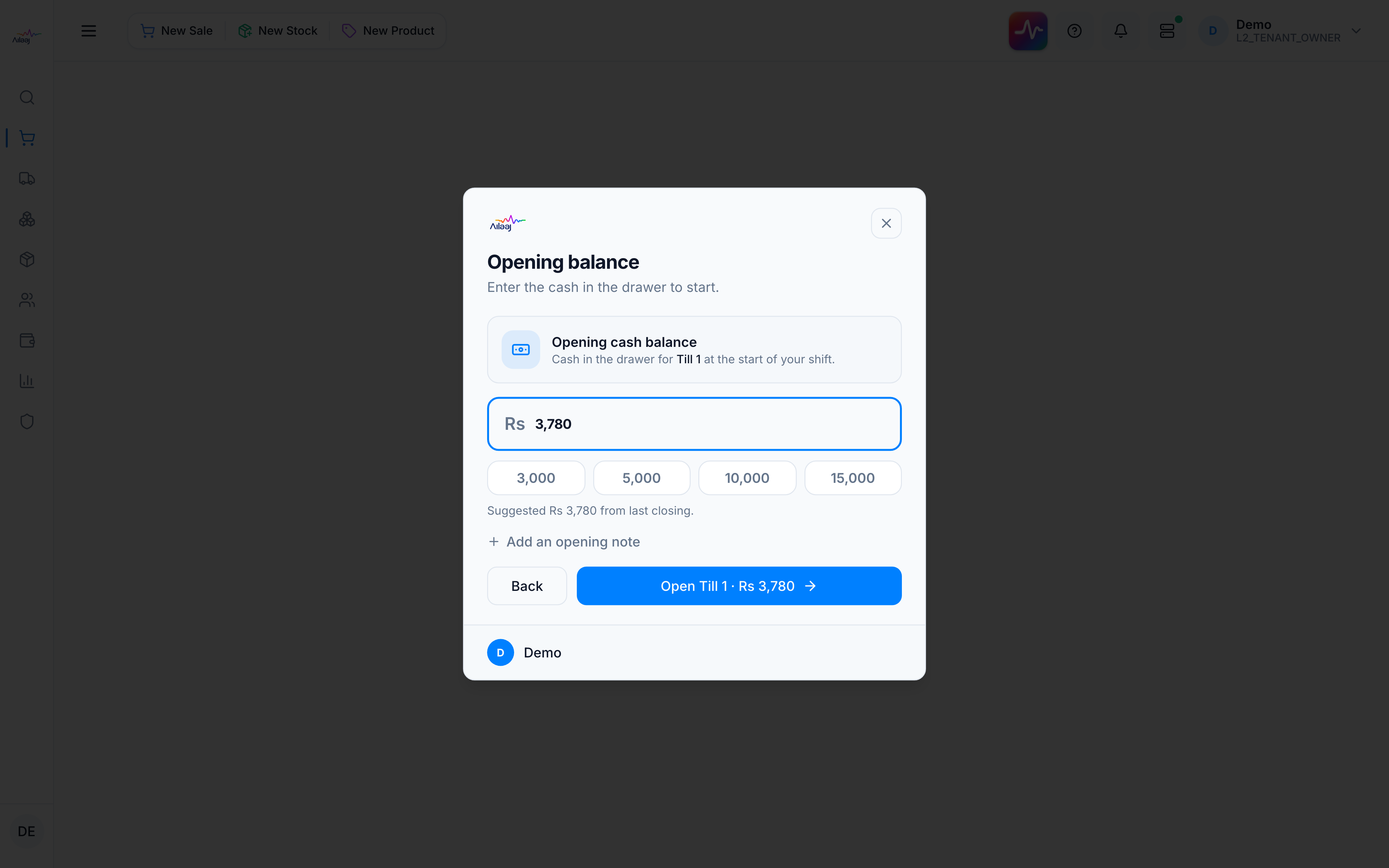
- Click a Free till. The Opening cash balance pane opens, pre-filled with that till’s last closing balance — “Suggested Rs N from last closing” — so each till carries its own running float. Use a quick-amount button or type the cash you counted; if it differs from the suggestion, just change it.
- Optionally Add an opening note, then press the Open button (it reads the till name and amount, e.g. Open Till 1 · Rs 5,000).
You’re done when
The header switches to Online and shows the till Balance. You can now add products.
Good to know
- The opening float is per till. The suggestion is that till’s own last closing balance, not a shared number — so a till you reopen starts where it left off.
- Resume vs Join. Your own open session is Resume (no balance to re-enter). A Shared till a colleague opened can be Joined; a non-shared in-use till stays locked until they close it.
Related
- Next: Add products · Run a shift
- Rules: Till sessions & holds
- At end of shift: Close the till