Create a clinic practice
When to use this: you are the tenant owner setting up Clinic CMS for the first time, or opening a new branch under the same pharmacy/clinic group.
Who can do this: Tenant owner only. Doctors and receptionists cannot create practices.
Where to go
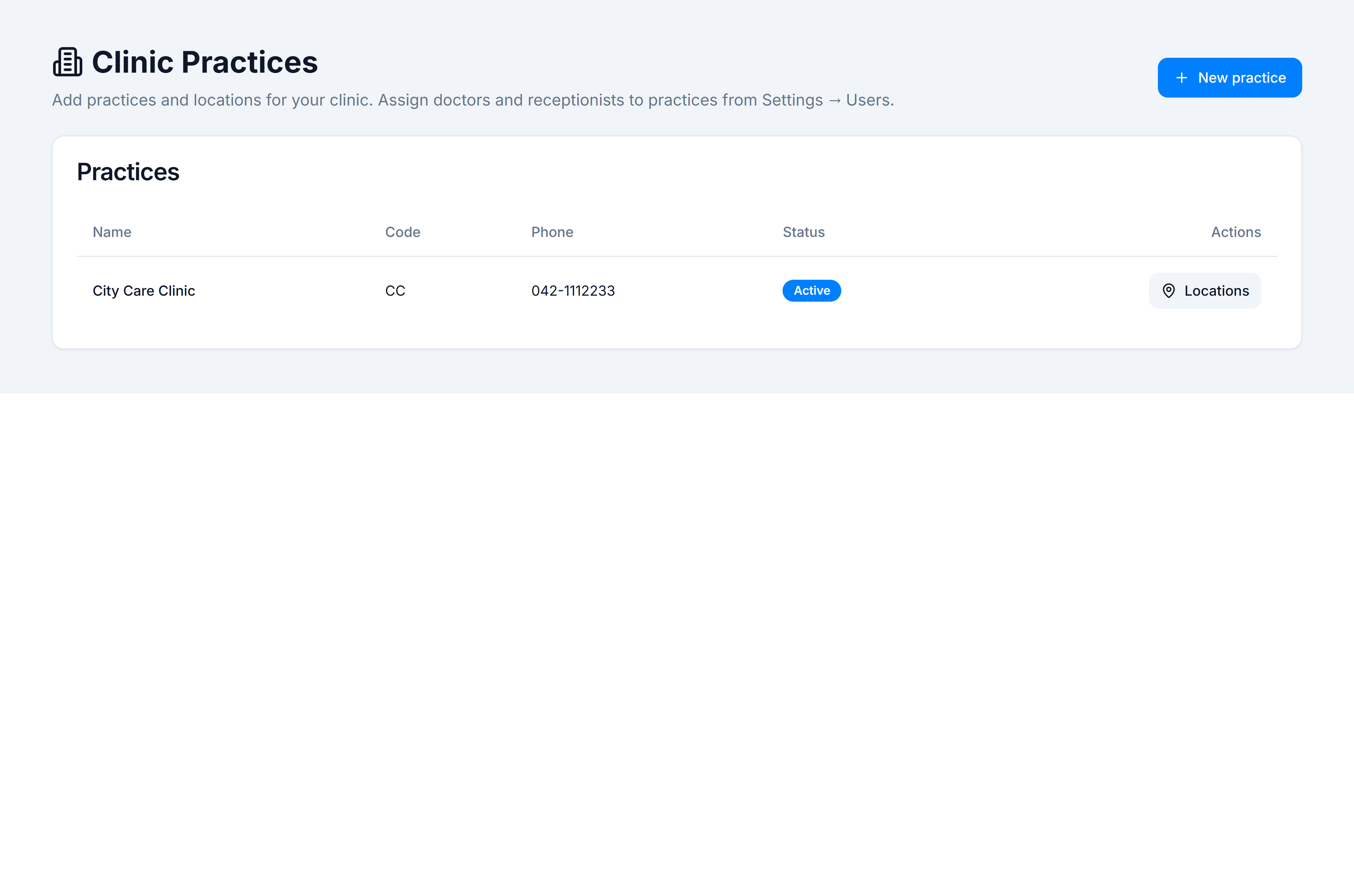
Admin → System → Clinic Practices (/settings/clinic-practices)
This page is for creating practices. Full profile editing (phone, address, billing rules) happens later in the Clinic CMS → Practices hub.
Steps
- Open Admin → System → Clinic Practices.
- Click New practice.
- In Create clinic practice, enter:
- Name — how staff will recognise the branch (e.g. City Care Clinic).
- Code — short identifier used on invoices and internal references (e.g. CC).
- Click Create.
What happens next
| Step | Where | Why |
|---|---|---|
| Add locations | Locations on the same row, or Clinic → Practices → Clinic Locations | Appointments and doctor slots need at least one site |
| Assign staff | Admin → Settings → Users — create doctor/receptionist users and set Clinic Practices & Locations | Staff only see practices they are assigned to |
| Configure rules | Clinic → Practices → Settings | Queue, billing, prescription defaults |
| Set doctor schedules | Clinic → Consultation Slots (doctor or owner) | Booking calendar needs availability blocks |
You’re done when
The practice appears in the Settings table with status Active, and you can open Locations for that row.
If it goes wrong
| Situation | Fix |
|---|---|
| New practice button missing | You need tenant owner access to Settings. |
| Practice created but not visible in Clinic CMS | Refresh the page; confirm the clinic module is enabled for your tenant. |
| Doctors cannot book yet | Add at least one location, assign the doctor to that practice, and set consultation slots. |