Configure practice locations
When to use this: a practice has one or more physical sites (front shop, first floor OPD, satellite branch) and you need reception to book against the correct location.
Who can do this: Tenant owner. Initial setup can also start from Admin → System → Clinic Practices (Locations); ongoing edits use the Clinic CMS practice hub.
Two paths (same outcome)
| Path | Route | Typical use |
|---|---|---|
| Clinic Practices bootstrap | /settings/clinic-practices/:practiceId/locations | Right after creating a practice |
| Clinic CMS hub | /clinic/practices/:practiceId/locations | Day-to-day location management |
Both use the same location editor: name, address, active flag, and Operating hours.
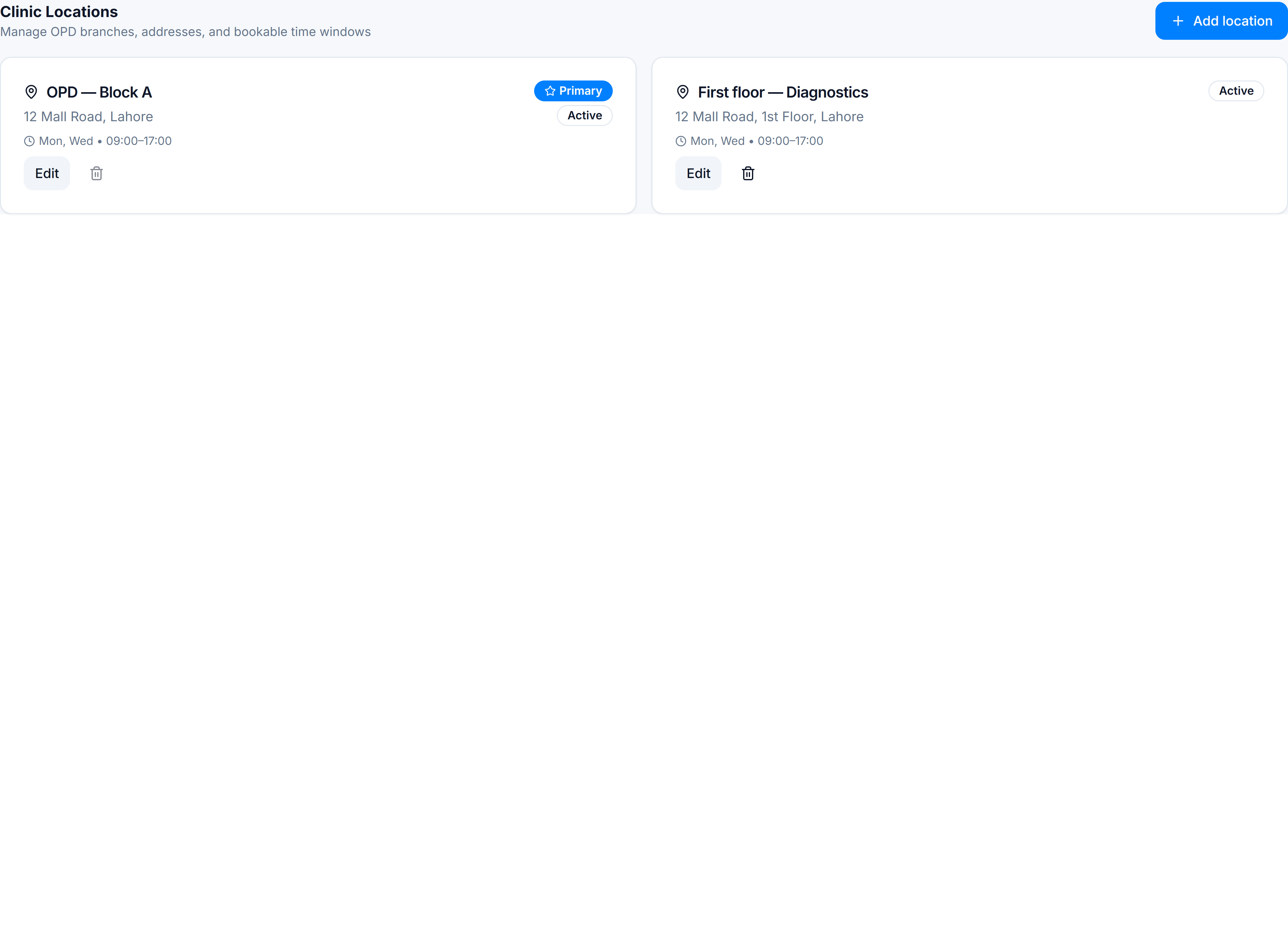
Steps (Clinic CMS hub)
- Clinical → Clinic CMS → Practices → select a practice.
- Open Clinic Locations.
- Click Add location (or Edit on an existing row).
- Fill Name, optional Address, and toggle Active.
- Under Operating hours, set when this location is open each day.
- Save.
Operating hours vs doctor slots
| Layer | Who sets it | What it means |
|---|---|---|
| Location operating hours | Tenant owner | The site is open — reception can operate |
| Doctor consultation slots | Doctor (or owner on their behalf) | When a specific doctor accepts appointments |
Doctor blocks must fall inside location hours. If booking shows no slots, check both layers.
Assign staff to locations
Location access is not set on this page. In Admin → Settings → Users, create or edit each clinic user and set Clinic Practices & Locations so they only see assigned sites.
You’re done when
Each site appears in the locations list, hours are saved, and the location shows when booking an appointment.