Find a transfer
When to use this: to locate a specific transfer, or narrow the two lists to a route, status, product, or date window.
Search
Type a transfer number or order number into the search box and the two lists narrow as you type. Search applies to both sections.
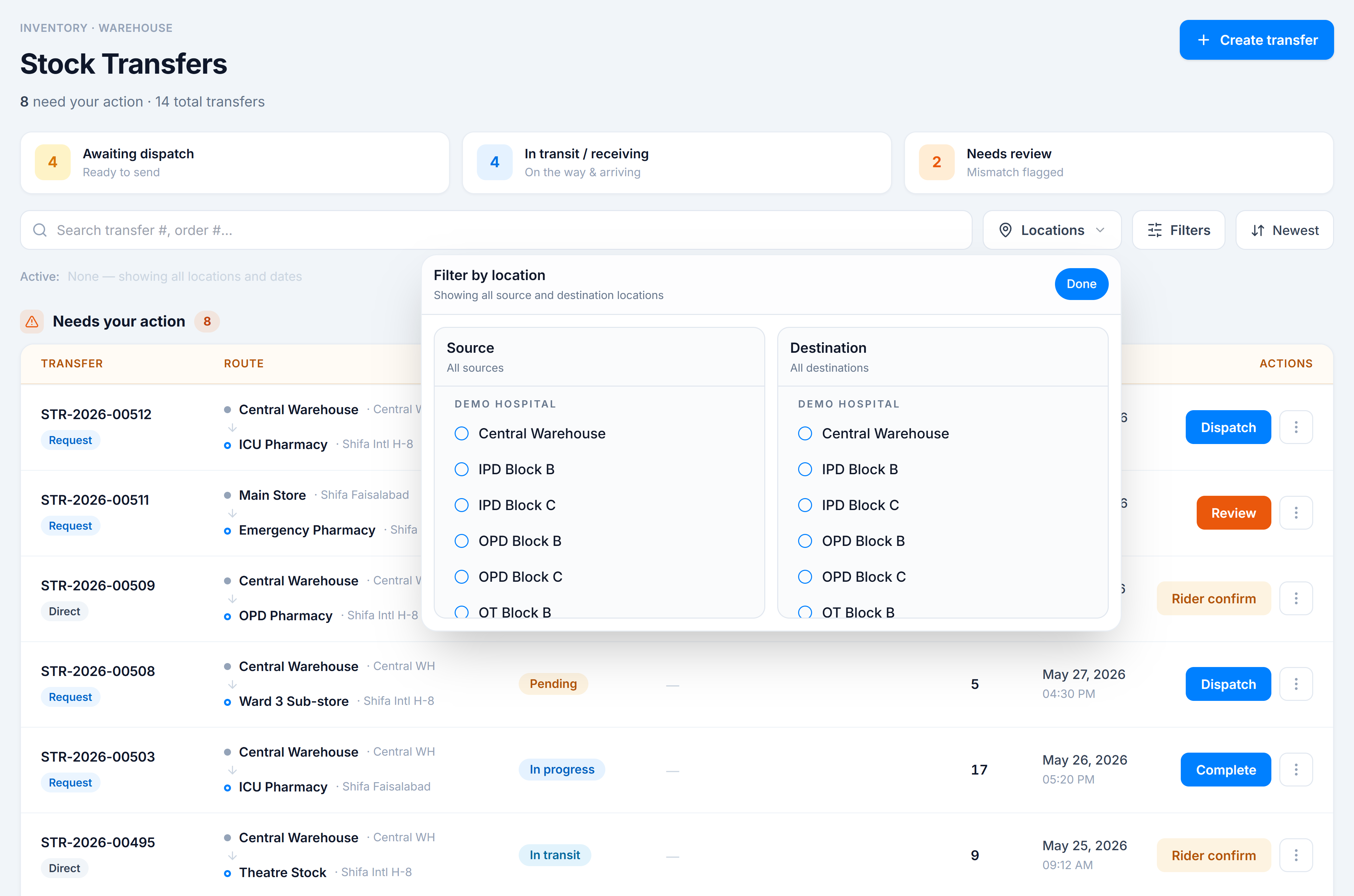
Filter by location
Click Locations to open the source/destination picker. Tick warehouses under Source (from) and/or Destination (to) — grouped by store — to show only transfers on those routes. The button shows a count when a location filter is active.
Filter by status, type, product, date, attention
Click Filters for the rest:
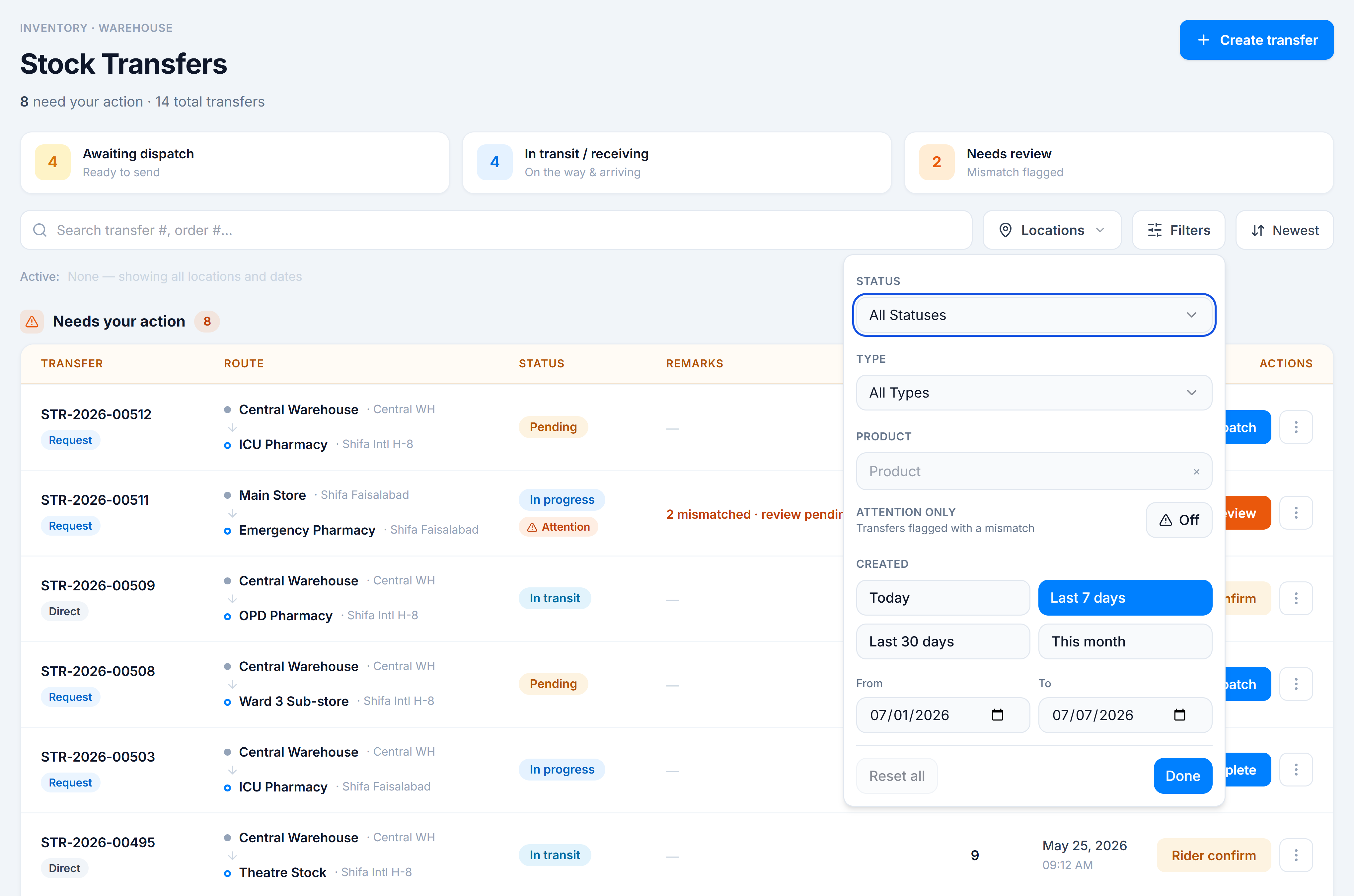
- Status — pick one (Pending, In Transit, In Progress, Completed, Cancelled, Partially Received). It narrows within the two-section split.
- Type — Direct or Request.
- Product — show only transfers containing a product.
- Attention only — only transfers flagged with an unreviewed mismatch.
- Created — Today / Last 7 days / Last 30 days / This month, or a custom From / To range.
Sort and clear
Use the Newest / Oldest button to flip the sort of the loaded rows. Every active filter shows as a removable chip under the control row — click a chip’s × to drop it, or Clear all to reset.
You’re done when
The two lists show the transfers you expected, and each section’s pager reflects its own filtered total.
Good to know
- Changing any filter resets both sections to page 1.
- The two sections still paginate independently — see How the two sections work.