Print a warehouse return QR
When to use this: posting a return dock QR for a warehouse — runners scan this to end trips, not to start them.
Steps
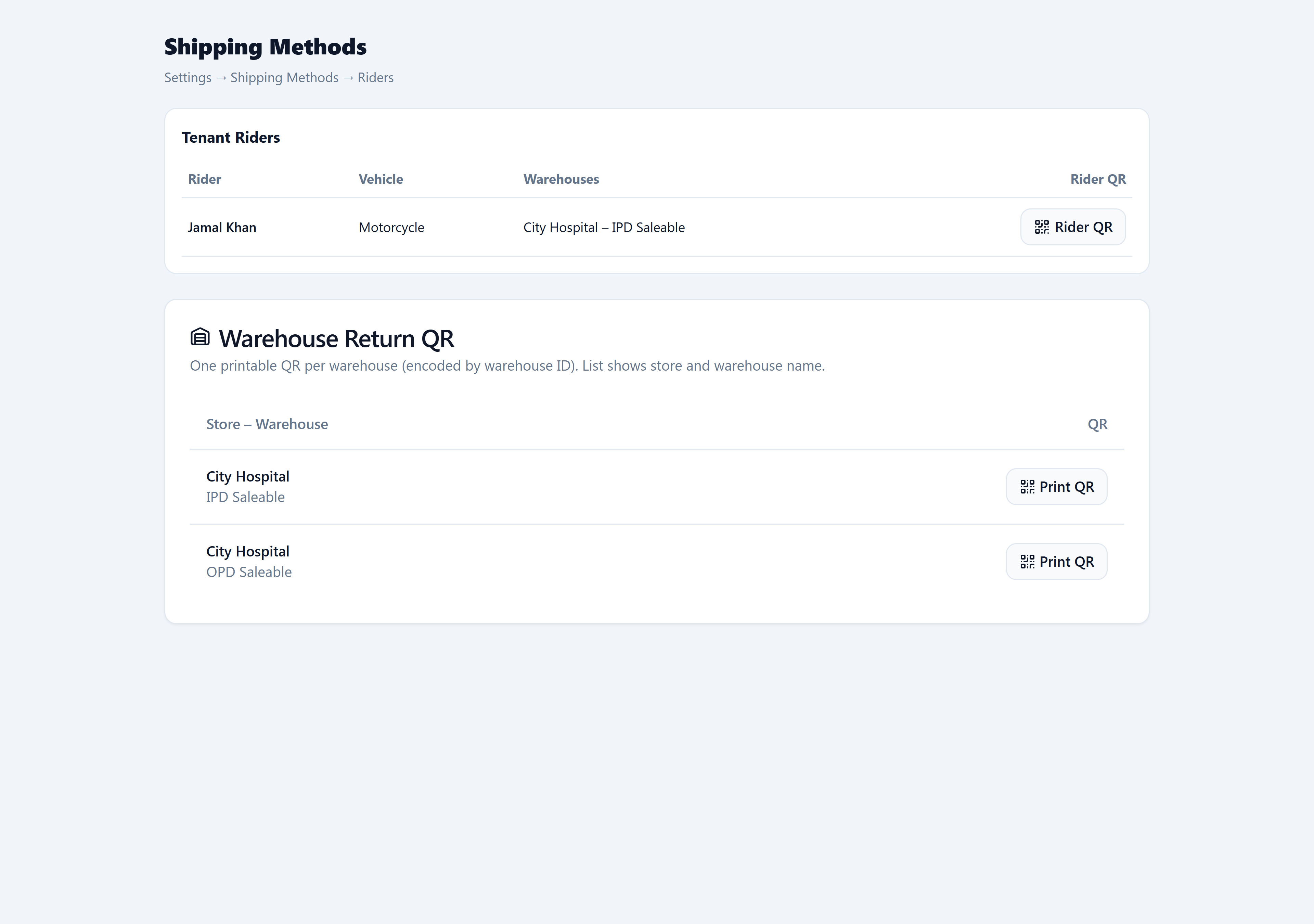
- Open Admin → Operations → Shipping Methods (Riders tab).
- Scroll to the Warehouse Return QR card below the riders table.
- Find the Store – Warehouse row for your return dock.
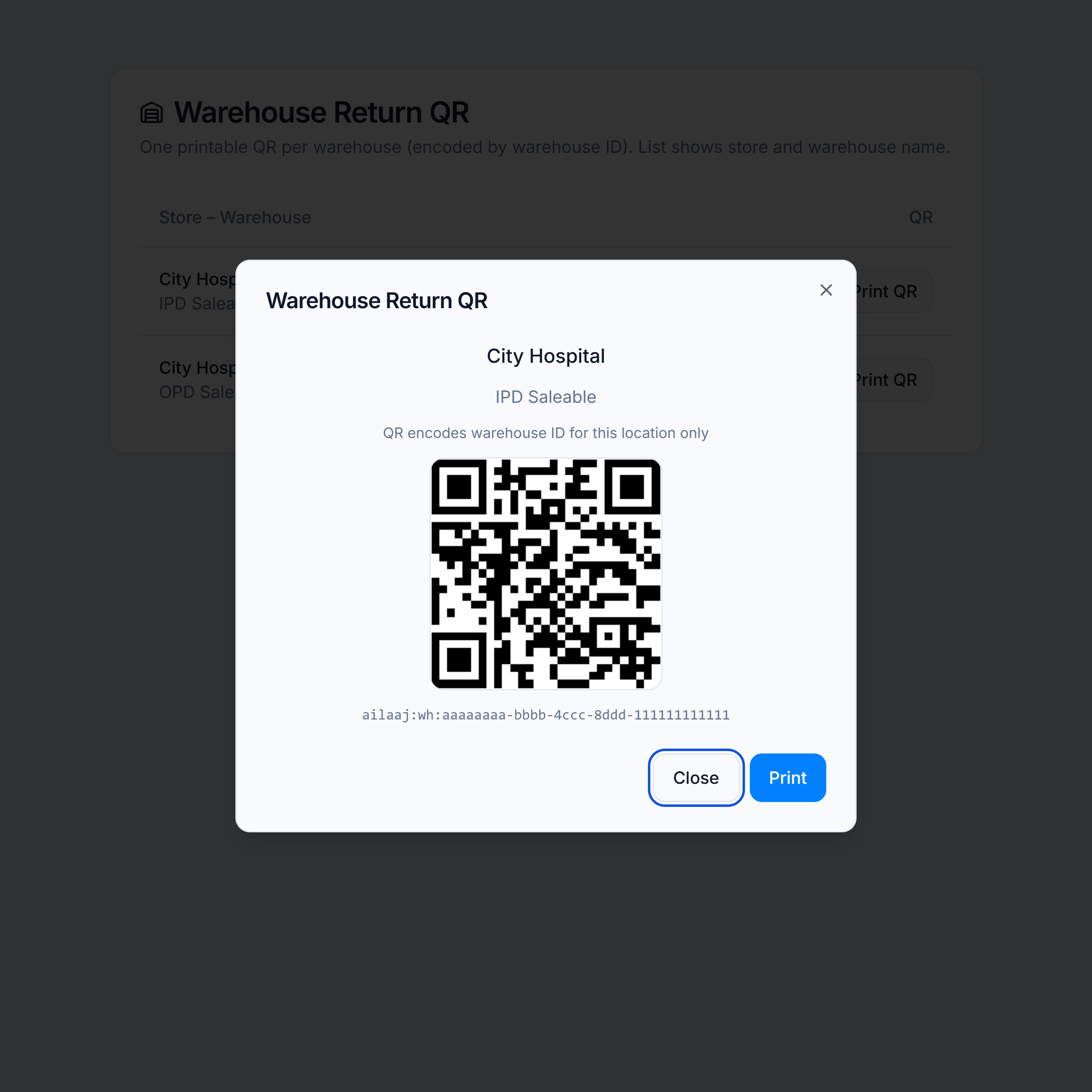
- Click Print QR — the dialog shows store name, warehouse name, and payload
ailaaj:wh:<warehouse-uuid>. - Click Print and mount the sheet at the dock eye level. Label it End trip here so runners don’t confuse it with rider badges.
Good to know
- The QR encodes the warehouse UUID, not the store — multiple warehouses at one site each get their own QR.
- End-trip scan must match a warehouse on the trip’s picklists; wrong warehouse shows an error at the kiosk.
- Do not use picklist barcodes or rider badges on the end-trip step.