Operations Intelligence (Reports v2)
Audience: Pharmacy owners, ops managers, and warehouse leads planning shifts or reviewing fulfilment load.
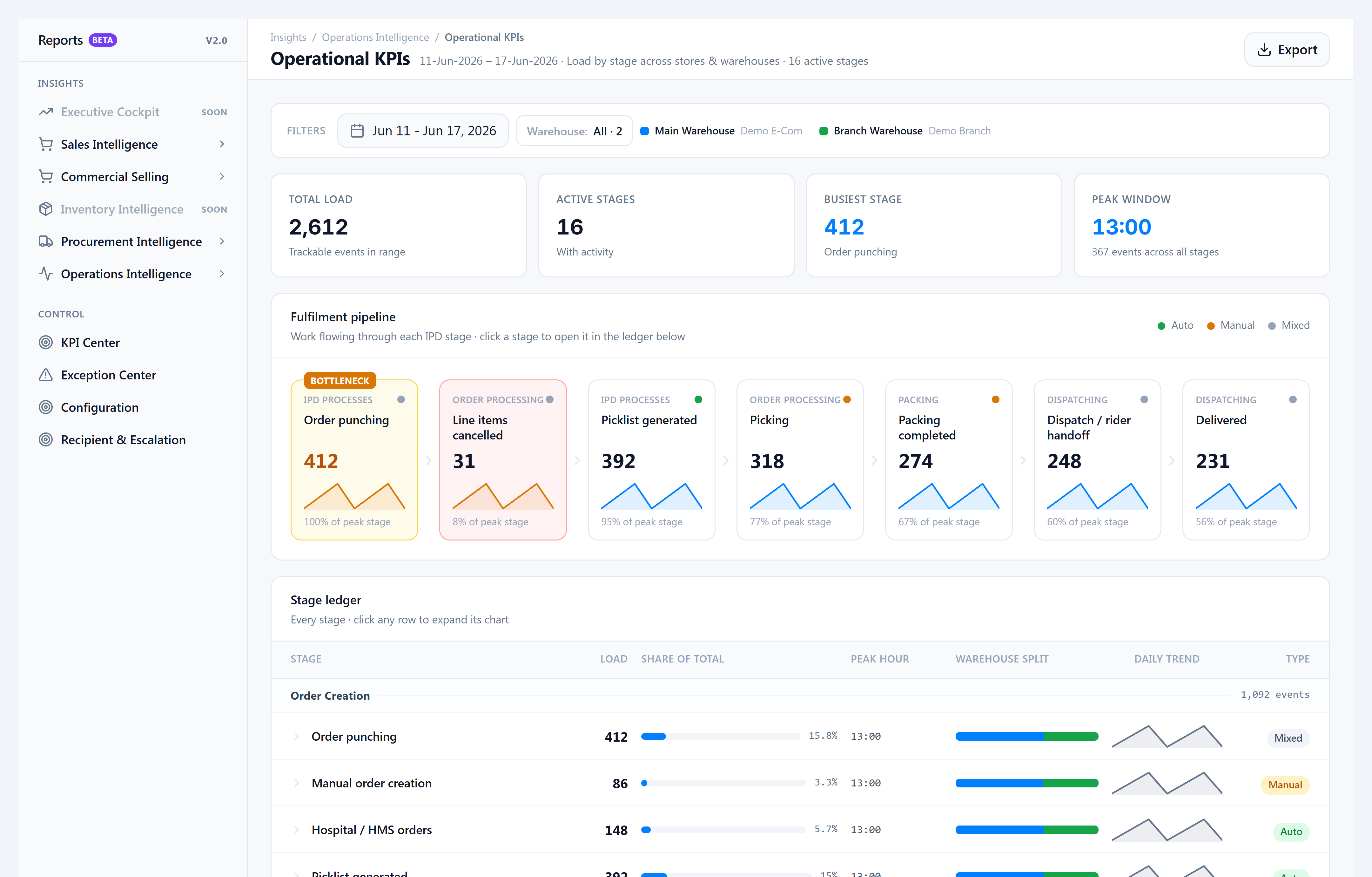
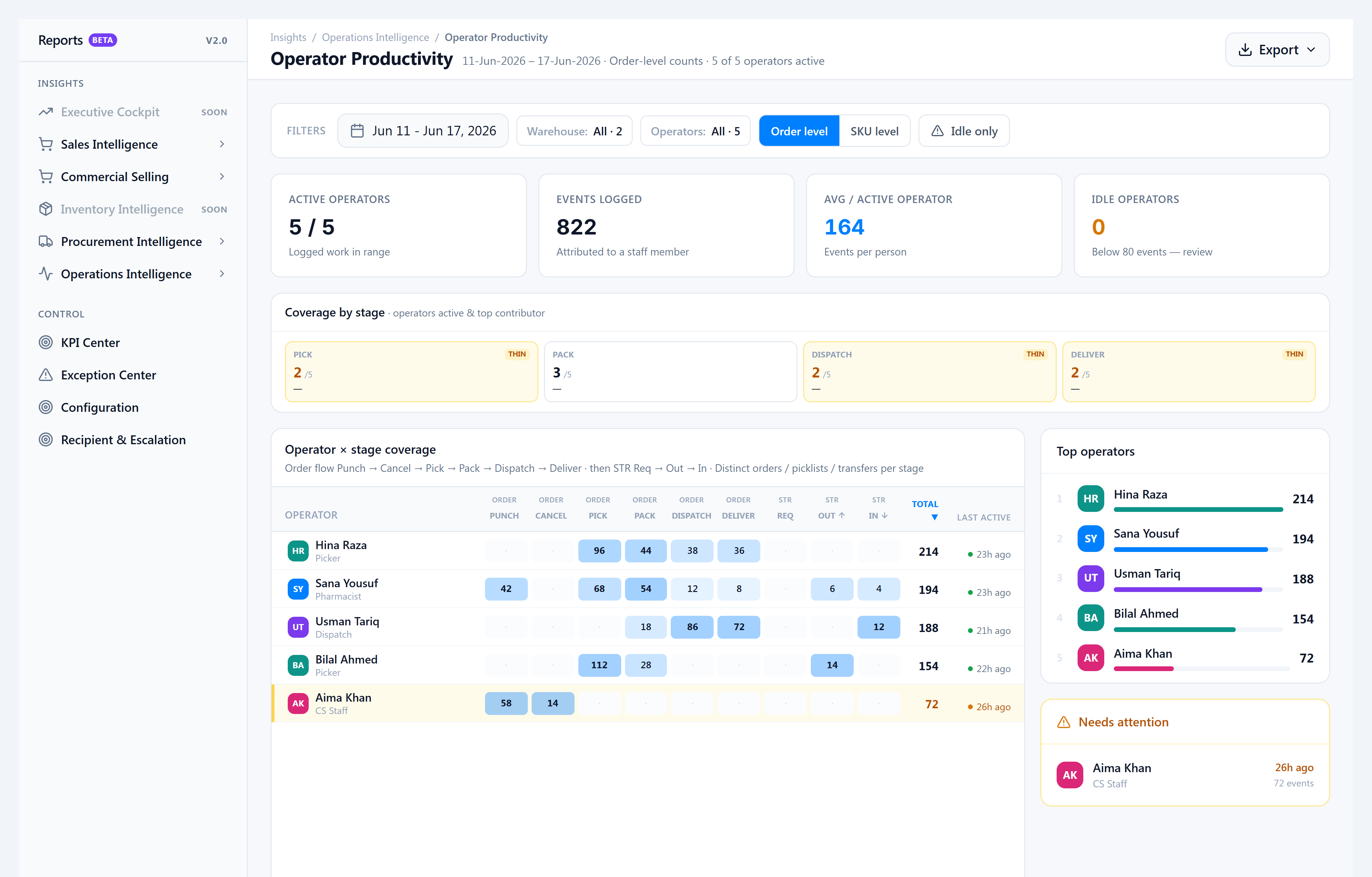
Purpose: Two Reports v2 screens under Operations Intelligence — Operational KPIs (load by stage and warehouse) and Operator Productivity (who did the work).
Release: OMS v1.4 release notes.
Operations Intelligence answers two questions we hear every evening on our own hospital floor: “How much work moved through each stage today?” and “Which operators carried it?” It does not replace SLA Monitoring (threshold breaches) — it is for volume and staffing, not SLA timers.
Pick the kind of help you need
The Academy organises every guide as learn, do, look up, understand.
How to get there
- Open the main app sidebar: Insights → Reports v2.0 → Reports V2.
- In the Reports v2 left rail: Insights → Operations Intelligence.
- Choose Operational KPIs or Operator Productivity.
You need View Operational KPIs Report and/or View Operator Productivity Report on your role.