Read Operator Productivity
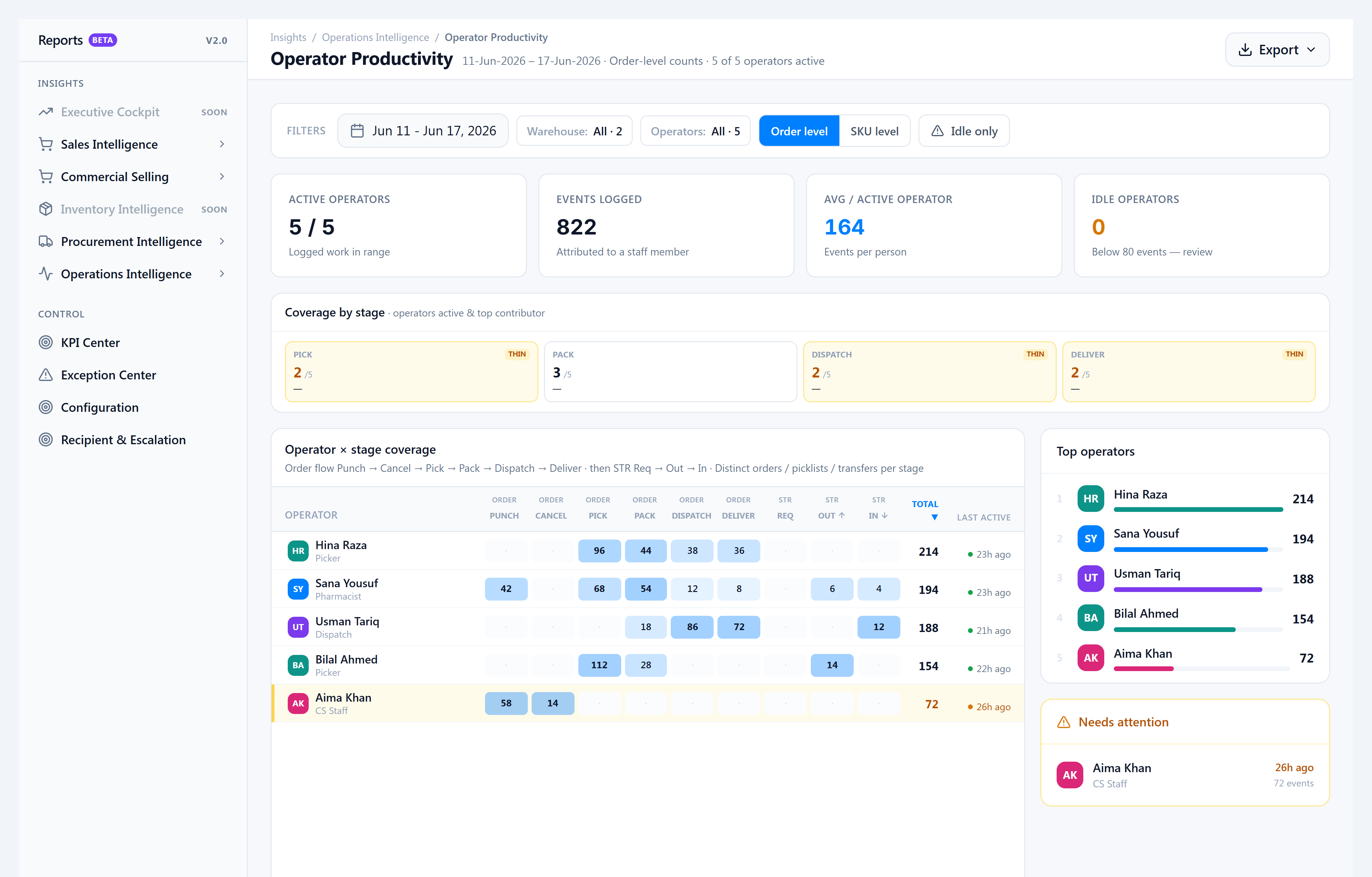
When someone asks “who actually dispatched yesterday’s hospital run?”, open Operator Productivity — a staff × stage heat matrix aligned with Operational KPIs load definitions.
When to use this
- Fairness reviews (who carried pick vs pack load)
- Identifying idle operators (below threshold in the period)
- Exporting a shift summary for HR or ops review
Steps
- Go to Insights → Reports v2.0 → Reports V2, then Operations Intelligence → Operator Productivity.
- Set date range and optional Warehouses filter (same rules as Operational KPIs).
- Choose Order or SKU grain — order counts distinct picklists/orders per stage; SKU counts line-level events.
- Read the coverage strip — how many operators touched each stage in range.
- Scan the matrix — rows are staff (colour = role), columns are stages (ORDER PICK, ORDER PACK, ORDER DISPATCH, ORDER DELIVER, STR OUT, etc.).
- Click column headers to sort; use Idle only to filter operators below the idle threshold.
- Optional: Operators chip to focus on named staff.
- Download → Excel or PDF (includes filter summary and matrix).
Success looks like
- Dispatch and deliver columns credit the packer/dispatcher and assigned rider respectively (historical backfill on prod June 2026).
- STR OUT / IN columns reflect transfer dispatch and receive events.
- Export files open with the same date range and warehouse filters shown on screen.
If it goes wrong
- Blank matrix — Widen the date range; confirm fulfilment activity exists.
- Dispatch credited to wrong person on old rows — Pre-1.4 rows without pack notes may lack
dispatched_by; new dispatches set the field from the signed-in user. - Permission denied — Role needs View Operator Productivity Report (
order.reports.operator_productivity).