Save a diagnostic preset
When to use this: you treat the same condition often (URTI, hypertension review, antenatal check) and want to pre-fill notes, medicines, and labs instead of typing each visit from scratch.
Who can do this: Doctors only. Presets are personal — stored on your doctor profile, not shared across the practice.
Apply a saved preset
- Open the Consultation workspace.
- In the Prescription section header, open Diagnostic presets.
- Click a preset name (e.g. URTI bundle) — notes, medicines, and lab tests fill in automatically.
- Adjust for this patient, then Save draft or Complete consultation.
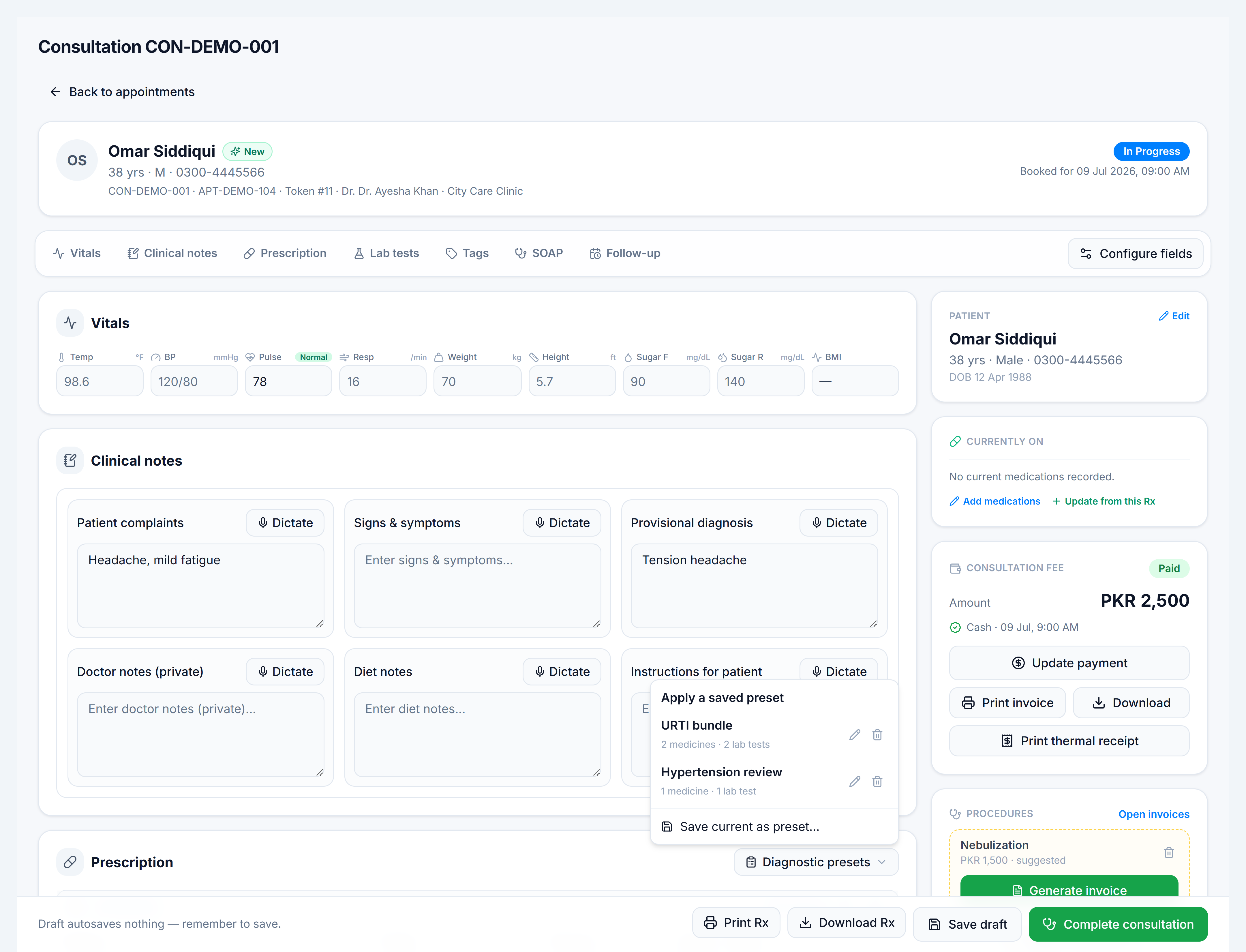
Save a new preset
- During a consultation, enter the diagnosis, medicines, and labs you want to reuse.
- Open Diagnostic presets → Save as new preset (or Save changes when editing).
- Enter a short name (e.g. Diabetes follow-up).
- The preset appears in the dropdown on future visits.
Presets complement favourite medicines and labs — favourites add one line at a time; presets load a whole visit template.