Reschedule or cancel an appointment
When to use this: a patient cannot make the booked time, needs a different doctor, or the visit should be cancelled entirely.
From the day board
- Open Appointments → Day board.
- Select the patient’s row — the detail pane opens on the right (desktop).
- Use Reschedule, Cancel, or Manage as needed.
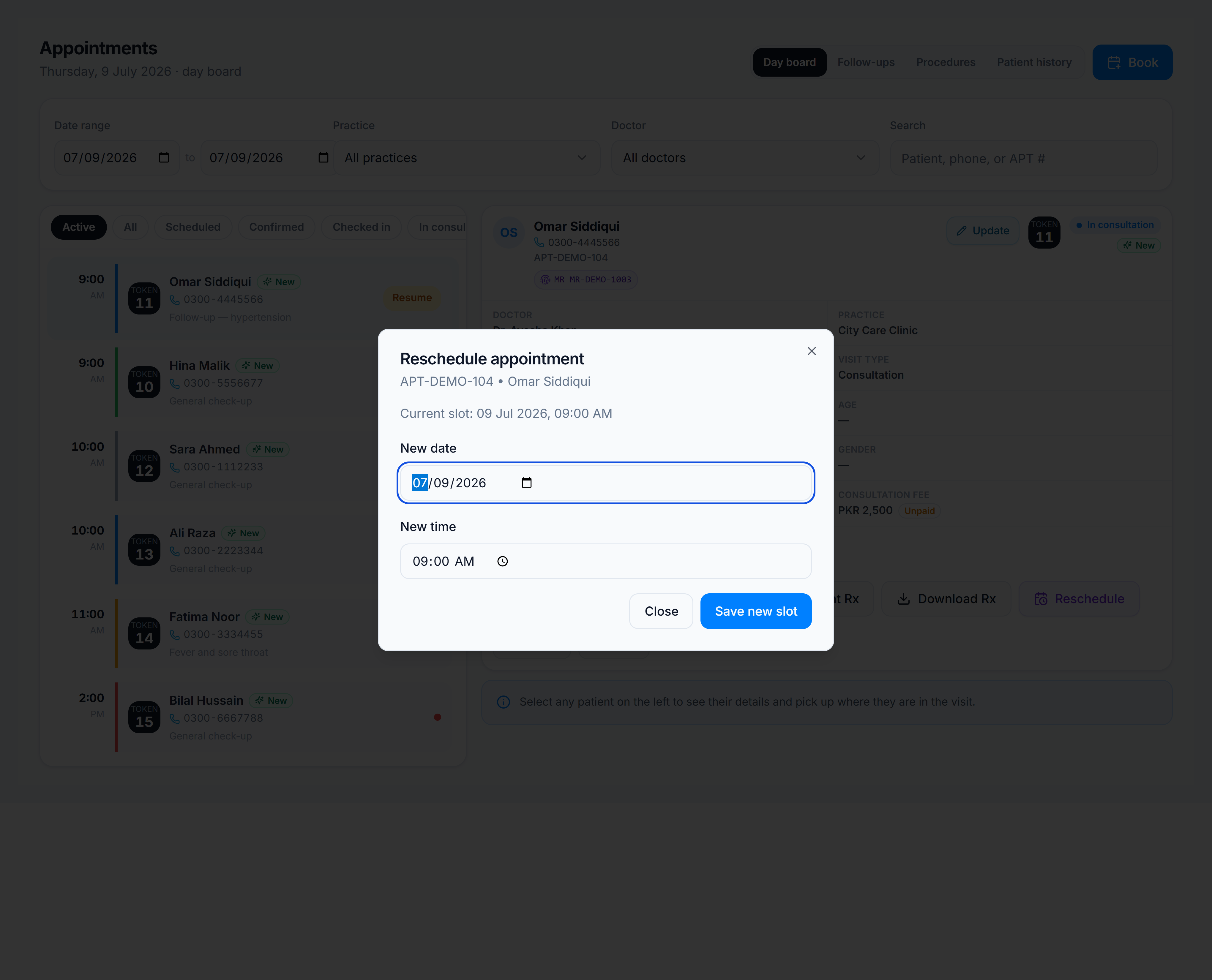
Reschedule
- Click Reschedule.
- Choose a new date and time slot on the calendar.
- Confirm — status returns to Scheduled or Confirmed with the new time.
Cancel
- Click Cancel.
- Enter an optional reason (patient request, no-show policy, doctor unavailable).
- Confirm — the row moves to Cancelled and drops off the active queue.
Manage
Manage updates booking metadata — chief complaint, booking type, or internal notes — without changing the slot.
Patient history
The same Reschedule and Cancel actions are available when viewing a patient under Appointments → Patient history.