Delete a location
When to use this: to remove a location that’s no longer part of the warehouse. (To take a location out of use temporarily, set it Inactive instead — see Edit a location.)
Steps
- Hover the row and click the trash (Delete) action.
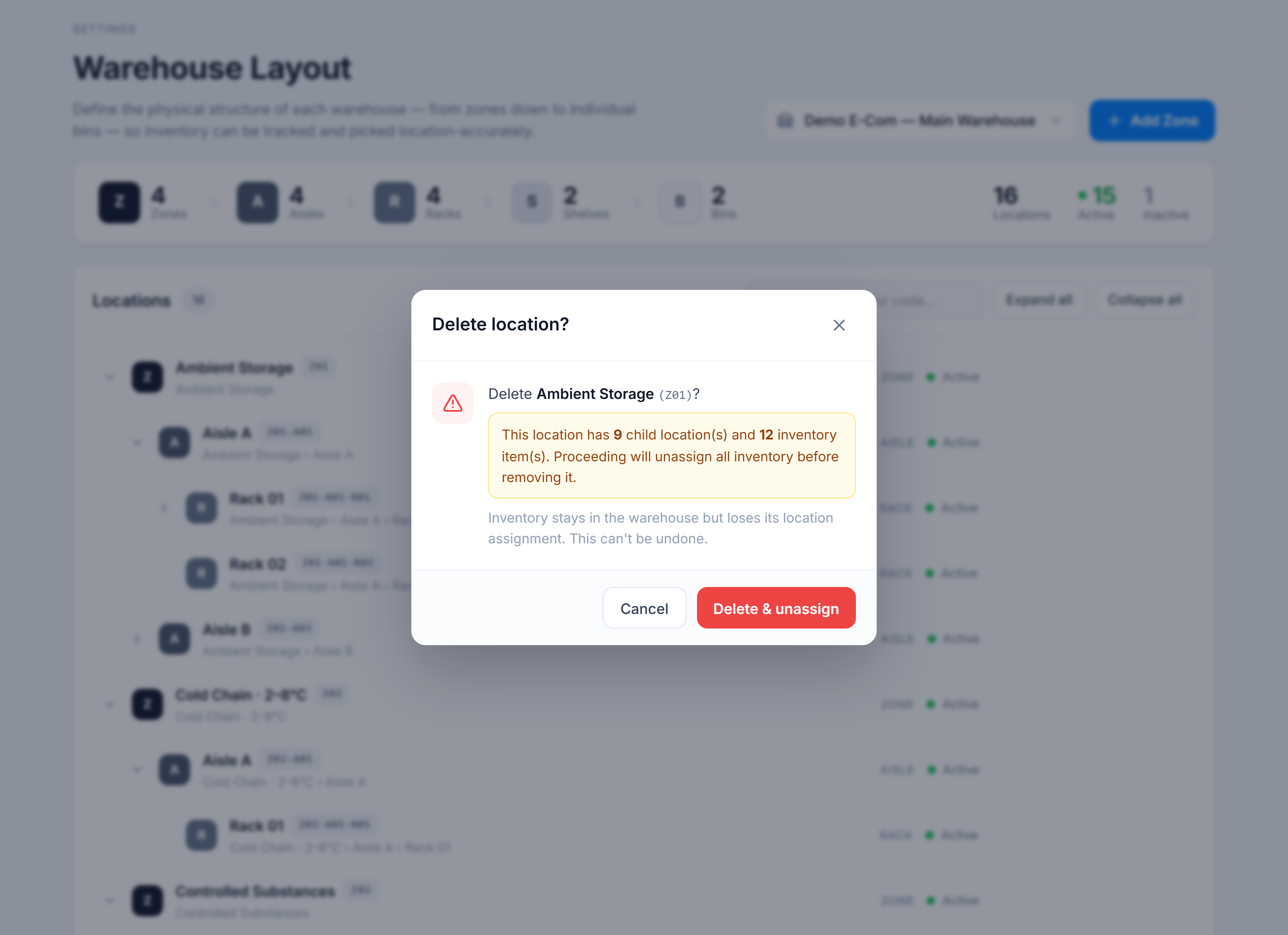
- The Delete location? dialog opens and checks the impact. If the location has children or assigned inventory, an amber panel spells it out (e.g. “3 child location(s) and 12 inventory item(s)”).
- Read the note, then click Delete & unassign to proceed, or Cancel to back out.
You’re done when
The location (and any child locations) disappears from the tree, and the counts in the summary rail drop accordingly.
What happens to inventory
Deleting a location never destroys stock. Any inventory assigned to the location or its children is unassigned first — it stays in the warehouse but loses its location, so you can re-assign it later. This action can’t be undone.
Good to know
- Deleting a parent removes its entire subtree (all descendant locations), which is why the dialog counts children.
- If a location has no children and no inventory, the dialog simply confirms the delete — there’s no impact panel.