Add a zone
When to use this: a zone is the top of the tree — start here when setting up a warehouse or adding a new area (e.g. a cold-chain or quarantine zone).
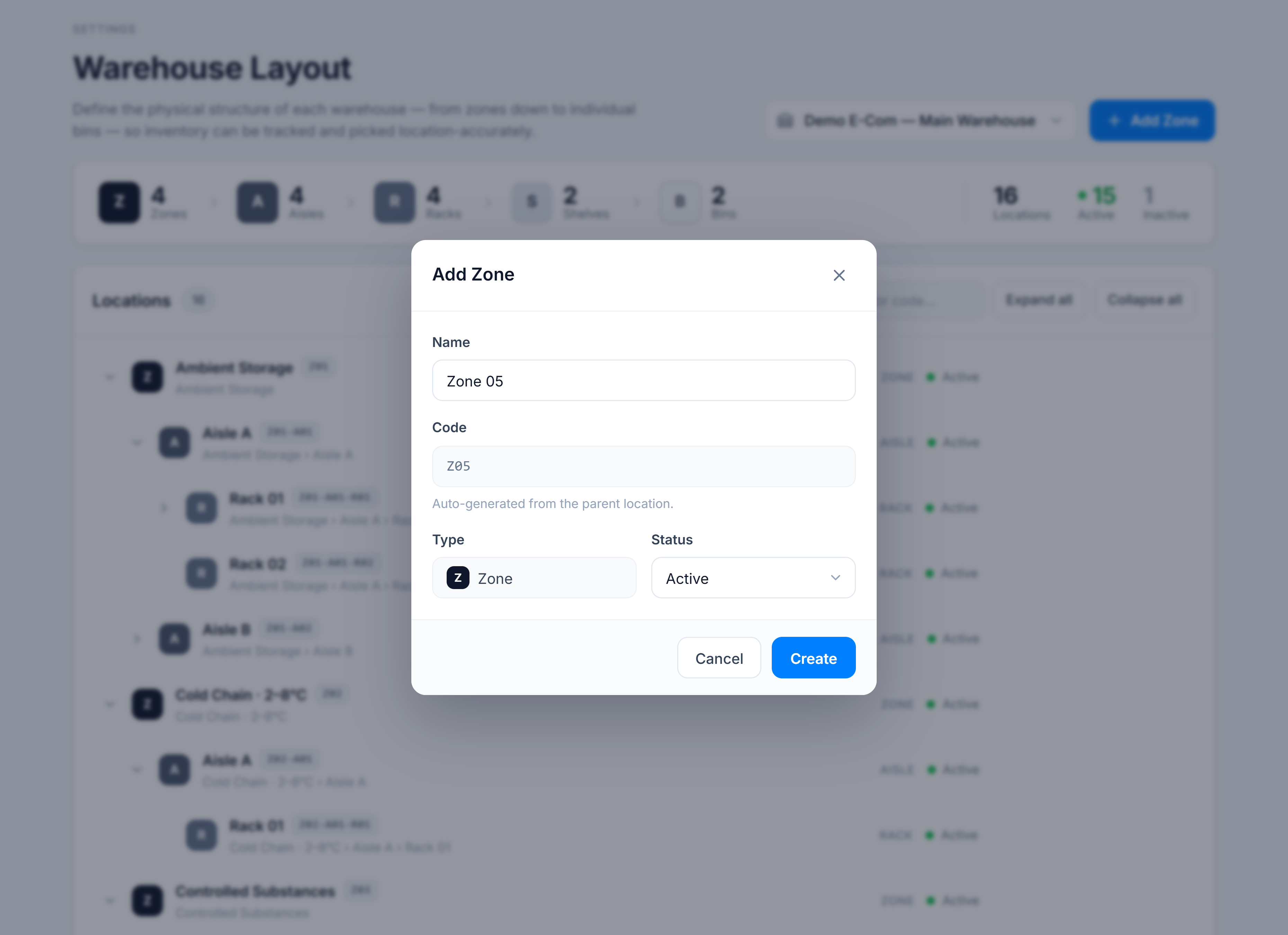
Steps
- Make sure the right warehouse is selected.
- Click Add Zone (top right), or Create your first zone in the empty state.
- Enter a Name (e.g. Ambient Storage). The Code is auto-generated (e.g.
Z05) and can’t be edited. - Leave Status as Active (or set Inactive if it’s not ready for use).
- Click Create.
You’re done when
The new zone appears at the top level of the tree with its code, and the Zones count in the summary rail goes up by one.
Good to know
- Zone codes are
Z+ a two-digit number (Z01,Z02, …), assigned in order. - Once a zone exists, use its + Aisle action to build out the structure beneath it — see Add child locations.