Triage your transfers
This tutorial walks a typical triage: land on the page, read what needs you, narrow to your part, and open a transfer to act. It takes about five minutes and is safe to explore — you only open transfers, you don’t have to complete any step.
Before you start
- You can reach Inventory → Stock Control → Stock Transfers.
- There are a few open transfers to look at (or use a demo tenant).
1. Read the shape of the page
Open Stock Transfers. Note the three parts: the triage bar up top, then two lists — Needs your action (open transfers) and, below it, All other transfers (closed).
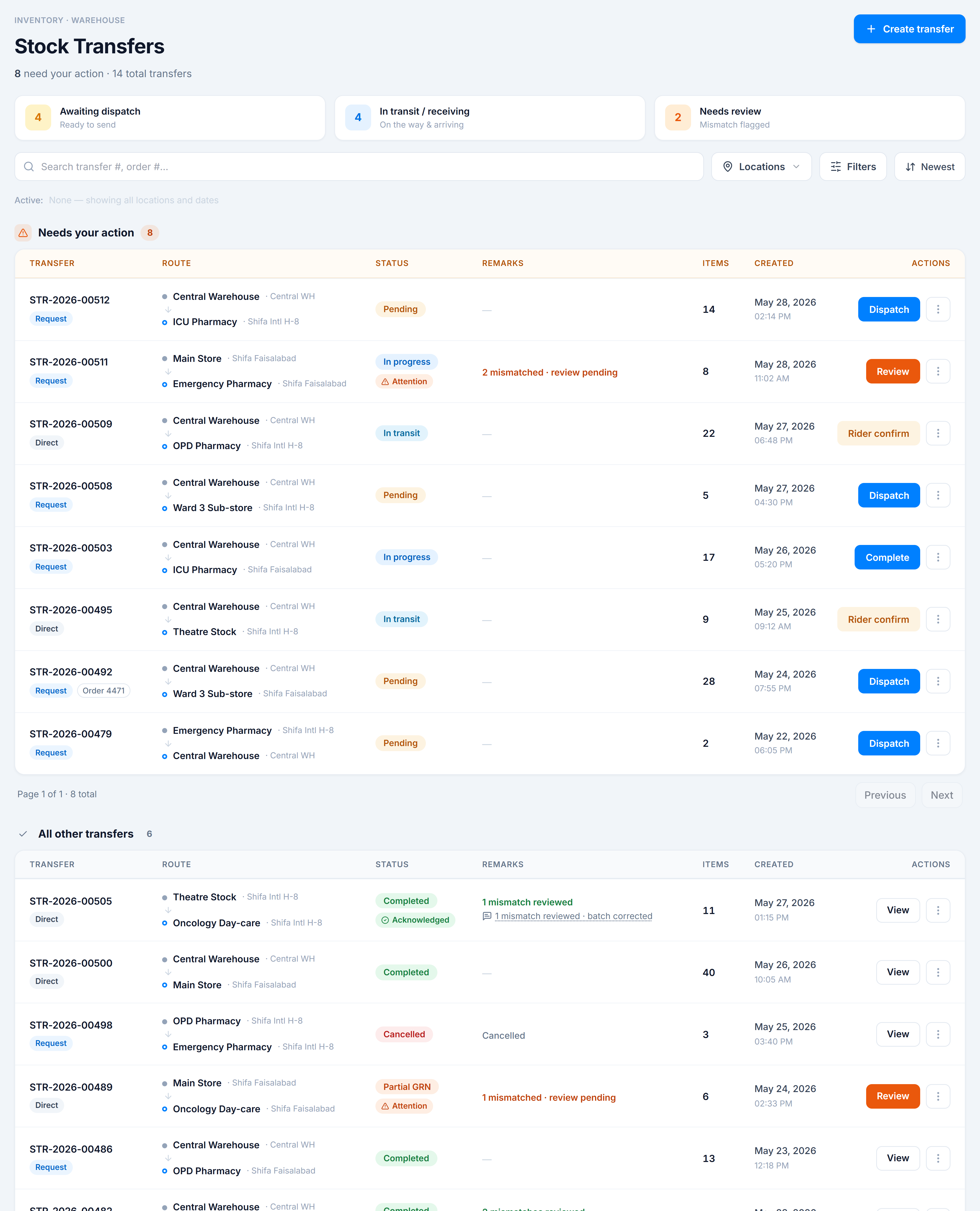
Glance at the header line — “N need your action · M total” — and each section’s own count.
2. Focus with a triage pill
Click Awaiting dispatch. Both lists narrow to pending transfers, the pill highlights, and a chip appears in the Active row.
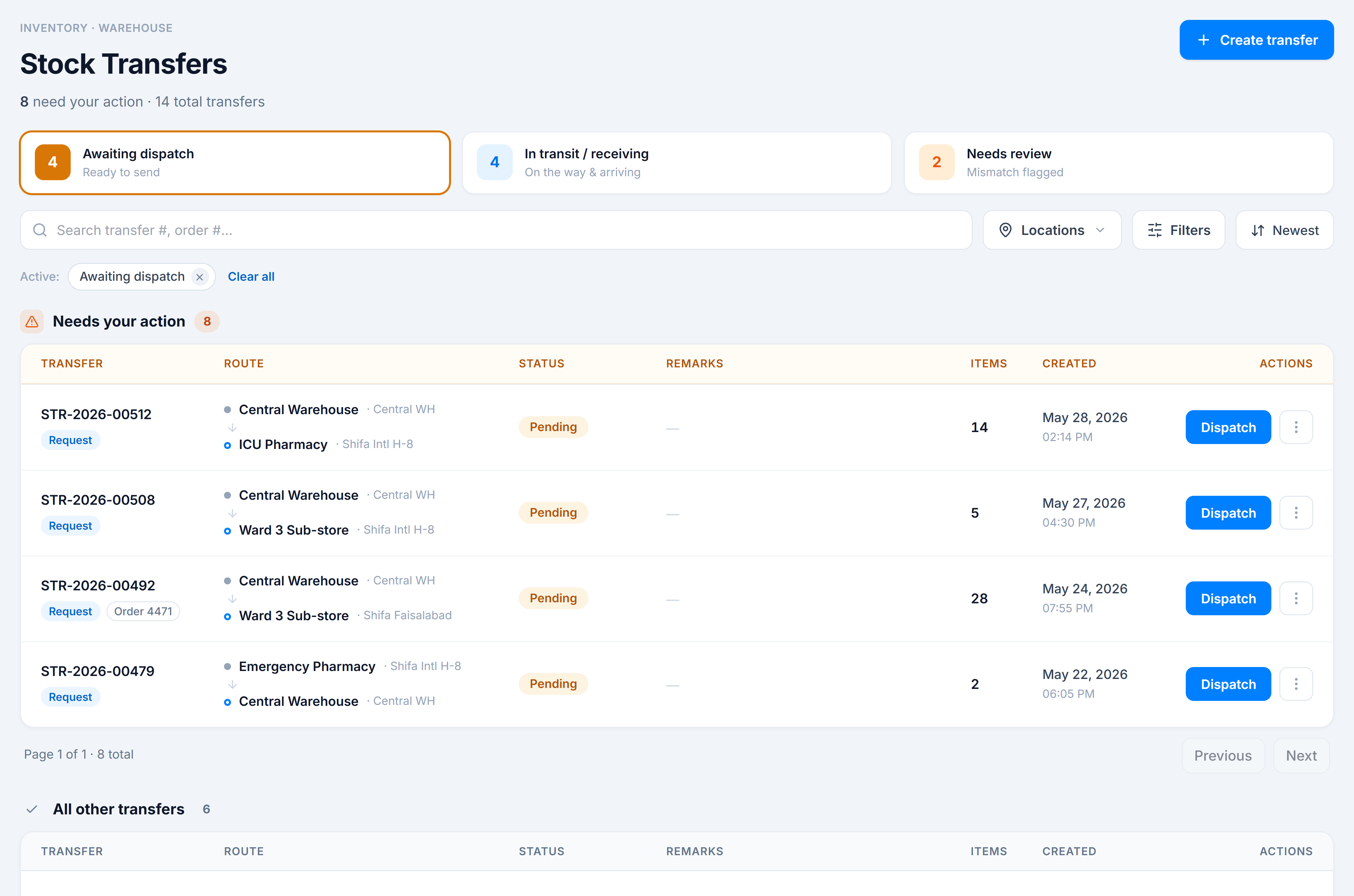
Click the pill again to clear it.
3. Narrow to a route
Click Locations, tick a Source warehouse (and/or a Destination), and press Done. Now you see only transfers on that route. Add a Created range under Filters if you want a tighter window. Each choice adds a removable chip.
4. Open one to act
Find a pending Request in Needs your action and click its Dispatch button — it opens the transfer so you can send it. (Back out without dispatching if you’re just exploring.) Try a row’s ⋮ menu too: View details always works, and Cancel transfer appears on pending rows.
5. Look one up in history
Scroll to All other transfers and page through it with its own Next — notice the top list stays exactly where it was. Search a transfer number to jump straight to it.
What you learned
- How the page splits open transfers from closed and paginates each independently.
- How the triage pills and filters narrow both lists fast.
- How a row’s action button leads you to the next step, access permitting.
Where to next
- The exact status→action rules: Statuses & sections.
- Every filter and column: Columns & filters.
- Why it’s built this way: Why Stock Transfers.