Submit for validation
When to use this: when every plan line is reviewed and you’re ready to check real stock availability. Requires auto_str.plan.submit.
Steps
- On Plan Review, confirm Pending counter is zero.
- Click Submit for validation. Button shows Validating… while the allocator runs.
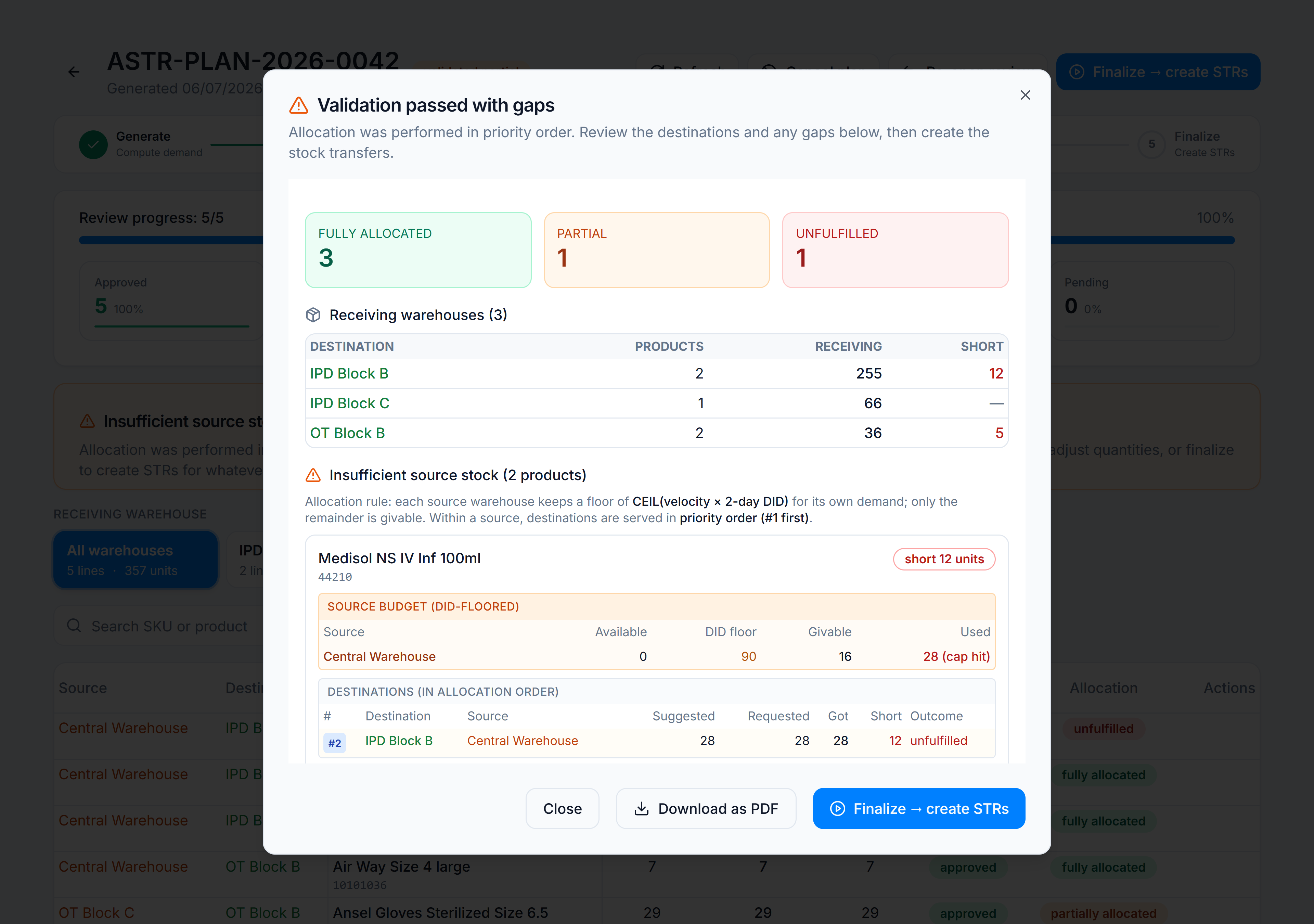
- The Validation Result dialog opens. Read:
- Fully / Partial / Unfulfilled line counts
- Per-destination receipt summary
- Gaps — products still short, with source breakdown and DID-floor budget
- Open POs already on order for short products
- Optionally click Download PDF for an offline validation report.
- If outcome is acceptable, click Finalize → create STRs from the dialog, or close and finalize later.
You’re done when
Plan status moves to validated_ok, validated_partial, or validated_failed. The timeline shows Preview.
If it goes wrong
- Submit for validation hidden — lines still pending_review, or you lack
auto_str.plan.submit. validated_failed— no lines could be allocated; reopen review or cancel the plan.