Create your first formulary brand group
You’ll end up with: a new medicine group, Ibuprofen / 400 mg / tablet, ready to submit, and a clear look at a group that is already waiting for approval. Time: about 10 minutes. Where: Catalog → Clinical → Formulary Brand Groups.
You need formulary.view to open the list and formulary.create to use Create FBG.
1. Open the library
Demo Pharmacy already has four groups. Paracetamol is approved and in use. Amoxicillin is waiting for an approver. You are about to add ibuprofen, which is not on the list yet.
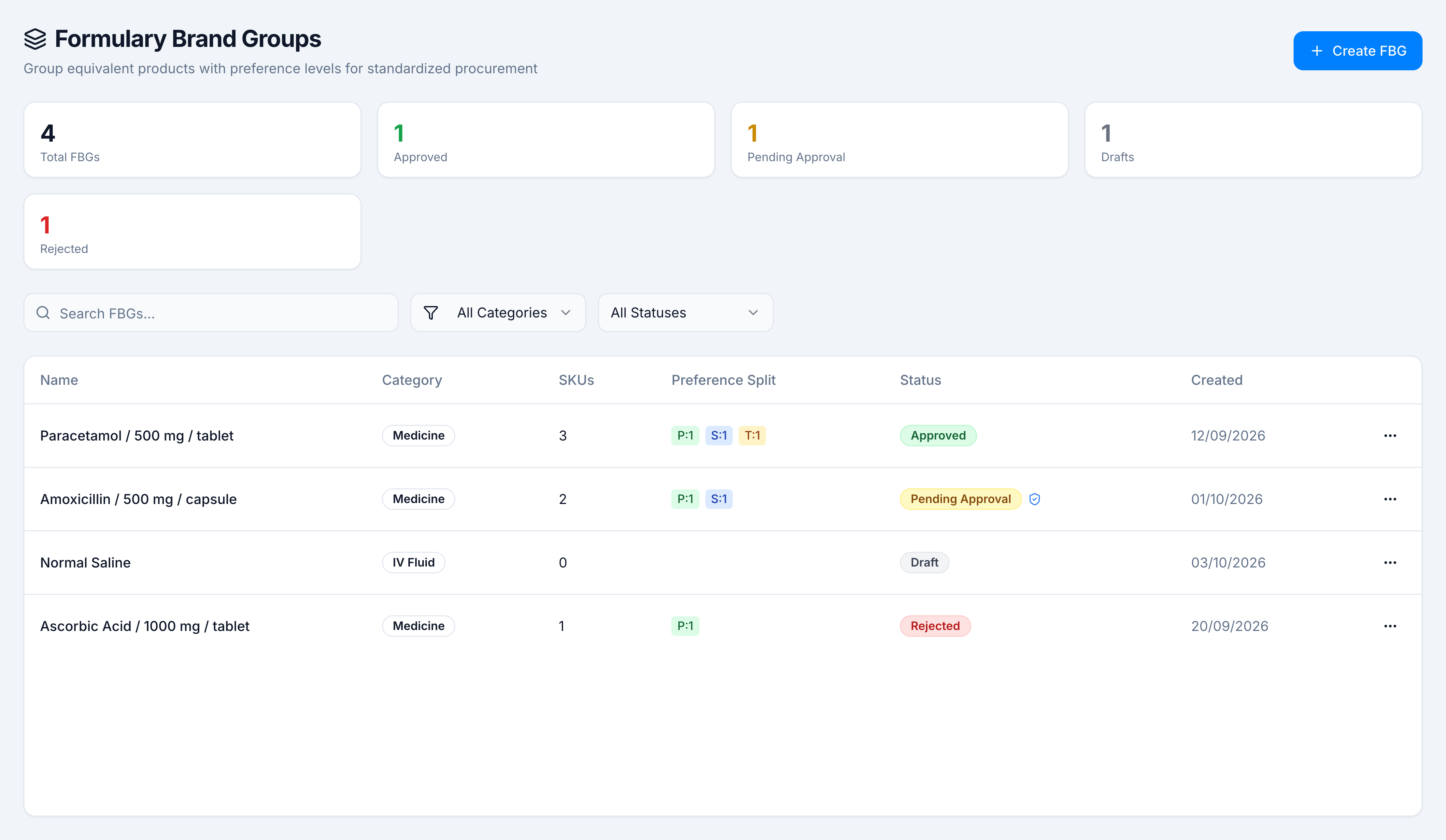
2. Choose Medicine
Create FBG opens New Formulary Brand Group. Step 1 asks which kind of product this group covers. Select Medicine. The card describes the identity you will set next: salt composition, strength, and dosage form.
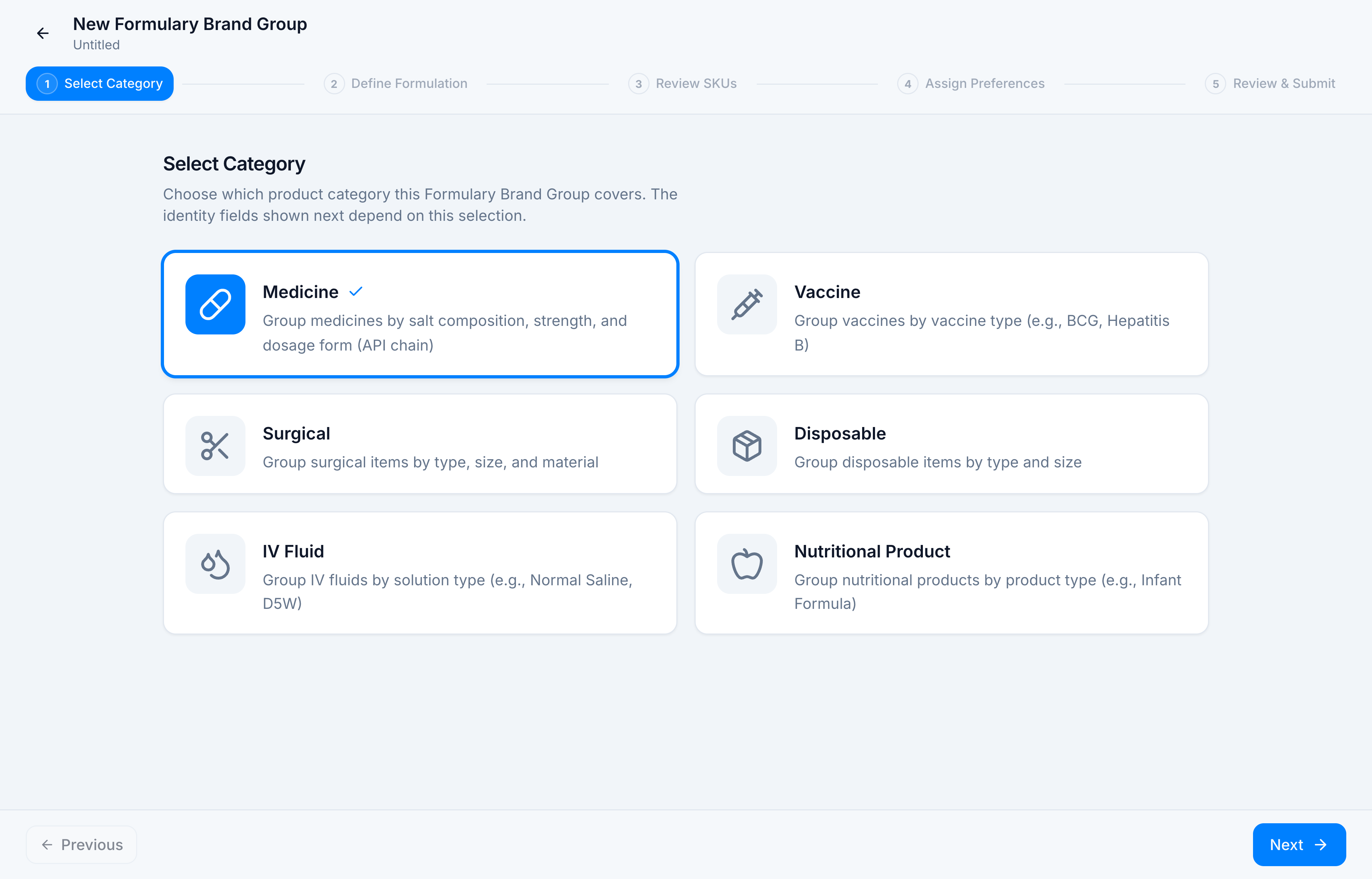
Click Next. The header still says Untitled until the formulation has a name. Save Draft appears from this step onward.
3. Take the formulation from the catalog
On Define Formulation, the right-hand card says Auto-fill from Catalog and 6 groups detected in your products. Click Browse all 6 groups.
The dialog is Suggested Formulary Groups. Ibuprofen is New. Paracetamol, Amoxicillin, Normal Saline, and Ascorbic Acid are Already Created, because those identities are already in the library.
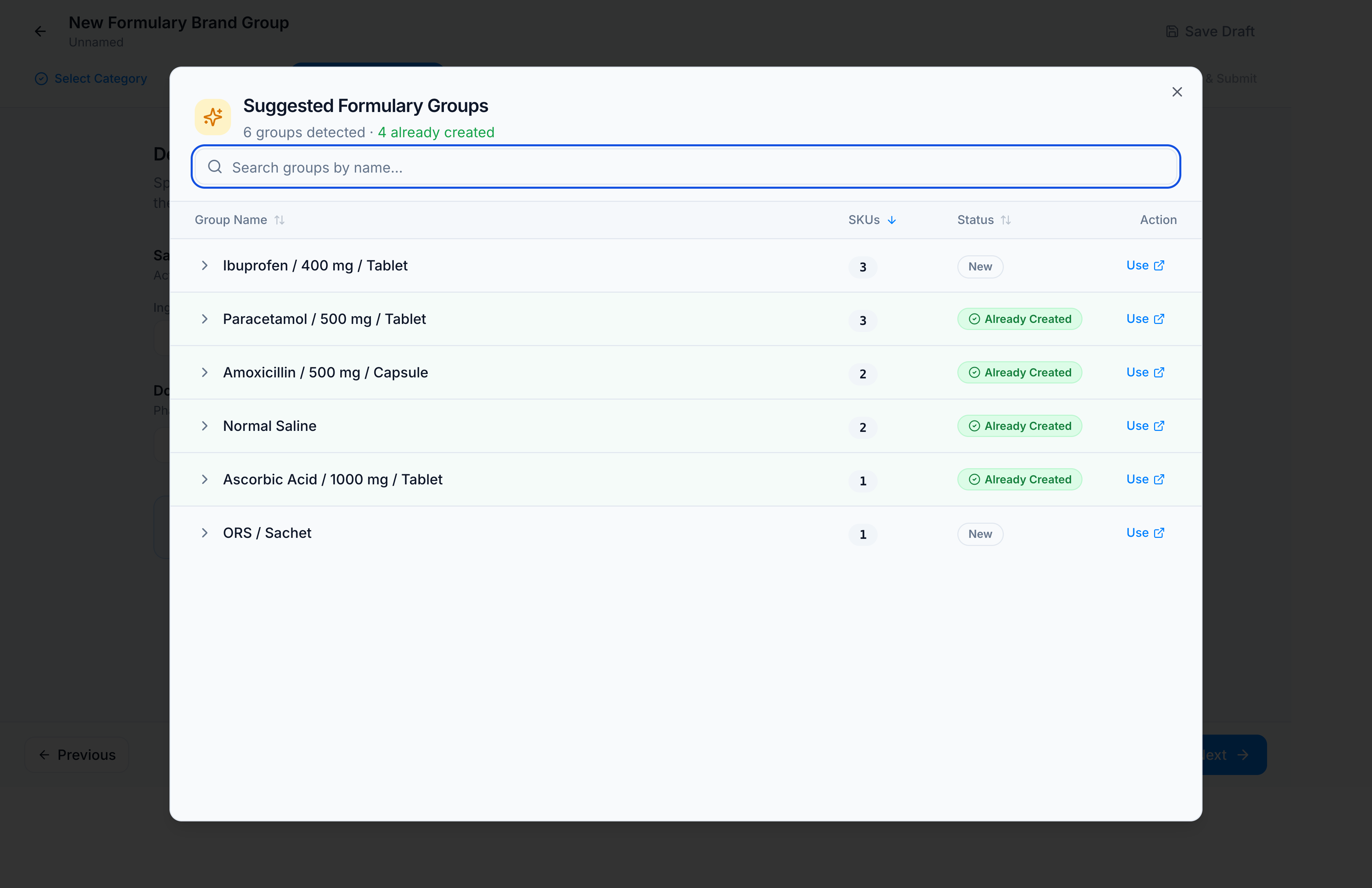
Click Use on Ibuprofen / 400 mg / Tablet. The dialog closes and the form fills in:
- Salt chip: Ibuprofen 400 mg
- Dosage form: Tablet
- Generated name: Ibuprofen / 400 mg / tablet
- The wizard subtitle changes from Untitled to that name
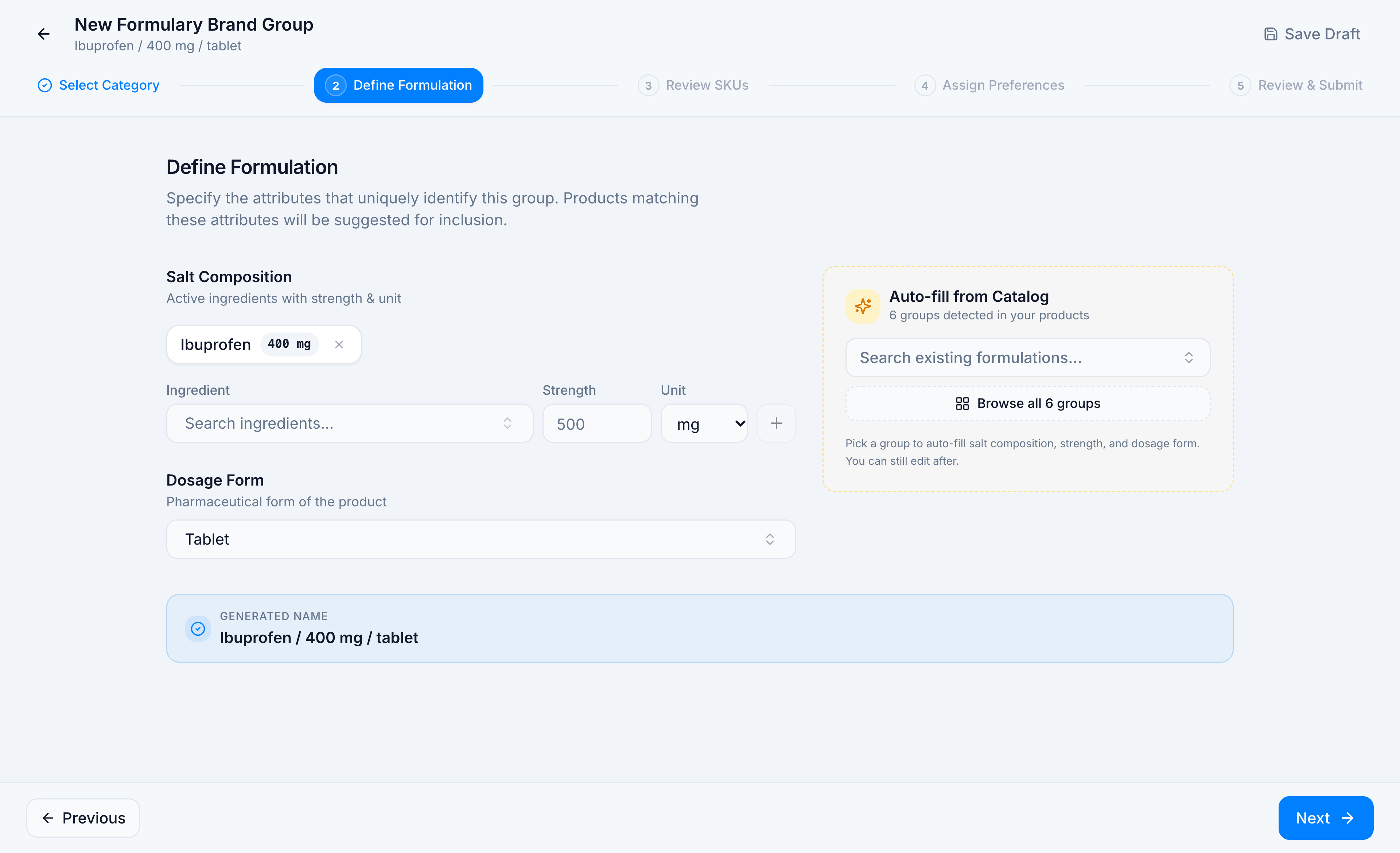
You can also type a salt yourself: Search ingredients…, set Strength and Unit, press +, then choose Dosage Form. Browse is the faster path when the catalog already knows the group.
Click Next.
4. Keep the matching products
Review Matched SKUs lists every catalog product with that identity. All three are selected: Demo Ibucare (Demo Medisource, Rs 95), Demo Ibuprofen (Demo Pharma, Rs 180), and Demo Ibuflex (Demo Wellness, Rs 120).
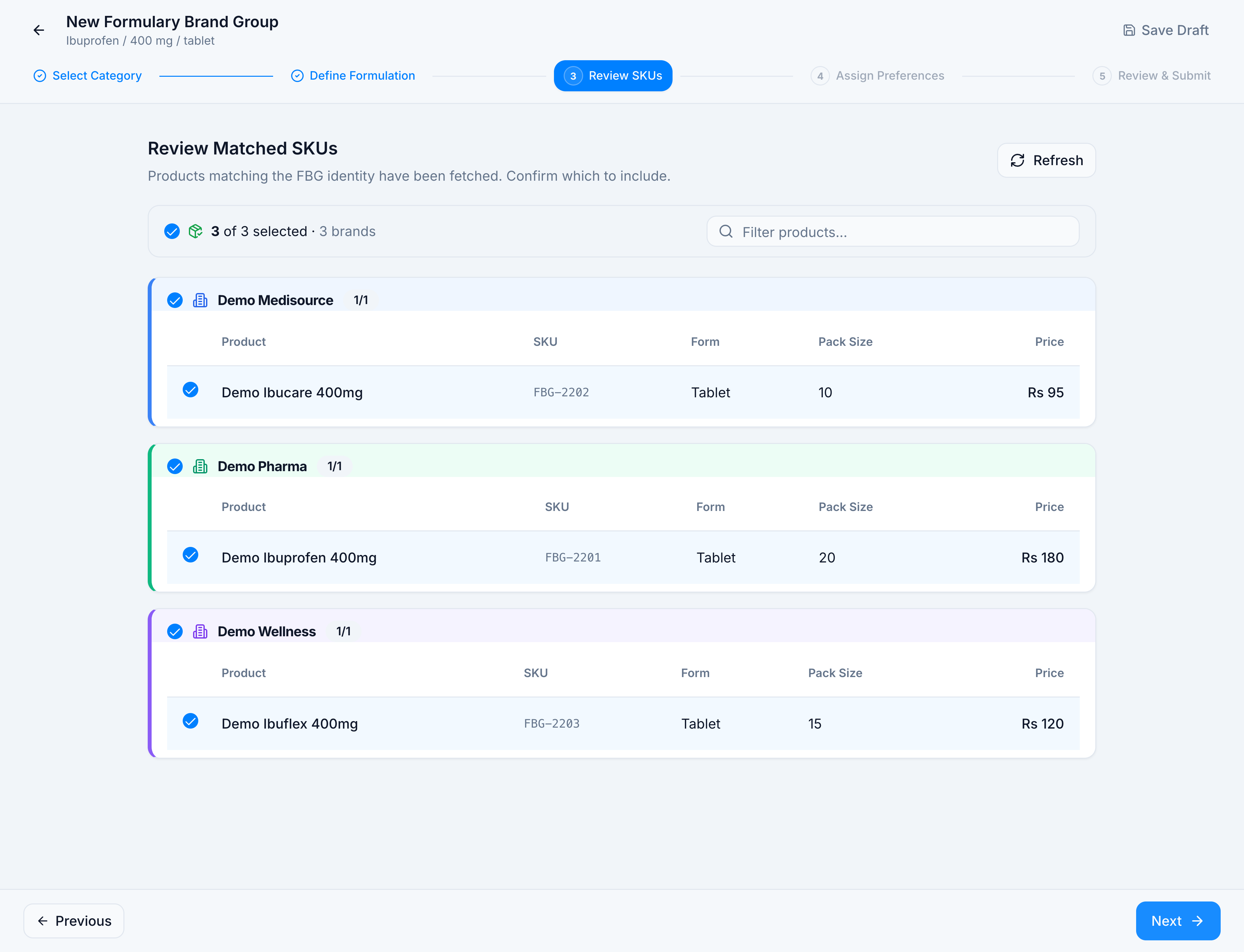
Click Next.
5. Rank the brands
Assign Preference Levels is where the buying order is set. The screen states the rule: the reorder engine prioritizes Primary, then Secondary, then Tertiary.
On Demo Pharmacy, set:
| Brand | Product | Preference |
|---|---|---|
| Demo Pharma | Demo Ibuprofen 400mg | Primary |
| Demo Medisource | Demo Ibucare 400mg | Secondary |
| Demo Wellness | Demo Ibuflex 400mg | Tertiary |
Use Set all on the brand card, or the Preference dropdown on the row. The pills should read Primary: 1, Secondary: 1, Tertiary: 1.
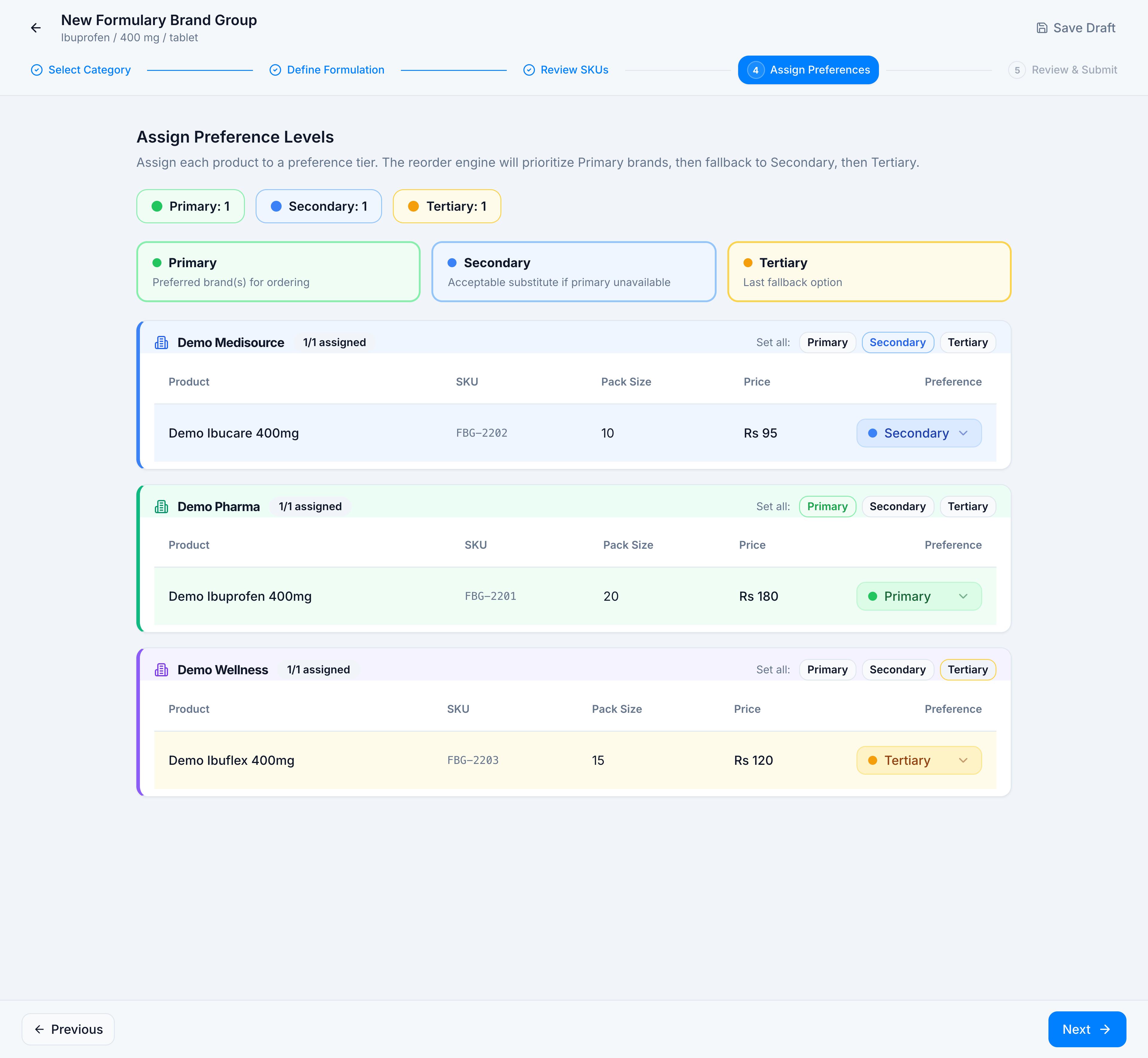
Click Next.
6. Read the summary
Review & Submit repeats the identity and the three assignments. The blue card, Approval Required, says what Submit for Approval does: the group goes through the Approval Center, and if no workflow is configured it is approved automatically.
Save Draft keeps the group without asking for approval. Submit for Approval sends it.
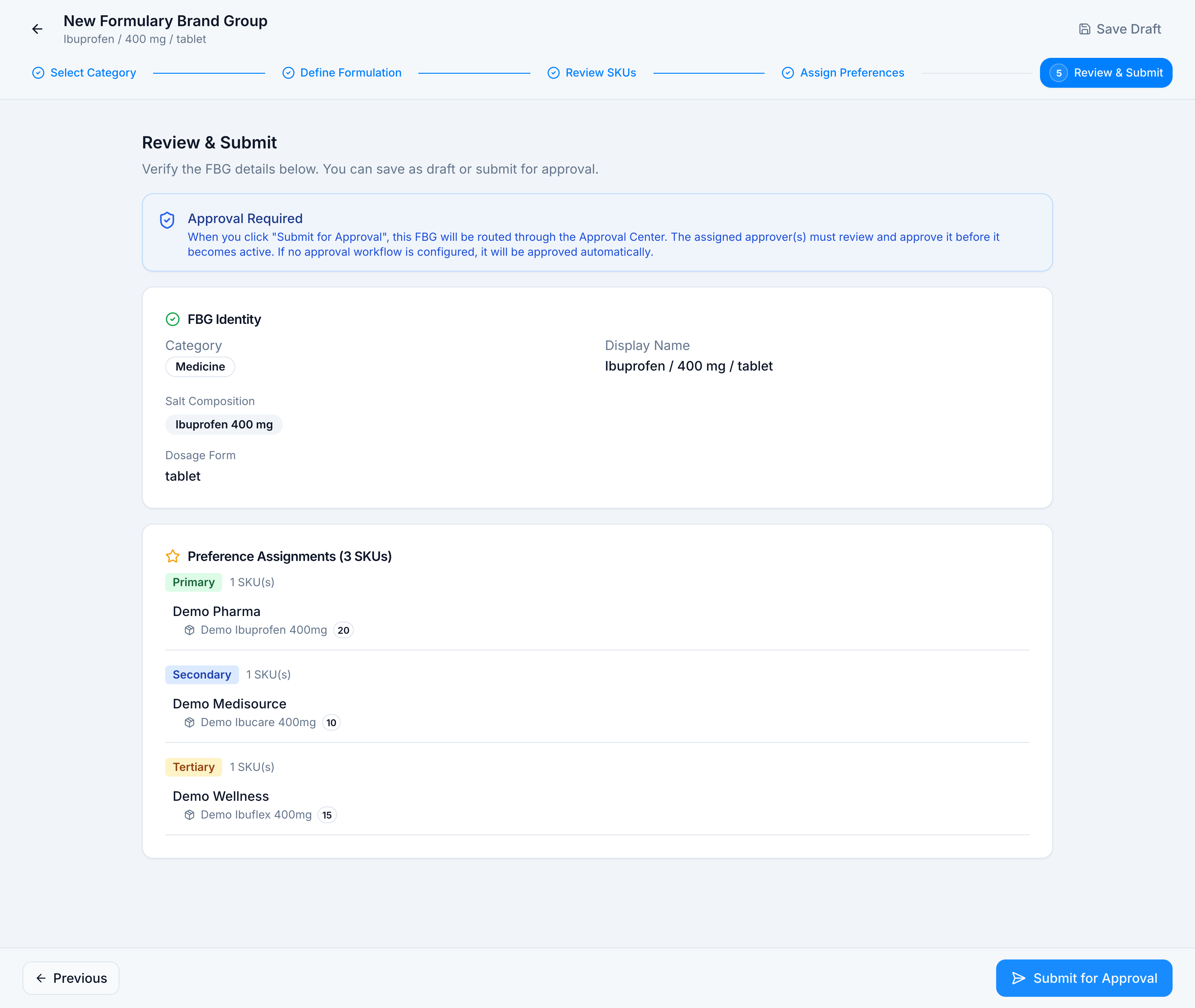
You have now prepared a complete group. Leave it here for this walkthrough — Amoxicillin is already waiting, and that is what the list looks like after a submit.
7. See a group that is waiting
Go back to the list and open Amoxicillin / 500 mg / capsule. The badge is Pending Approval. The header offers Reject and Approve. Edit and Delete are absent while it is waiting.
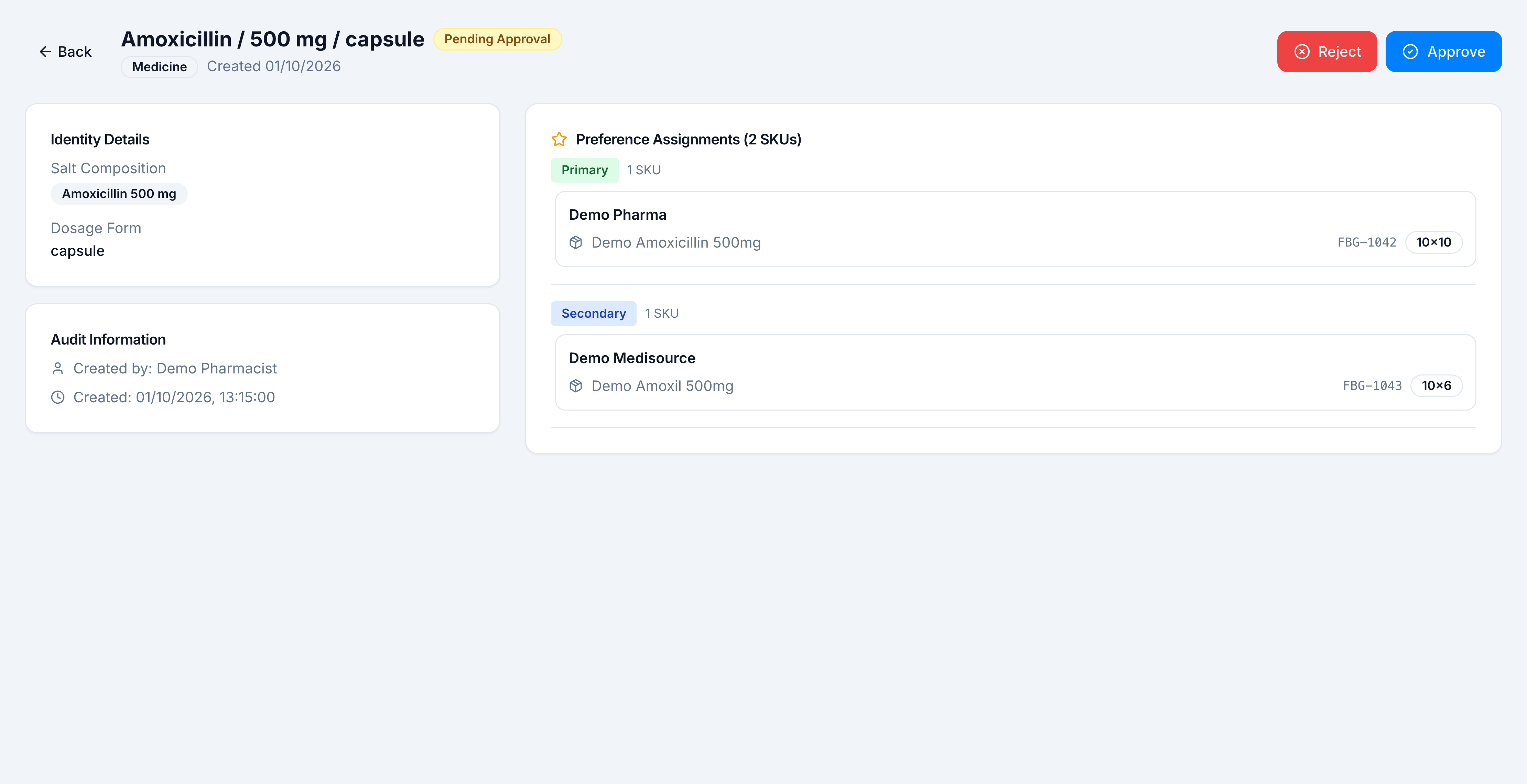
Approving this group is the last step of the same job. The confirm dialog says the group becomes active in the reorder engine. That flow is in Approve or reject a group.