Print a location label
When to use this: to put a scannable label on a physical shelf or bin so put-away and picking are a scan, not a typed code.
Steps
- Hover the row and click the QR (Print label) action.
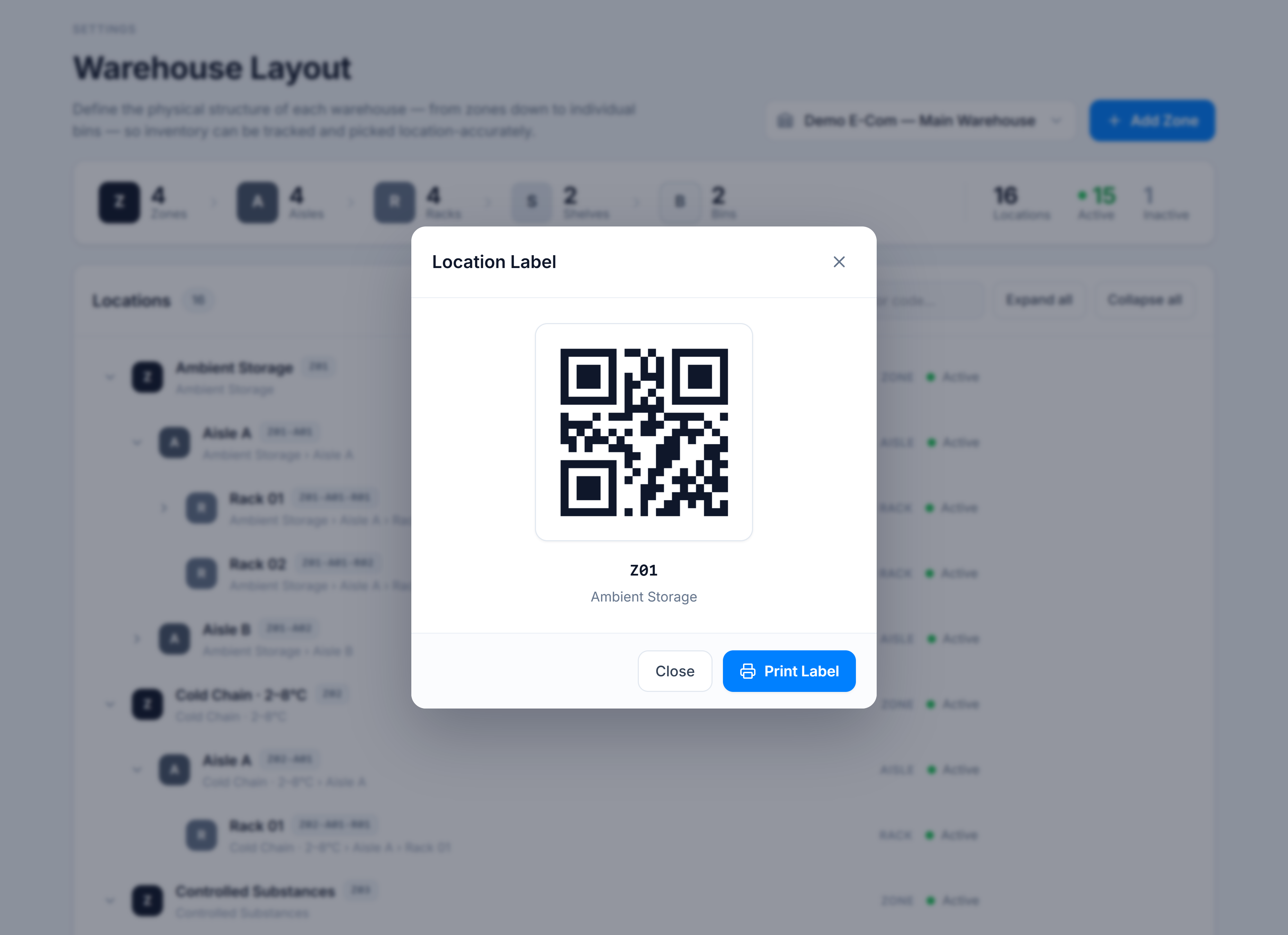
- The Location Label dialog shows a scannable QR code of the location’s code, with the code and full path beneath it.
- Click Print Label. A print-ready label opens and your browser’s print dialog appears — choose your label printer and print.
You’re done when
The printed label scans to the location’s code (e.g. Z01-A01-R01-S01-B01).
Good to know
- The QR encodes the location code, so any scanner that reads the code lands on the exact spot.
- The dialog also shows the full path (e.g. Ambient Storage › Aisle A › Rack 01) so you can confirm you’re labelling the right location before printing.