Add a supplier
Goal: add a new supplier to the directory. Where: Suppliers → Add New Supplier (
/wms/suppliers/new).
When you’d do this
A new manufacturer, distributor, or wholesaler starts supplying your pharmacy and you need them on file before raising purchase orders or GRNs.
Steps
- Open Replenish Stock → Suppliers → Suppliers.
- Click Add New Supplier.
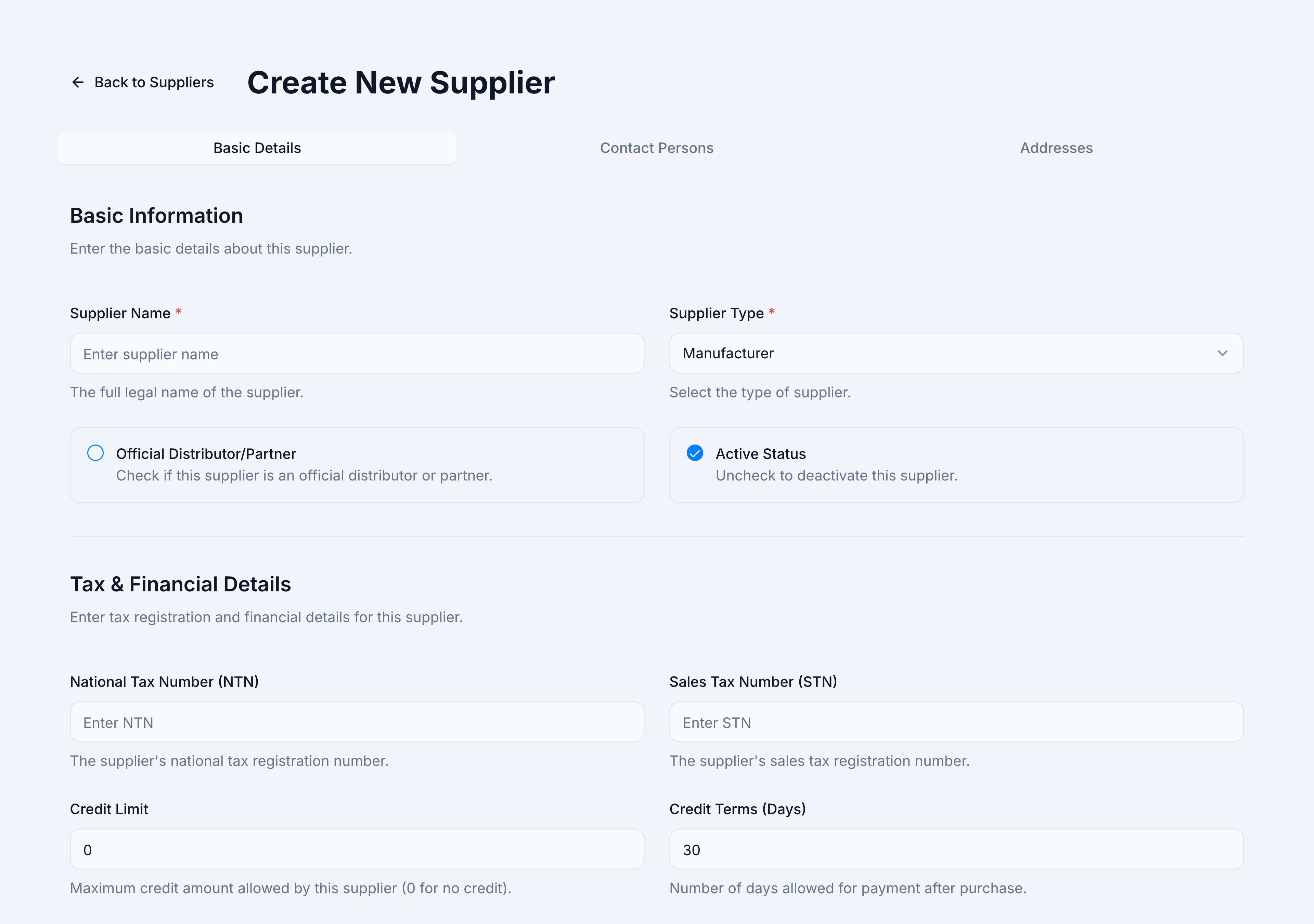
- Complete Basic Information:
- Supplier Name (required) — legal/trade name.
- Supplier Type (required) — Manufacturer, Distributor, Wholesaler, Importer, Local, or Other.
- Official Distributor/Partner — optional checkbox.
- Active — leave on unless the vendor is archived.
- Fill Tax & credit as needed: NTN, STN, Credit Limit, Credit Terms (days).
- Click Save Supplier (or the profile manager’s save action).
- After save, add contacts and addresses on the tabs below the form.
Success looks like
A toast “Supplier created” appears and you remain on the profile page to add contacts. The supplier appears on the list with an Active status pill.
If it goes wrong
| Message | Cause | Fix |
|---|---|---|
| ”Name already in use” / unique constraint | Another supplier has the same name in this tenant | Use a distinct name or edit the existing record |
| ”Failed to create supplier” | Network or permission error | Confirm supplier.manage permission; retry |
| ”No tenant ID found” | Tenant context missing | Re-select your tenant / store context and retry |