Put away after a receipt
You have just posted a goods receipt. Several batches still have no bin. This tutorial walks you through putting them away in expiry order.
1. Open Put-Away and set context
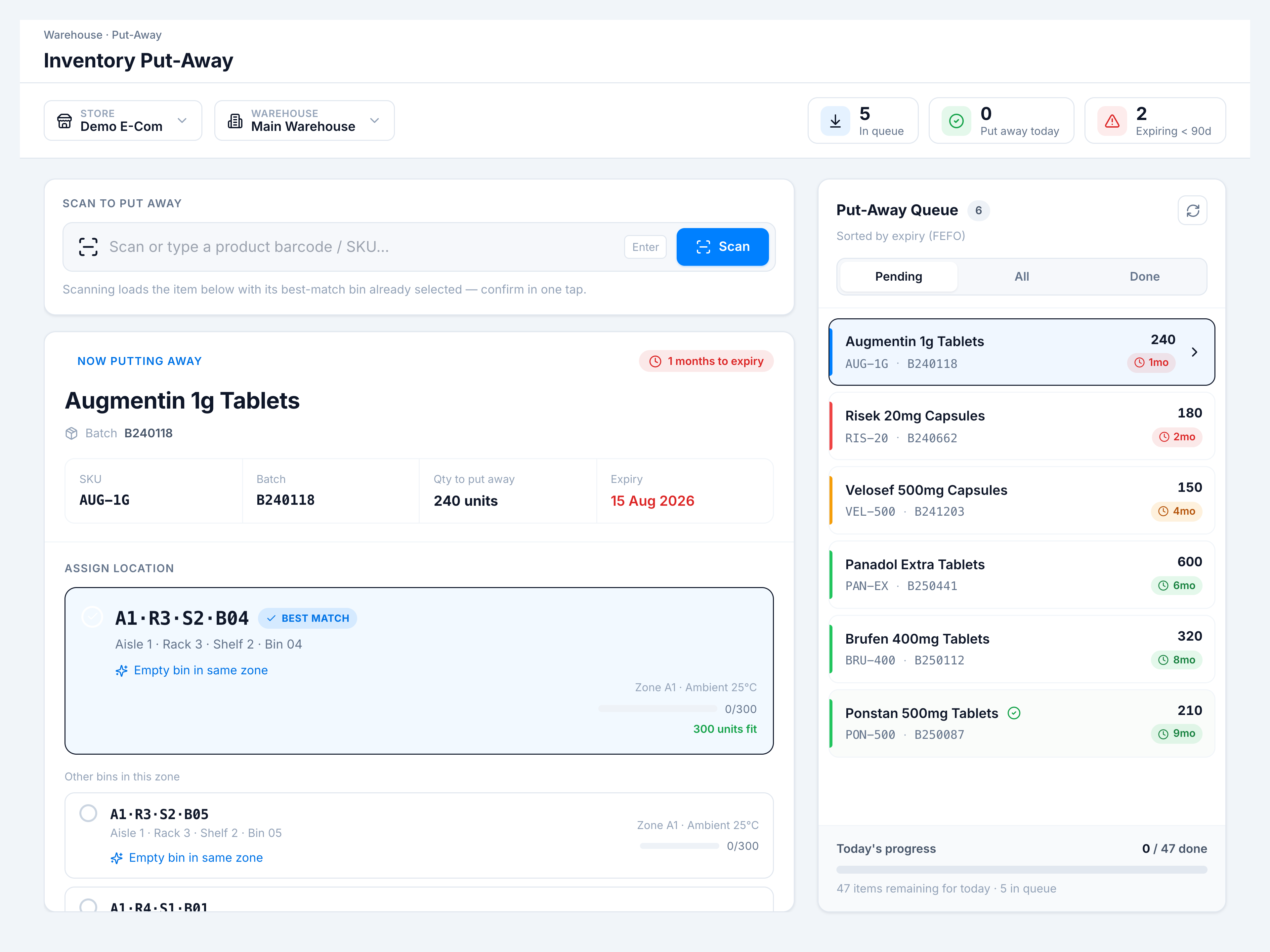
Go to Inventory → Stock Control → Inventory PutAway. In the context bar, choose the store and warehouse where the receipt landed. The KPI chips show In queue, Put away today, and lines Expiring < 90d.
2. Scan or pick the first pending line
Use Scan to put away (barcode, SKU, or batch) or click the top row in Put-Away Queue (sorted FEFO). The left panel shows Now putting away with SKU, batch, qty, and expiry.
3. Confirm the best-match bin
The Best match card is pre-selected when the same SKU already lives in that bin or zone. Review occupancy, pick an alternative if needed, then click Confirm & Put Away · <bin code>.
Success toast: Put away to <bin code>.
4. Work the queue
The queue advances to the next FEFO line. Repeat scan/confirm until Queue clear appears or switch to Done to audit completed lines.
You have now put away a full receipt batch using scan-first, one-tap confirm.