Create your first package
Product bundles simplify counter sales — staff sell one package SKU instead of ringing up each item separately. This tutorial walks through reviewing library health, finding an existing package, and creating a new bundle with custom pricing.
1. Open Package Products and read the KPIs
Go to Catalog → Products → Package Products. The four KPI cards show Total packages, Active bundles, Avg items / package, and Total bundle value.
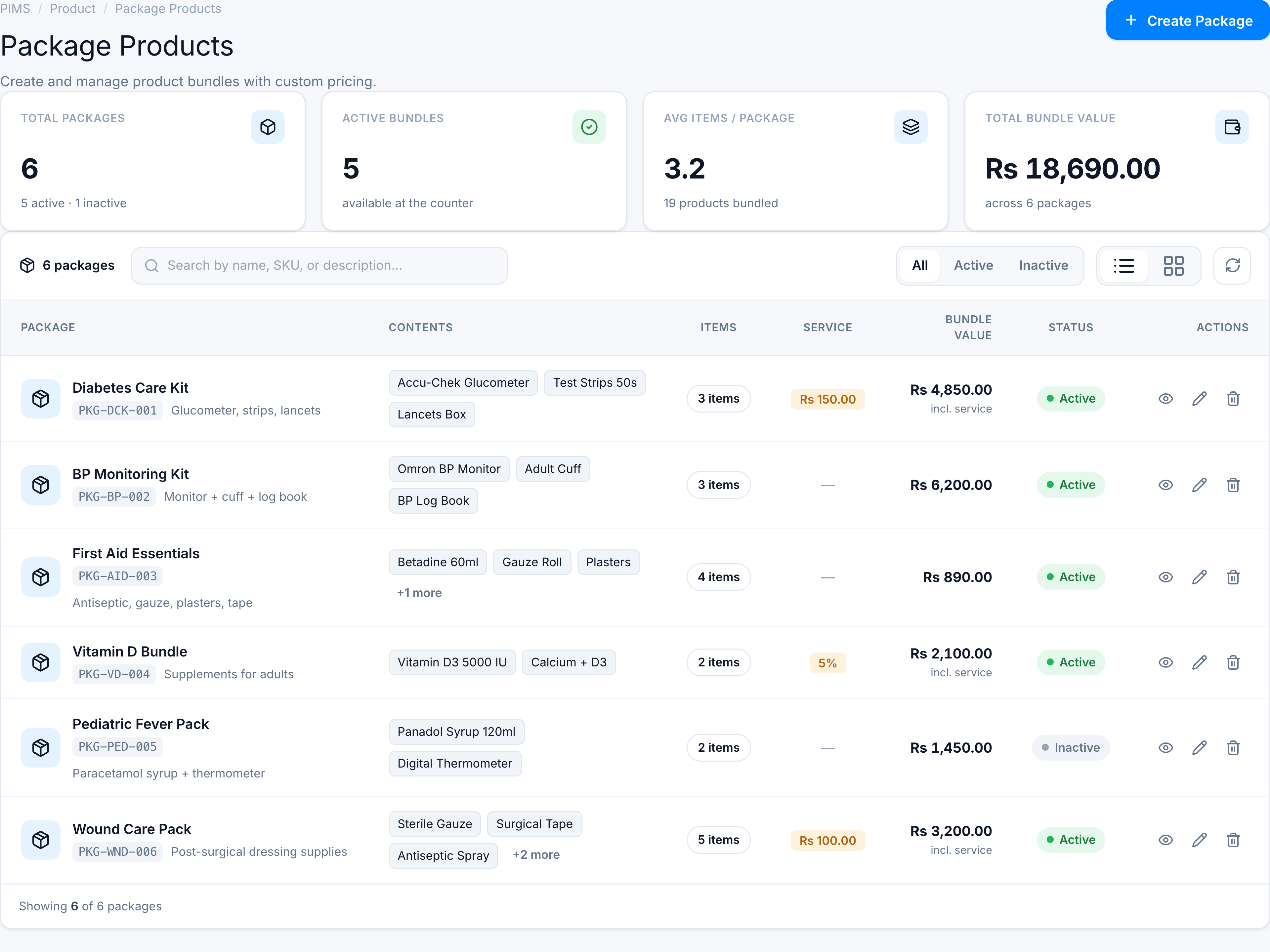
2. Search for a package
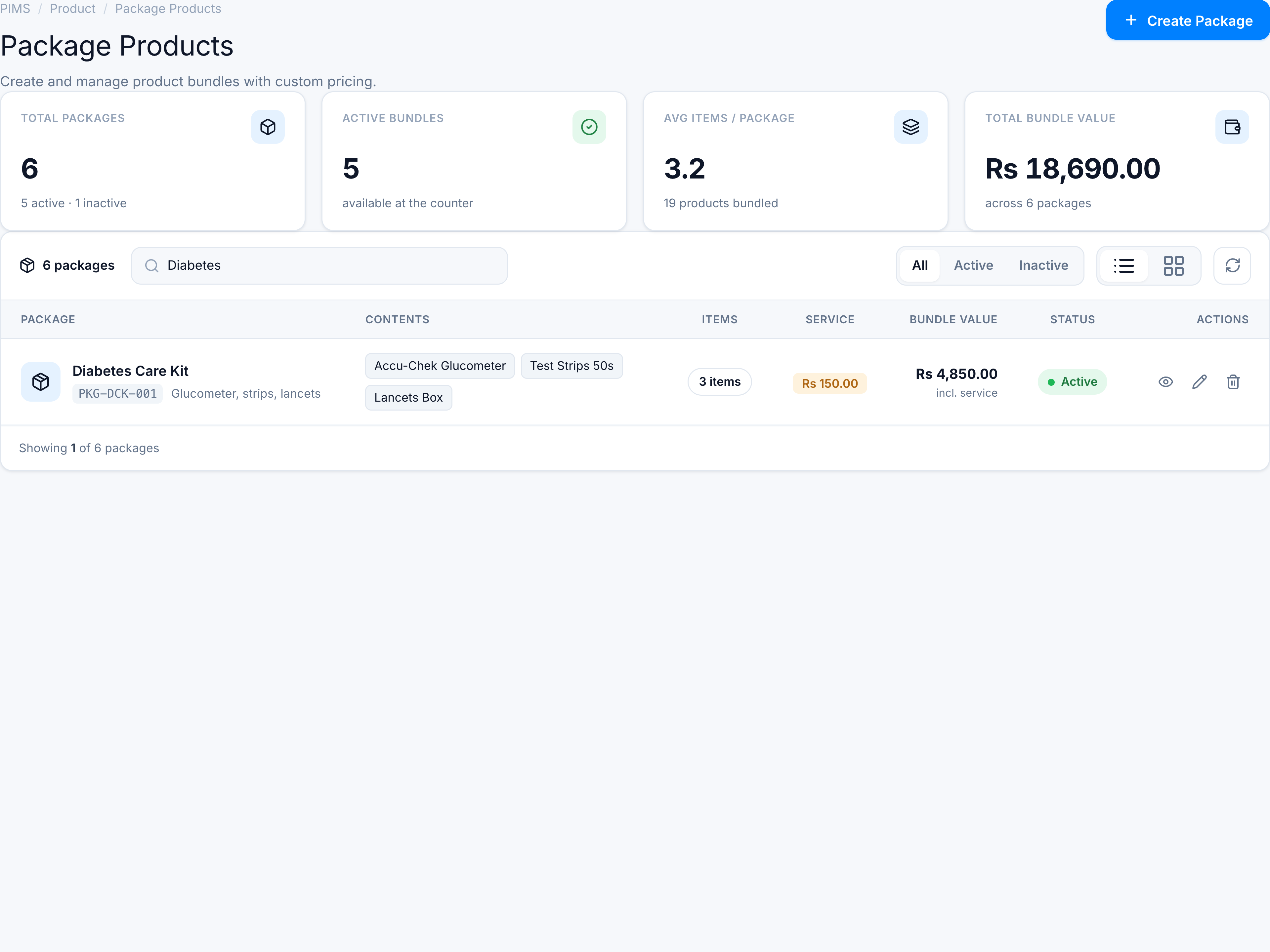
Type in the search box (e.g. Diabetes). Matching rows filter by name, SKU, and description. Use All, Active, or Inactive tabs to narrow by status.
3. Create a new package
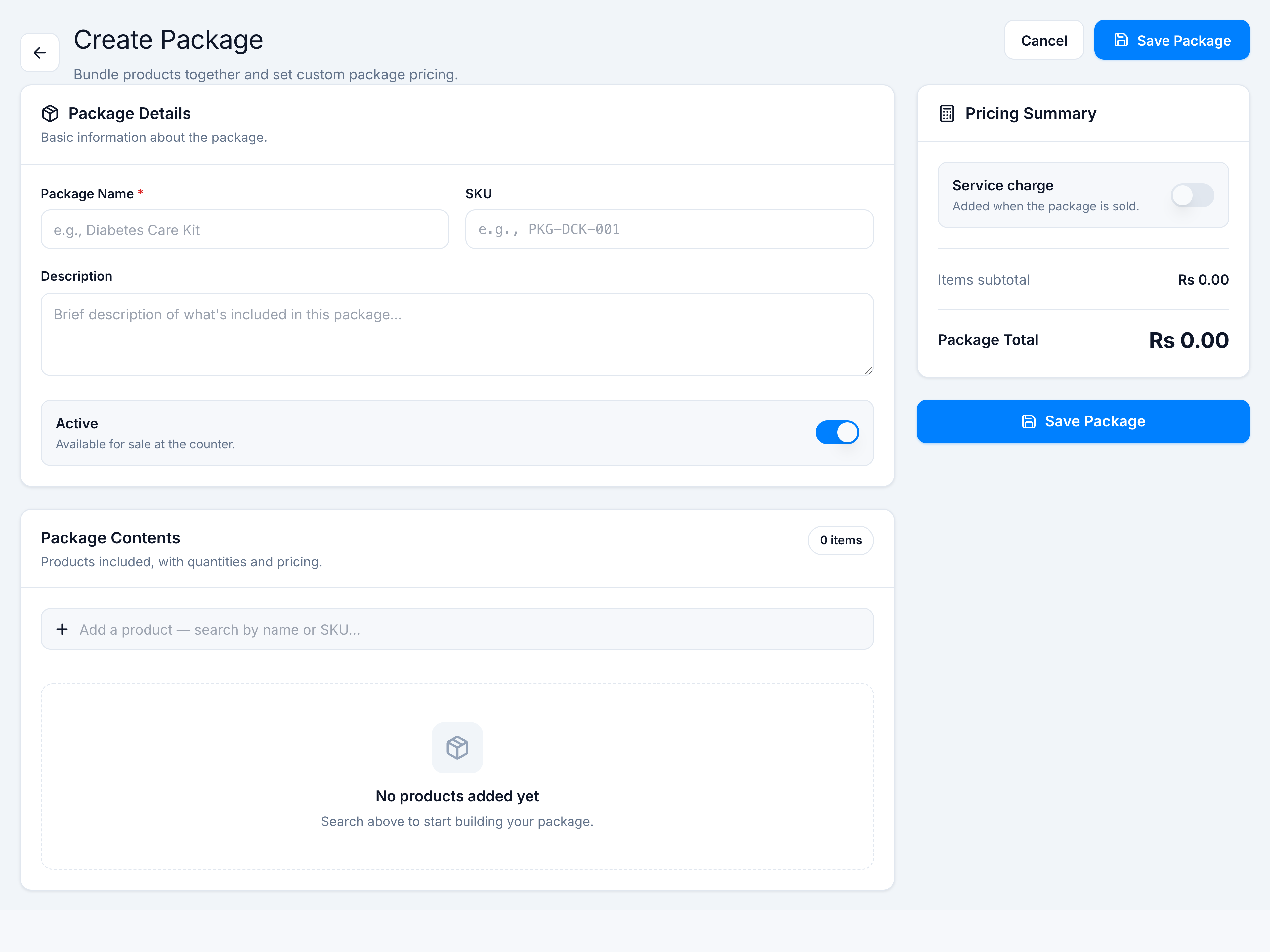
Click Create Package. Enter Package Name, optional SKU and Description, and confirm Active is on. The sticky Pricing Summary sidebar shows running totals as you add products.
4. Add products and set pricing
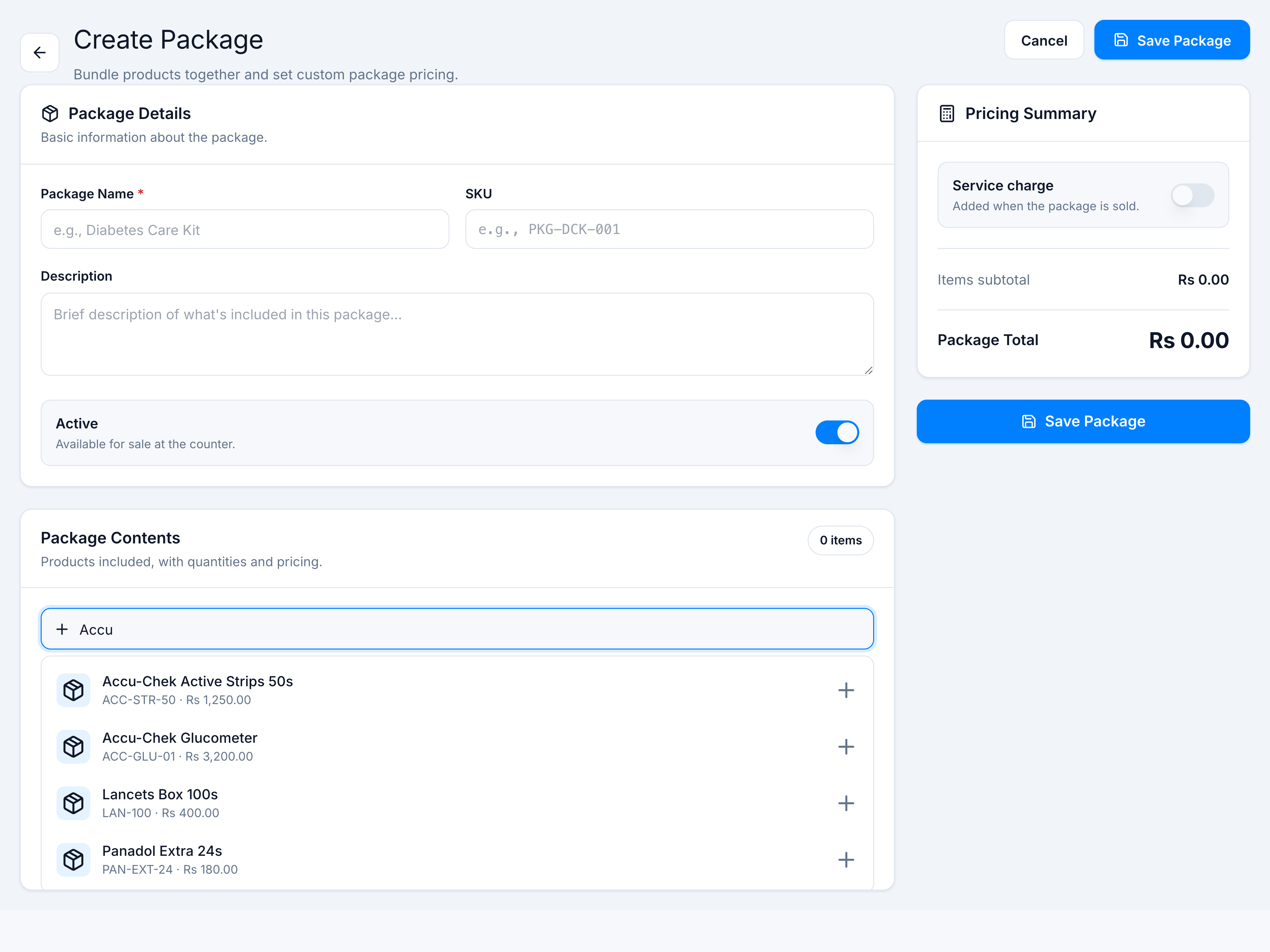
In Package Contents, search for products by name or SKU. Click a result to add it. Adjust Qty and Pricing (retail price or custom %/Rs adjustment). Toggle Service charge in the sidebar if needed, then click Save Package.
Success toast confirms creation. The new row appears in the list with contents chips, item count, and bundle value.
You have now reviewed library health, searched packages, and created a bundled product with custom pricing.