Maintain your ingredient library
Your pharmacy needs a clean ingredient library so products inherit the right regulatory flags. This tutorial walks you through reviewing the catalog, finding an existing API, and adding a new one.
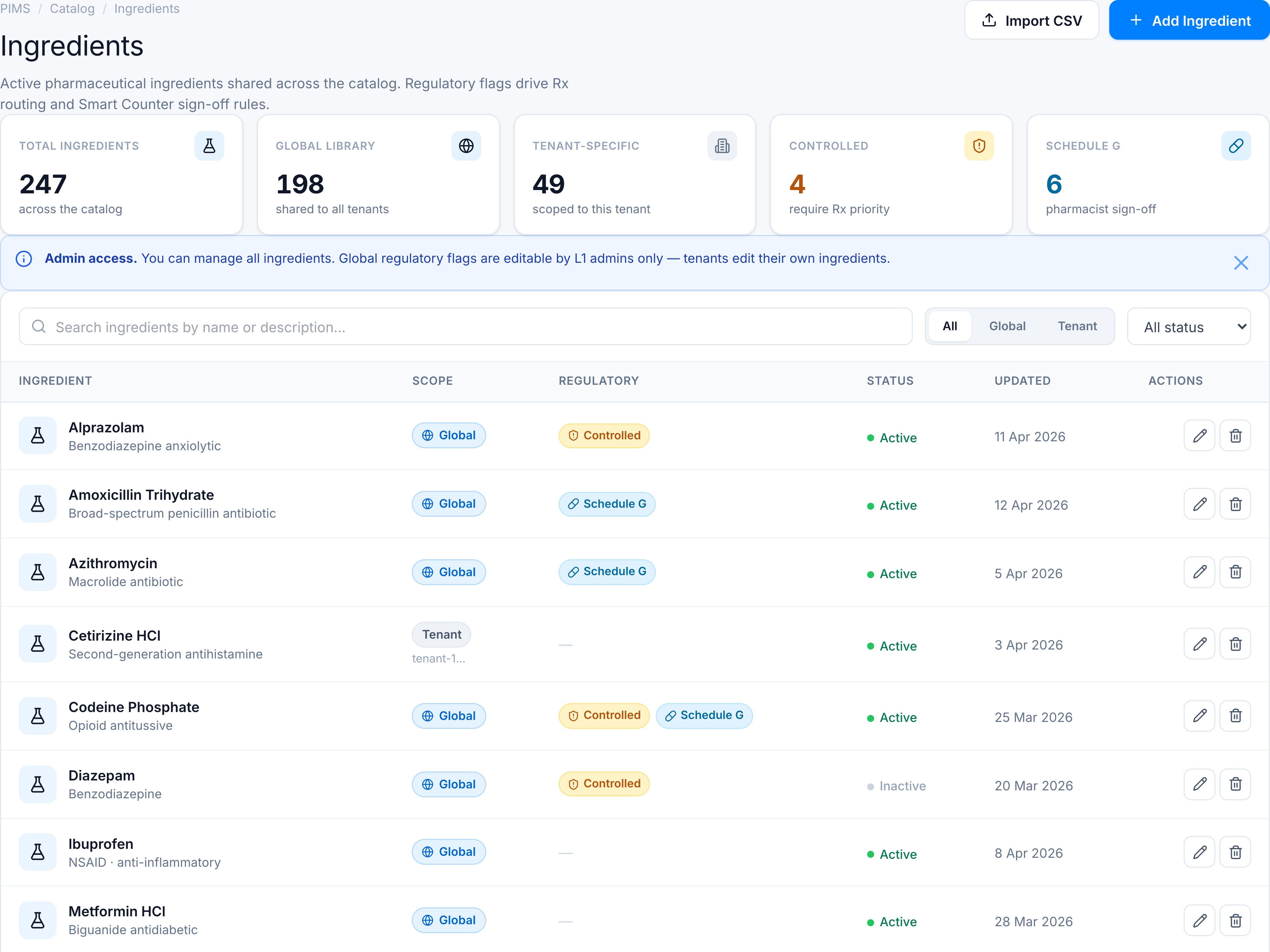
1. Open Ingredients and read the KPIs
Go to Catalog → Classification → Ingredients. The five KPI cards show Total ingredients, Global library, Tenant-specific, Controlled, and Schedule G counts. L1 admins see a dismissible Admin access notice explaining global edit rights.
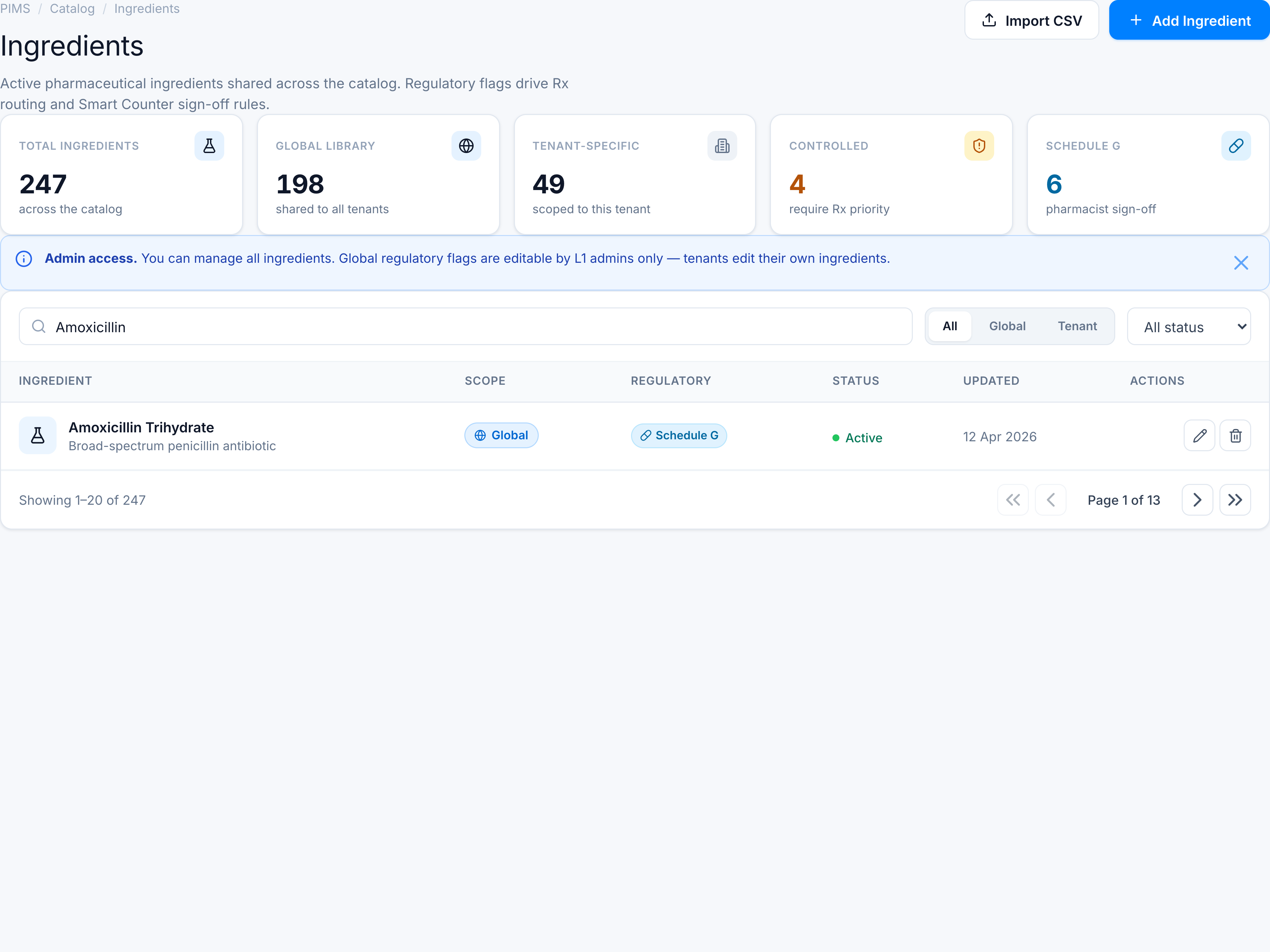
2. Search for an existing ingredient
In the table toolbar, type a name (e.g. Amoxicillin) in Search ingredients by name or description…. Matching rows filter instantly. Use All / Global / Tenant tabs or the status dropdown to narrow further.
3. Add a new ingredient
Click Add Ingredient in the page header. Fill Name and Description, set Active, and toggle Controlled substance or Schedule G if applicable. L1 admins can mark an ingredient as Global so all tenants inherit it.
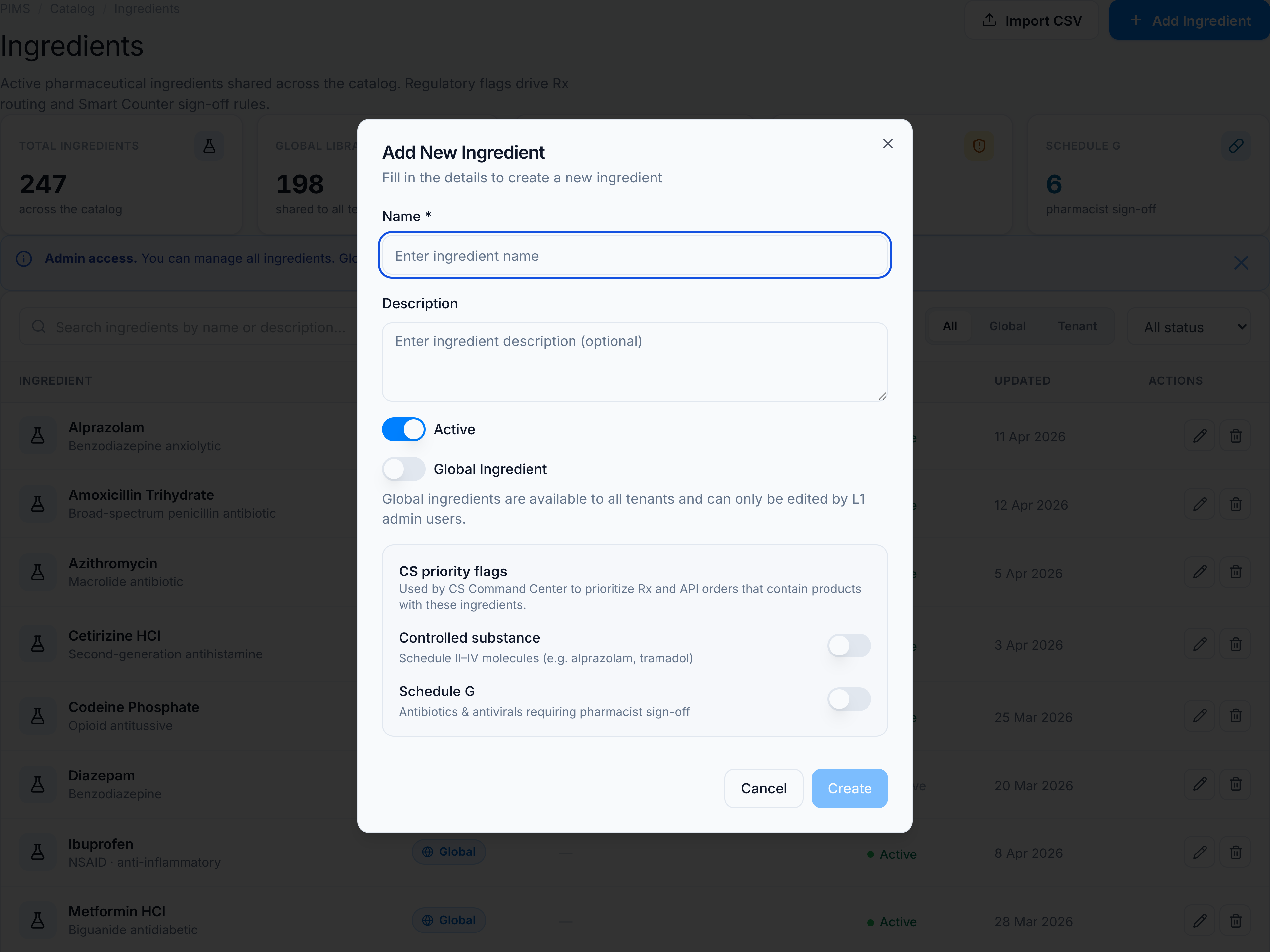
Click Save. Success toast: Ingredient created successfully. The new row appears in the table with the correct scope pill and regulatory badges.
You have now reviewed library health, searched the catalog, and added an ingredient with the right flags.