Assign preference levels
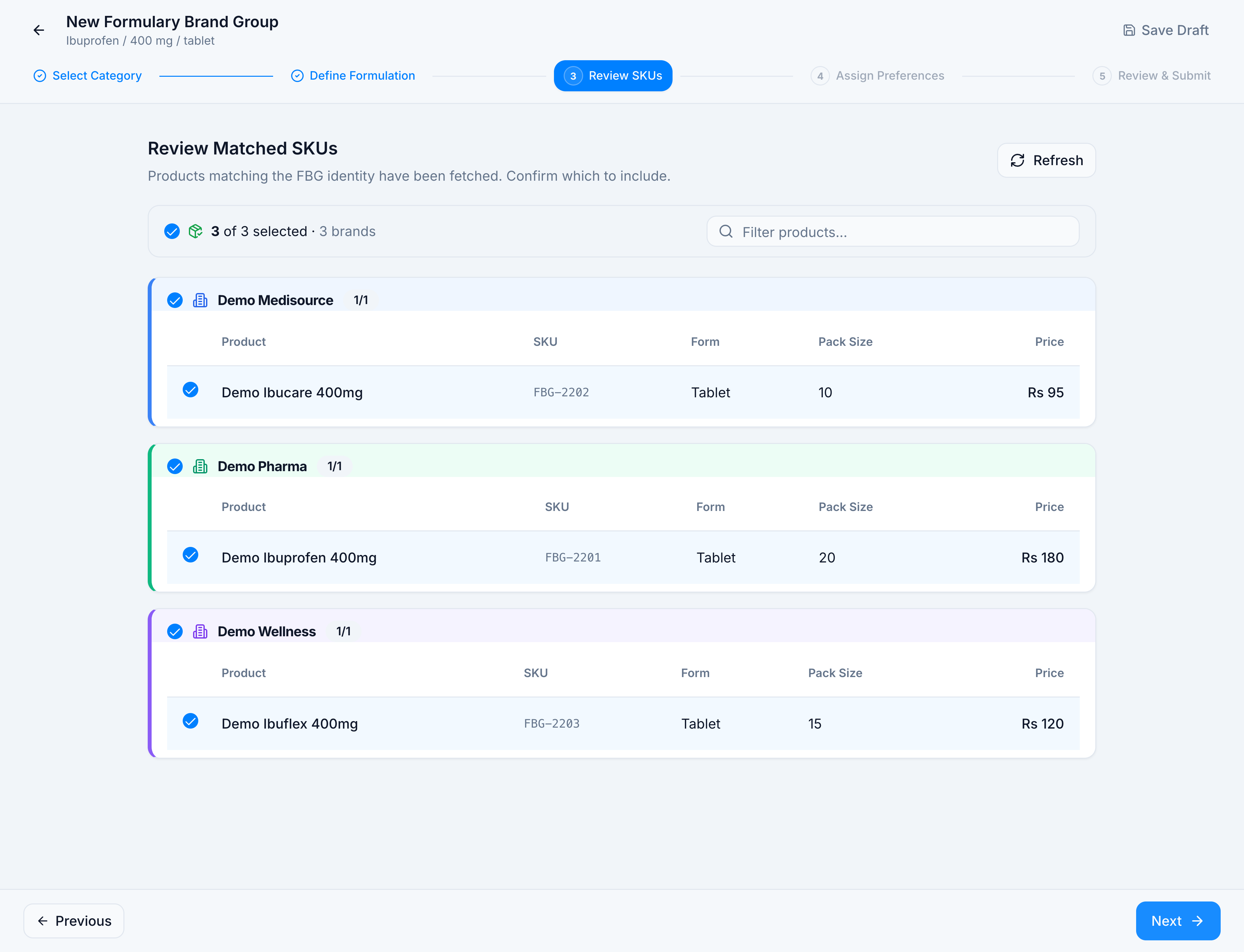
Goal: tell procurement which brand to buy first. Where: step 4 of Create FBG, Assign Preferences. The same step appears when you edit a draft, a rejected group, or an approved group.
Only products you left selected on Review Matched SKUs appear here.
What the three levels mean
| Level | On screen | Use it for |
|---|---|---|
| Primary | Preferred brand(s) for ordering | The brand you want bought |
| Secondary | Acceptable substitute if primary unavailable | The first fallback |
| Tertiary | Last fallback option | The brand you accept only when the others are out |
The step states that the reorder engine prioritizes Primary, then Secondary, then Tertiary. A group with assignments and no Primary shows a warning on Review & Submit: the reorder engine needs at least one Primary SKU.
Steps
- Reach Assign Preference Levels with the products you want in the group.
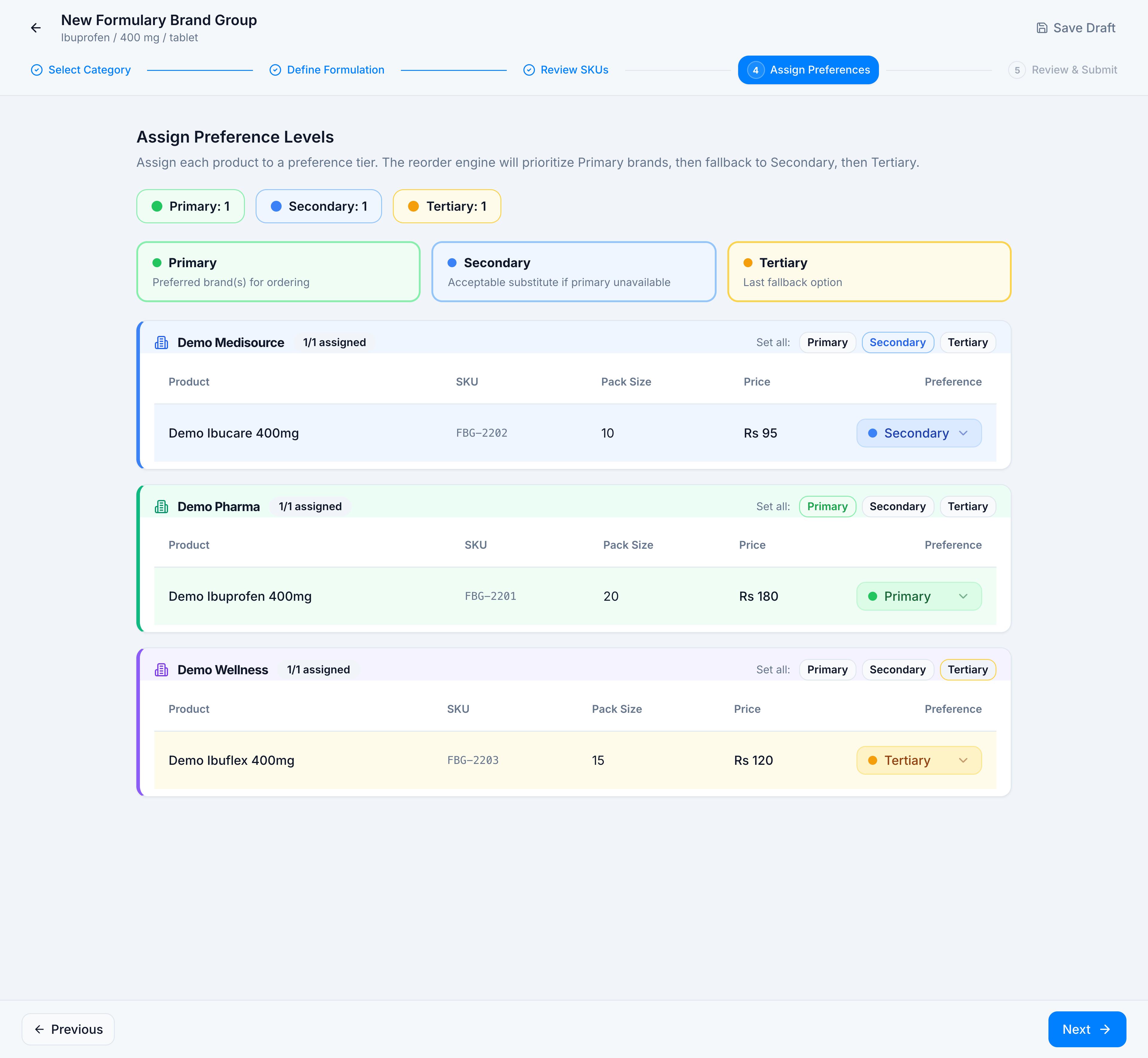
- On a brand card, click Set all and choose Primary, Secondary, or Tertiary. That sets every product of that brand.
- Or open the Preference dropdown on a single row and pick one level.
- Watch the pills. For the ibuprofen example they read Primary: 1, Secondary: 1, Tertiary: 1, and each card reads 1/1 assigned.
| Brand | Product | SKU | Pack | Price | Level |
|---|---|---|---|---|---|
| Demo Pharma | Demo Ibuprofen 400mg | FBG-2201 | 20 | Rs 180 | Primary |
| Demo Medisource | Demo Ibucare 400mg | FBG-2202 | 10 | Rs 95 | Secondary |
| Demo Wellness | Demo Ibuflex 400mg | FBG-2203 | 15 | Rs 120 | Tertiary |
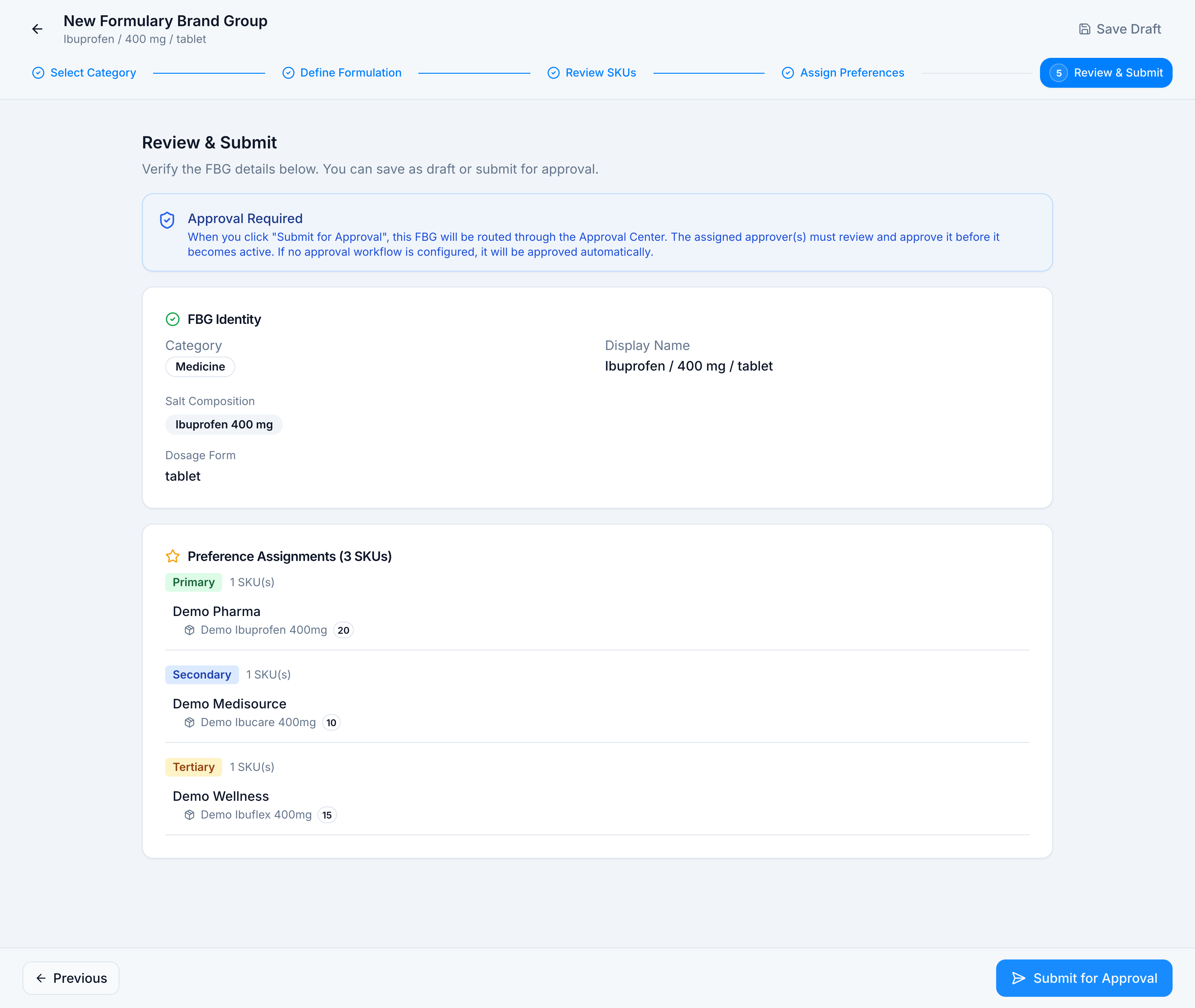
- Click Next. Review & Submit lists the same ranking under Preference Assignments (3 SKUs).
You can continue with products still unassigned. They are omitted from the group. A grey Unassigned pill counts them while any remain.